---
title: Installation
description: A complete walkthrough of purchasing, installing, and activating NotifyBay on your WooCommerce store.
---
Installing NotifyBay is a straightforward process. Because NotifyBay is a premium, high-performance suite, it is currently available exclusively through our official website.
## Step 0: Purchase & Download
Before you can install the plugin, you must have a valid copy of the NotifyBay `.zip` file.
1. Visit [NotifyBay.com](https://notifybay.com) and complete your purchase.
2. Log into your **Customer Dashboard** on our site.
3. Download the latest version of the plugin (e.g., `notifybay.zip`).
4. Keep this file on your computer—you will need it for the next step.
---
## Step 1: Upload to WordPress
1. Log into your WordPress admin dashboard.
2. Navigate to **Plugins > Add New Plugin**.
3. Click the **Upload Plugin** button at the top of the page.
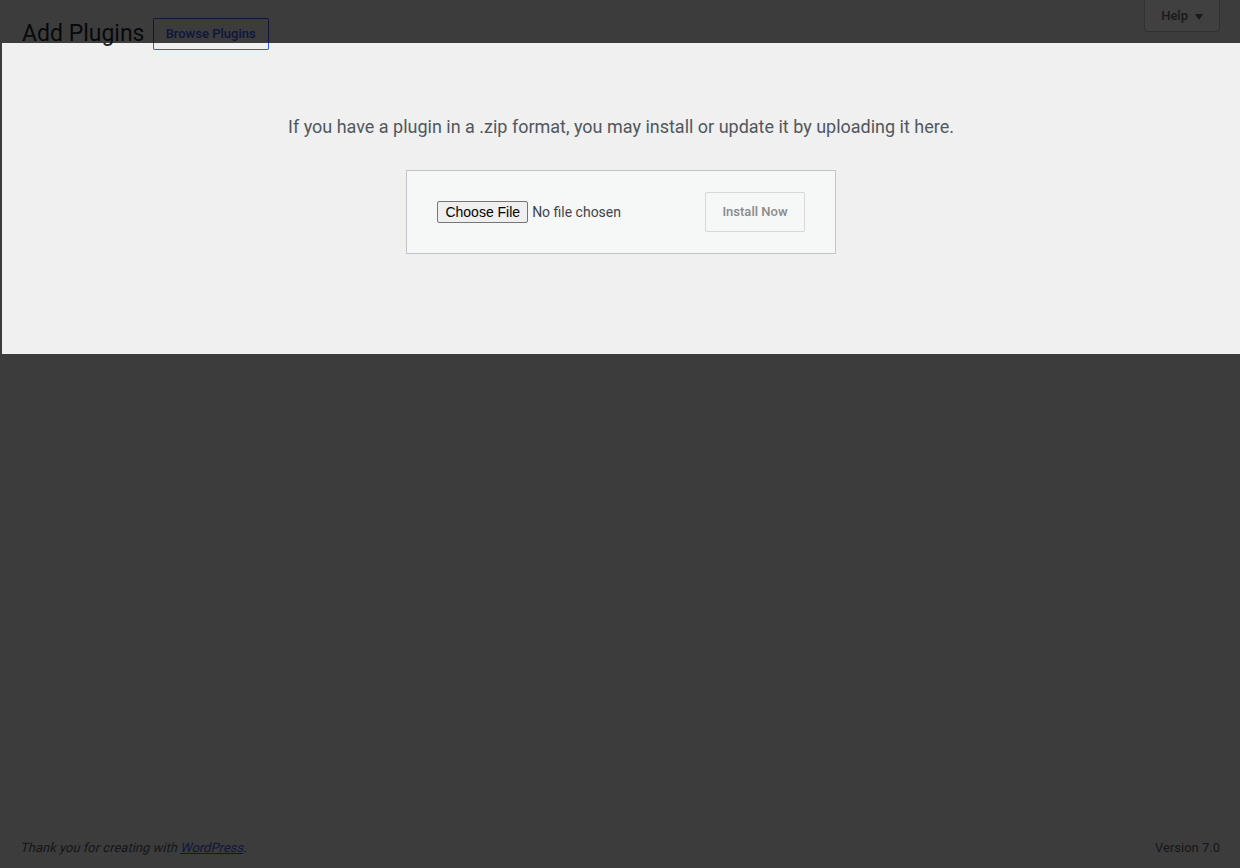 4. Click **Choose File** and select the `notifybay.zip` file you downloaded in Step 0.
5. Click **Install Now**.
## Step 2: Activation
Once WordPress has finished uploading the file, you will be taken to a success screen.
1. Click the blue **Activate Plugin** button.
4. Click **Choose File** and select the `notifybay.zip` file you downloaded in Step 0.
5. Click **Install Now**.
## Step 2: Activation
Once WordPress has finished uploading the file, you will be taken to a success screen.
1. Click the blue **Activate Plugin** button.
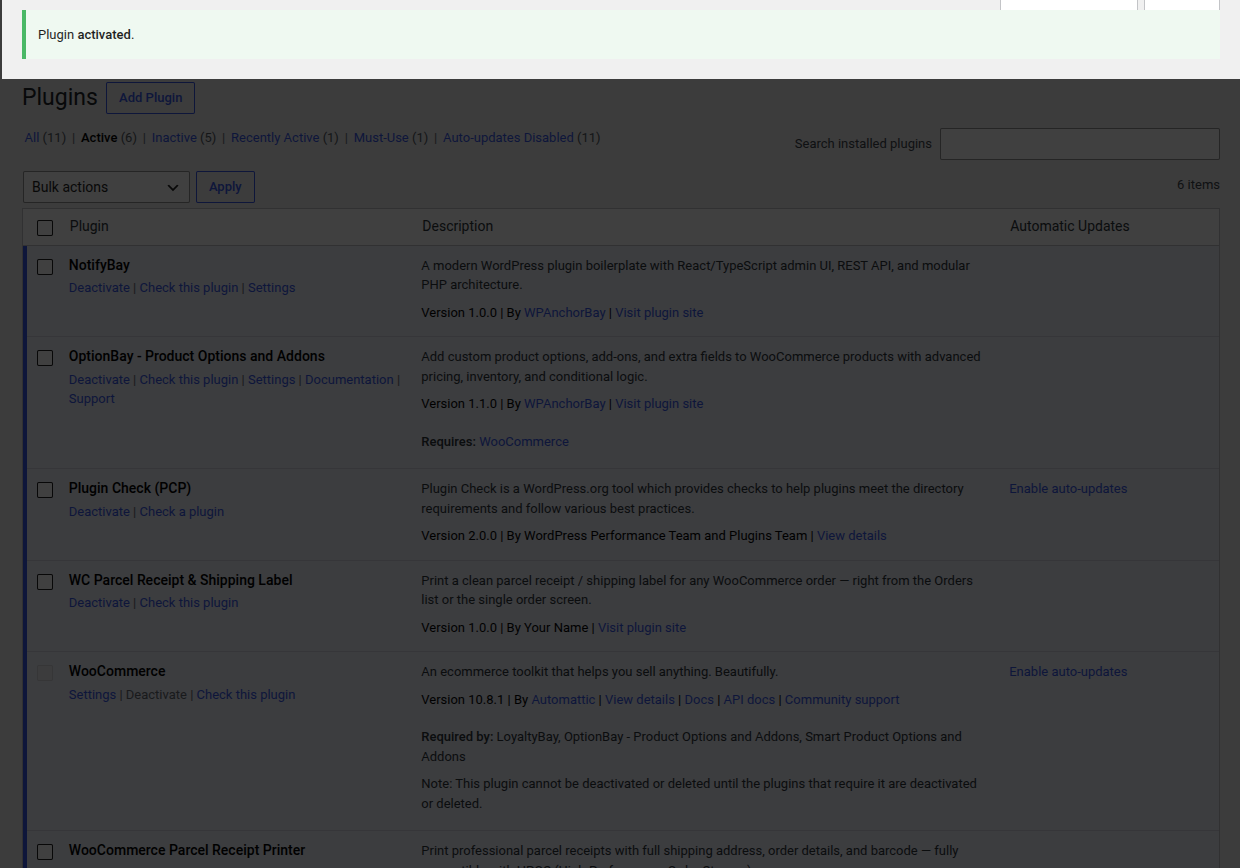 2. NotifyBay is now active on your site!
## Step 3: Verify the Menu
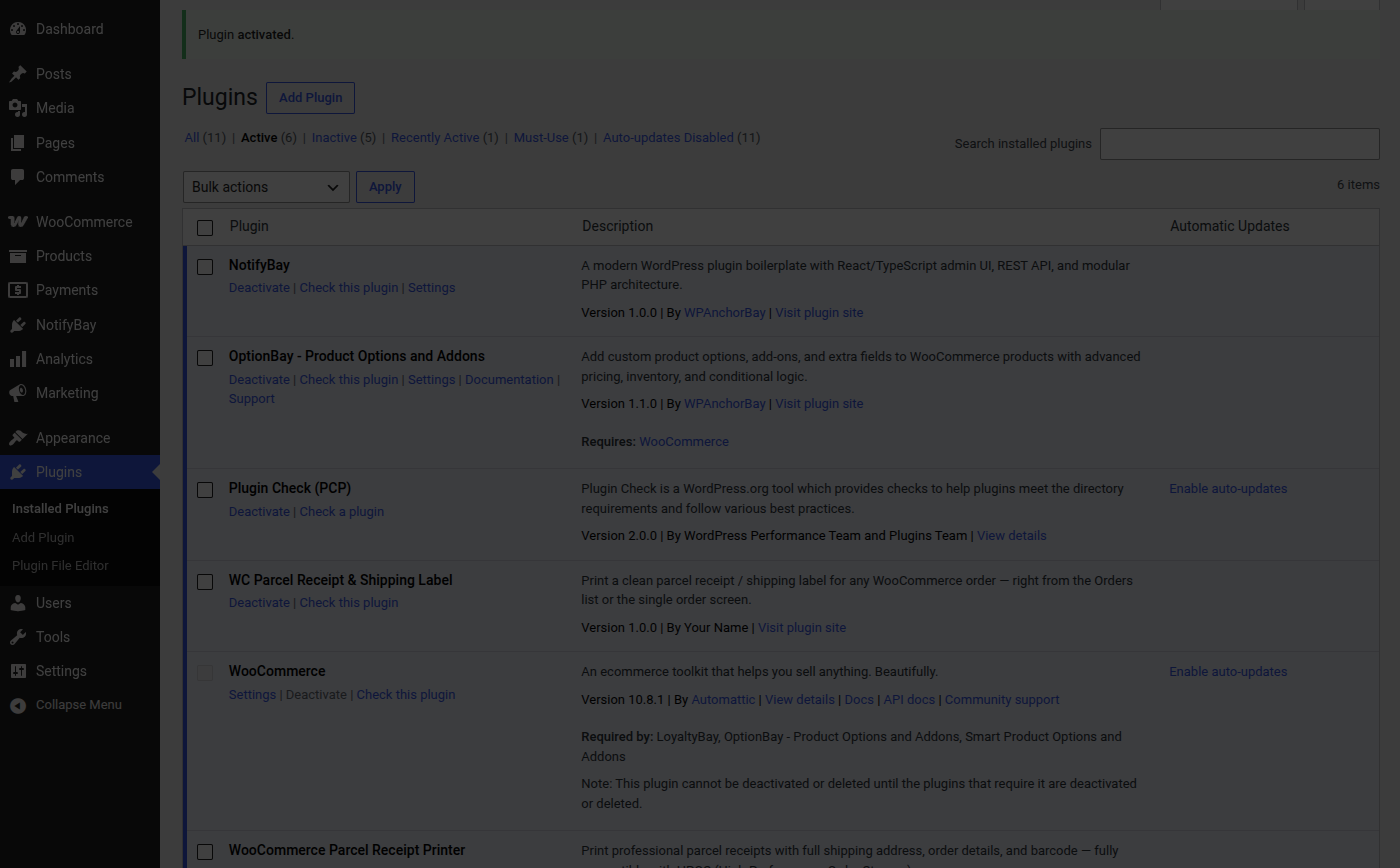
After activation, a new menu item will appear in your WordPress sidebar.
* Look for the **NotifyBay** menu item, typically located just below the "WooCommerce" or "Marketing" menus.
2. NotifyBay is now active on your site!
## Step 3: Verify the Menu
After activation, a new menu item will appear in your WordPress sidebar.
* Look for the **NotifyBay** menu item, typically located just below the "WooCommerce" or "Marketing" menus.
 ---
## Troubleshooting Installation
### "The uploaded file exceeds the upload_max_filesize..."
This is a common server limit. You have two options:
1. **Ask your Host:** Contact your hosting provider and ask them to increase your "PHP Upload Limit" to 10MB or higher.
2. **Use FTP:** Upload the unzipped `notifybay` folder directly to `/wp-content/plugins/` using an SFTP client like FileZilla.
### "No NotifyBay menu appears after activation"
NotifyBay requires **WooCommerce** to be active. If you don't see the NotifyBay menu, please verify that WooCommerce is installed and enabled. If WooCommerce is missing, NotifyBay will stay dormant to prevent errors on your site.
> [!TIP]
> Ready to start recovering revenue? Head over to the [Quick Start Guide](/notifybay/getting-started/quick-start/) to set up your first waitlist!
---
## Troubleshooting Installation
### "The uploaded file exceeds the upload_max_filesize..."
This is a common server limit. You have two options:
1. **Ask your Host:** Contact your hosting provider and ask them to increase your "PHP Upload Limit" to 10MB or higher.
2. **Use FTP:** Upload the unzipped `notifybay` folder directly to `/wp-content/plugins/` using an SFTP client like FileZilla.
### "No NotifyBay menu appears after activation"
NotifyBay requires **WooCommerce** to be active. If you don't see the NotifyBay menu, please verify that WooCommerce is installed and enabled. If WooCommerce is missing, NotifyBay will stay dormant to prevent errors on your site.
> [!TIP]
> Ready to start recovering revenue? Head over to the [Quick Start Guide](/notifybay/getting-started/quick-start/) to set up your first waitlist!