# License Server Documentation
Canonical: https://wpanchorbay.github.io/loyaltybay/
This file contains the main public documentation content in a machine-readable text format.
## Welcome to LoyaltyBay Docs
URL: https://wpanchorbay.github.io/loyaltybay/
Description: Documentation for LoyaltyBay - WooCommerce Loyalty & Rewards Points System.
import { CardGrid } from '@astrojs/starlight/components';
import Card from '../../components/starlight/Card.astro';
import WPAnchorBayFooter from '../../components/WPAnchorBayFooter.astro';
Award points automatically on WooCommerce order completion. Setup custom rules for customer registration, product reviews, and category-specific exclusions.
Provide slider-based or manual-input point redemption directly at checkout. Fully compatible with WooCommerce Block Checkout and Classic layouts.
Motivate customers with automatically recalculated VIP Tiers. Define thresholds and point multipliers to reward your highest-value buyers.
Acquire customers organically with unique referral links. Features cookie-based tracking and first-purchase rewards for both referrers and referees.
## Manual Adjustments
URL: https://wpanchorbay.github.io/loyaltybay/admin/manual-adjustments/
Description: How to manually credit or debit customer loyalty points from the admin dashboard.
Store administrators can manually adjust any customer's points balance directly from the admin dashboard. Every adjustment is recorded as an auditable ledger entry.
---
## Adjust Points Form
To perform a manual adjustment:
1. Navigate to **WooCommerce > Loyalty**.
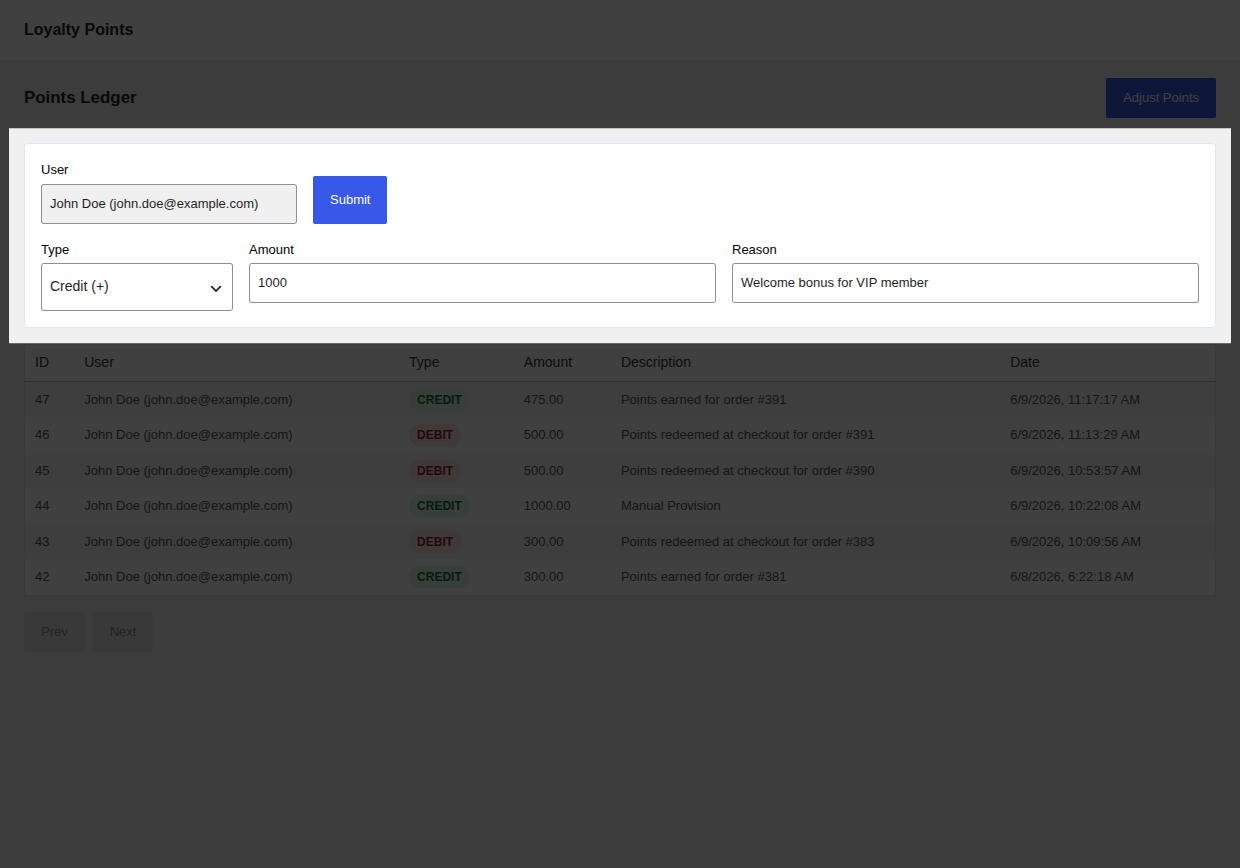
2. Click the **Adjust Points** button at the top of the page. This expands the inline adjustment form.
3. Fill out the form fields:
* **User Selection**: Search for the customer by name or email. You can select multiple users to apply the same adjustment in bulk.
* **Action**: Choose either **Credit** (adds points) or **Debit** (subtracts points).
* **Amount**: The number of points to adjust (must be a positive integer).
* **Reason**: A description of why the adjustment is being made. This will be visible to both the administrator and the customer in their dashboards.
4. Click **Submit** to process the adjustment.
---
## Common Use Cases
Manual adjustments are useful for:
* **Customer Service Goodwill**: Award points as compensation for a shipping delay or product issue.
* **Off-line/Custom Campaigns**: Manually credit points for external promotional activities (e.g. following social media accounts, attending an in-person event).
* **Balance Corrections**: Correct point balances if a customer was mistakenly excluded from an automated rule.
* **Policy Enforcement**: Debit points manually if a customer is found to have abused review or referral programs.
---
## Audit Trail
Every manual adjustment is recorded permanently in the database ledger.
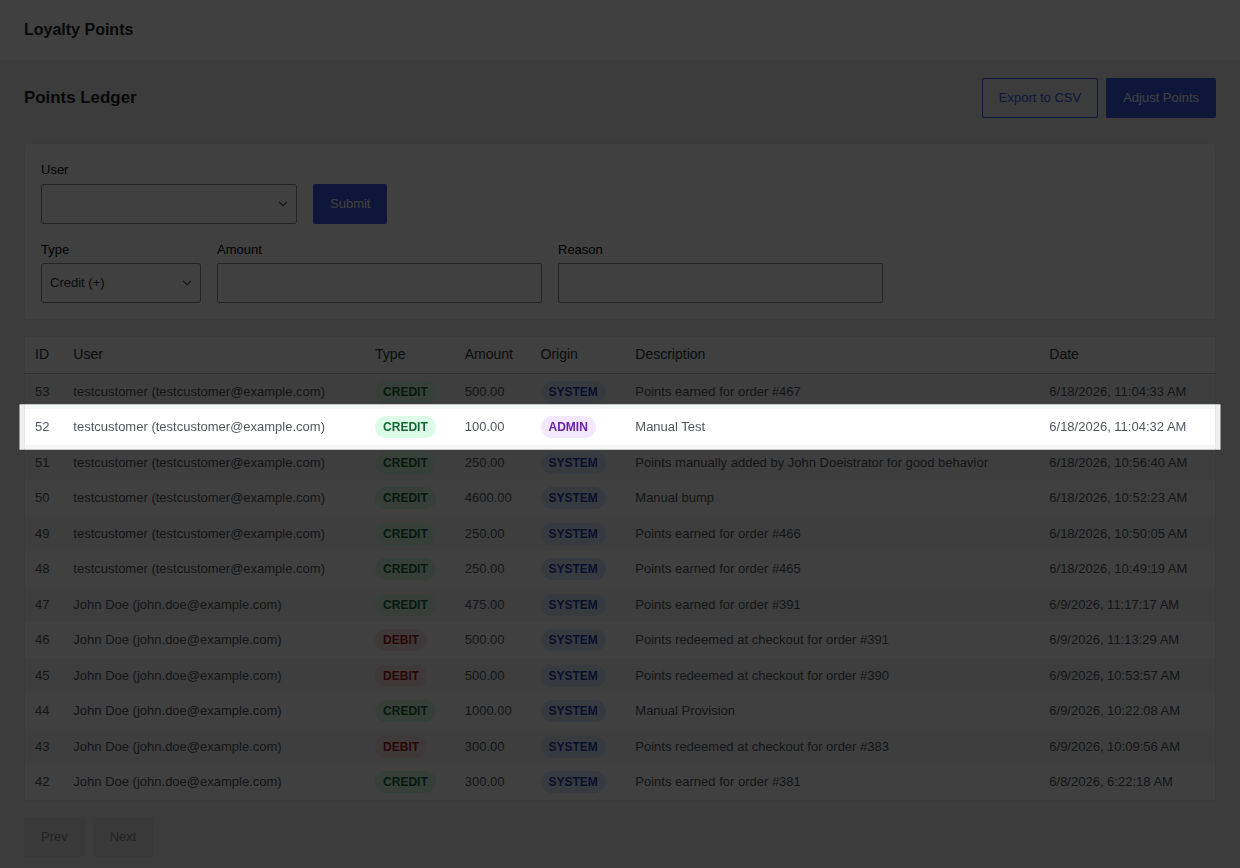
* **Reference Type**: Manual adjustments are saved with `reference_type = 'admin'`.
* **Reference ID**: Set to the WordPress User ID of the administrator who performed the action. This ensures complete internal accountability.
* **Description**: The text entered into the **Reason** field is saved with the ledger record and displays in the transaction logs.
---
## Permissions & Security
Manual adjustments require high-level authorization:
* **Role Capability**: A user must have the **`manage_loyaltybay`** capability to access the ledger and submit adjustments.
* **Default Groups**: By default, this capability is granted only to the **administrator** role upon plugin activation.
* **API Security**: The endpoint (`POST /wp-json/loyaltybay/v1/user-points`) verifies nonces and runs server-side capability checks for every request.
## Points Ledger
URL: https://wpanchorbay.github.io/loyaltybay/admin/points-ledger/
Description: Admin guide for navigating and auditing the customer points transaction ledger in LoyaltyBay.
The Points Ledger is the central source of truth for all points activity in LoyaltyBay. It lists every credit and debit transaction in an immutable, append-only table.
---
## Admin Ledger Overview
To view the ledger:
1. Log in to your WordPress admin panel.
2. Navigate to **WooCommerce > Loyalty**.
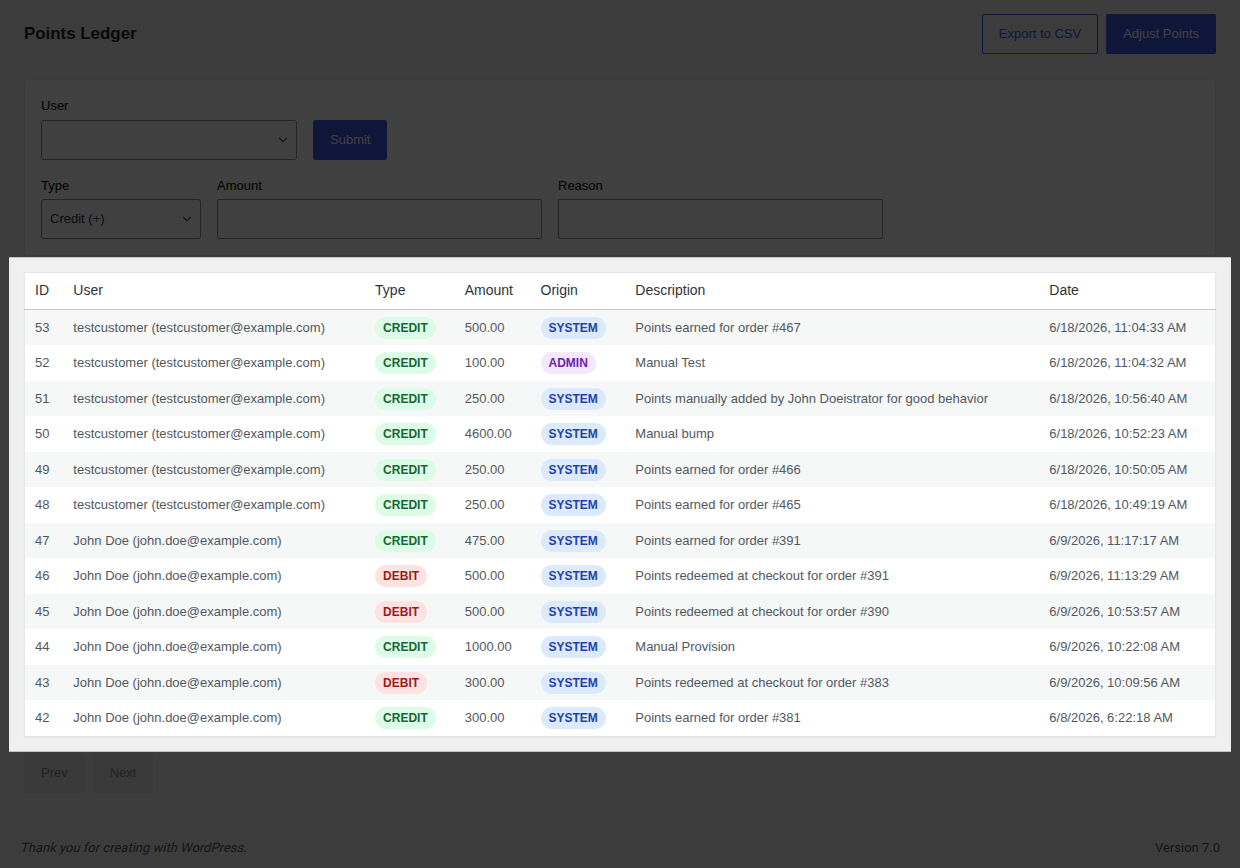
3. The main panel displays the **Points Ledger** table, built with a modern, responsive React interface.
### Ledger Table Columns
* **ID**: The unique transaction database ID.
* **User**: The customer's display name and email address.
* **Type**: Indicated by distinct color badges:
* `Credit` (Green): Points added to the balance.
* `Debit` (Red): Points deducted from the balance.
* **Amount**: The number of points added or subtracted.
* **Origin**: Source of the transaction: `SYSTEM` (automated hooks) or `ADMIN` (manual adjustments).
* **Reference Type**: The source event that triggered the transaction. Valid references are:
* `order` — Points earned on a WooCommerce purchase.
* `refund` — Points deducted due to a full or partial refund.
* `registration` — Registration bonus points.
* `review` — Bonus points for an approved product review.
* `referral` — Points credited for referring a customer.
* `admin` — Points manually adjusted by an administrator.
* `expiry` — Points removed due to expiration.
* **Reference ID**: The database ID of the source event (e.g. WooCommerce Order ID, WordPress User ID, Comment ID).
* **Description**: Explanation of the transaction (e.g. *"Points earned for order #1234"*).
* **Date**: The exact timestamp the transaction was written.
---
## CSV Export
You can export ledger reports for accounting, auditing, or marketing operations:
1. Click the **Export to CSV** button in the top right action bar.
2. The browser will automatically download the CSV file containing the ledger records.
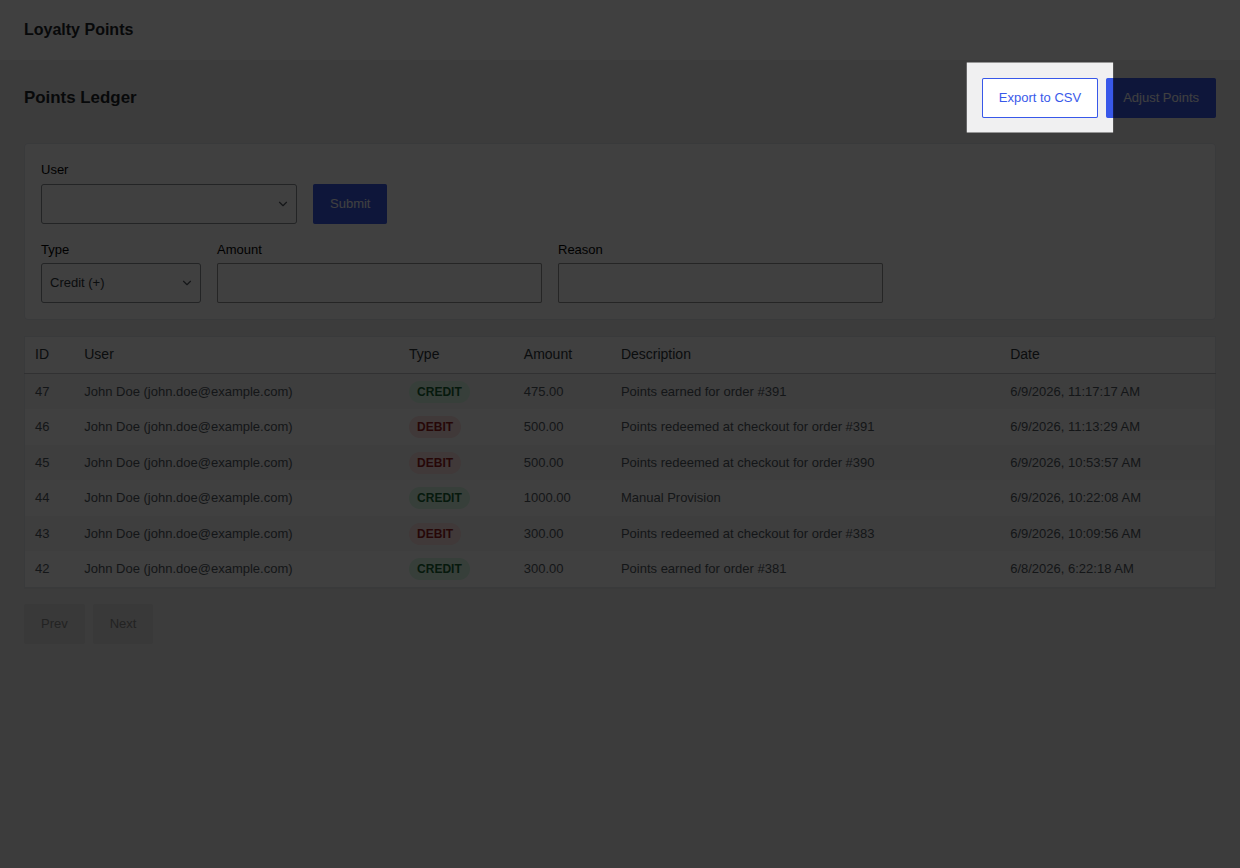
*The CSV export ignores table pagination limits, exporting the entire ledger dataset.*
## Settings Reference
URL: https://wpanchorbay.github.io/loyaltybay/admin/settings-reference/
Description: Comprehensive settings guide for all LoyaltyBay configuration parameters.
This page provides a detailed reference for all LoyaltyBay settings.
---
## Accessing Settings
Settings are integrated directly into WooCommerce's settings dashboard:
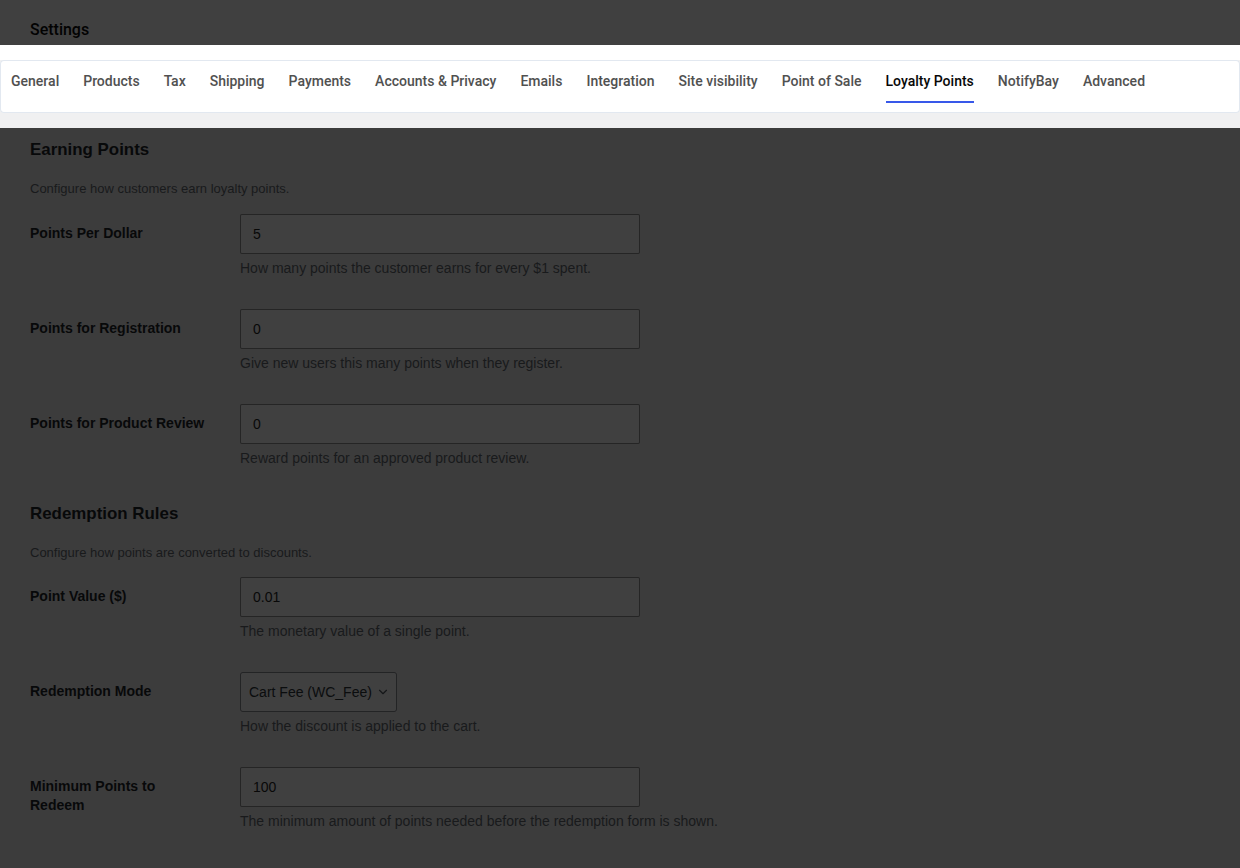
1. Navigate to **WooCommerce > Settings**.
2. Click the **Loyalty Points** tab.
3. The settings are organized into four WooCommerce-style settings sections:
* **Earning Points**
* **Redemption Rules**
* **Referrals & VIP Tiers**
* **Display & System**
---
## Settings Reference Tables
### 1. Earning Points
Configure how points are earned, excluded, and capped.
| Setting Name | DB Key | Type | Default Value | Description |
|---|---|---|---|---|
| **Points per dollar** | `earning_pointsPerDollar` | Integer | `1` | Earning conversion rate. The number of points awarded for each $1 spent. |
| **Points for Registration** | `earning_pointsForRegistration` | Integer | `0` | Points credited instantly when a user registers. Set to `0` to disable. |
| **Points for Product Review** | `earning_pointsForReview` | Integer | `0` | Points credited when a customer's review is approved. Set to `0` to disable. |
| **Order Status Trigger** | `earning_orderStatusTrigger` | Select | `Completed` | The WooCommerce order status that triggers points crediting. |
---
### 2. Redemption Rules
Configure the point discount values and checkout boundaries.
| Setting Name | DB Key | Type | Default Value | Description |
|---|---|---|---|---|
| **Point Value** | `redemption_pointsValue` | Decimal | `0.01` | Monetary value of 1 point (e.g. `0.01` = $0.01 off per point). |
| **Redemption Mode** | `redemption_mode` | Select | `fee` | Method of applying discount at checkout: `fee` (Cart Fee) or `coupon` (Virtual Coupon). |
| **Minimum Points to Redeem** | `redemption_minPoints` | Integer | `100` | Minimum balance required to show the points redemption form at checkout. |
| **Max Discount %** | `redemption_maxDiscountPercentage` | Integer | `50` | Maximum percentage of the cart total that can be discounted using points. |
---
### 3. Referrals & VIP Tiers
Configure organic customer acquisition and VIP bonuses.
| Setting Name | DB Key | Type | Default Value | Description |
|---|---|---|---|---|
| **Enable Referrals** | `referrals_enabled` | Boolean | `false` | Enable or disable the refer-a-friend program. |
| **Referral Bonus Points** | `referrals_bonusPoints` | Integer | `1000` | Points awarded to the referrer after the referee's first purchase. |
| **Cookie Duration (Days)** | `referrals_cookieDuration` | Integer | `30` | Lifespan of the referral tracking cookie. |
| **Enable VIP Tiers** | `tiers_enabled` | Boolean | `false` | Enable or disable automatic loyalty tiers. |
| **Tiers Config** | `tiers_config` | Repeater | *(Default Tiers)* | Defines VIP levels, thresholds, and multipliers (Bronze, Silver, Gold, Platinum). |
---
### 4. Display & System
Control UI placements, logging, and uninstallation behavior.
| Setting Name | DB Key | Type | Default Value | Description |
|---|---|---|---|---|
| **Show Guest Notice** | `display_guestNoticeEnabled` | Boolean | `true` | Show a notice at checkout encouraging guests to register to earn points. |
| **Custom CSS** | `appearance_customCss` | Textarea | `''` | Custom CSS injected into the public loyalty widgets for styling. |
| **Widget Position** | `appearance_widgetPosition` | Select | `before_order_review` | Theme hook location for classic checkout redemption display. |
| **Delete All on Uninstall** | `advanced_deleteAllOnUninstall` | Boolean | `false` | If enabled, completely drops custom tables and deletes all options when the plugin is deleted. |
## Database Schema
URL: https://wpanchorbay.github.io/loyaltybay/developers/database-schema/
Description: Technical reference for LoyaltyBay custom database tables, user metadata, and options.
LoyaltyBay extends the default WordPress database with custom tables to log transactions, cache balances, and track background jobs.
---
## Database Requirements
* **Prefix**: All tables inherit the active WordPress database prefix (e.g. `wp_`).
* **Engine**: Custom tables are created using the **InnoDB** storage engine.
> [!CAUTION]
> The InnoDB engine is mandatory for transaction processing. LoyaltyBay relies on row-level locking (`SELECT ... FOR UPDATE`) during checkout processing to guarantee race-condition safety. If converted to MyISAM, table locks will fail, allowing double-spending of points.
---
## Custom Database Tables
Upon plugin activation, three custom tables are created via the WordPress `dbDelta()` system:
### 1. `{prefix}_loyaltybay_ledger`
This table is an append-only log of every individual point transaction (credits and debits) in the system.
| Column Name | Data Type | Null | Key | Default | Description |
|---|---|---|---|---|---|
| `id` | `bigint(20) unsigned` | No | PRI | *Auto-increment* | Unique ledger entry ID. |
| `user_id` | `bigint(20) unsigned` | No | MUL | | WordPress User ID. |
| `transaction_type` | `varchar(20)` | No | | | Either `credit` or `debit`. |
| `amount` | `decimal(10,2)` | No | | | Point value (fractional support). |
| `reference_type` | `varchar(50)` | No | | | Event source: `order`, `refund`, `registration`, `review`, `referral`, `admin`, `expiry`. |
| `reference_id` | `bigint(20) unsigned` | No | | | Event source database ID. |
| `description` | `varchar(255)` | Yes | | `NULL` | Plain-text description. |
| `expires_at` | `datetime` | Yes | | `NULL` | Expiration timestamp (planned). |
| `created_at` | `datetime` | No | | `CURRENT_TIMESTAMP` | Transaction timestamp. |
* **Idempotency Index**: A unique index `unique_transaction` is defined on `(user_id, reference_type, reference_id, transaction_type)`. This DB-level restriction prevents duplicate credits or debits for the same event (such as refreshing a checkout page).
* **Performance Index**: Index `idx_user_created` is defined on `(user_id, created_at)` to optimize customer dashboard history queries.
---
### 2. `{prefix}_loyaltybay_ledger_cache`
This table caches the calculated point balance for each customer to avoid executing expensive sum queries across the entire ledger.
| Column Name | Data Type | Null | Key | Default | Description |
|---|---|---|---|---|---|
| `user_id` | `bigint(20) unsigned` | No | PRI | | WordPress User ID. |
| `balance` | `decimal(10,2)` | No | | `0.00` | Current available points balance. |
| `last_updated` | `datetime` | No | | `CURRENT_TIMESTAMP` | Last cache update timestamp. |
* **Cache Updates**: When a points transaction is committed, `LedgerService` updates this table's balance row. In addition, user meta `loyaltybay_balance` is denormalized in parallel for sub-20ms reads.
---
### 3. `{prefix}_loyaltybay_cron_log`
Logs the execution history and status of all scheduled background jobs.
| Column Name | Data Type | Null | Key | Default | Description |
|---|---|---|---|---|---|
| `id` | `bigint(20) unsigned` | No | PRI | *Auto-increment* | Log ID. |
| `job_name` | `varchar(100)` | No | | | Registered cron job handle. |
| `status` | `varchar(20)` | No | MUL | | Job state: `started`, `completed`, `failed`. |
| `payload` | `text` | Yes | | `NULL` | JSON string of job arguments. |
| `error_message` | `text` | Yes | | `NULL` | PHP error message string if failed. |
| `retry_count` | `tinyint(4)` | No | | `0` | Number of automated retries executed. |
| `started_at` | `datetime` | No | | | Job start timestamp. |
| `completed_at` | `datetime` | Yes | | `NULL` | Job completion timestamp. |
---
## User Metadata Keys
LoyaltyBay stores user-specific state in the default WordPress `wp_usermeta` table:
* **`loyaltybay_balance`**: Denormalized balance cache (float) for fast read operations.
* **`loyaltybay_vip_tier`**: The slug of the customer's active VIP loyalty level (e.g. `gold`).
* **`loyaltybay_referral_code`**: Unique alpha-numeric string assigned to the user for referral links.
* **`loyaltybay_referred_by`**: The User ID of the customer who referred this user.
* **`loyaltybay_referral_rewarded`**: Boolean check tracking if the referrer has been rewarded for this signup.
---
## WordPress Options Keys
Stored in `wp_options`:
* **`loyaltybay`**: Serialized array containing all active settings.
* **`loyaltybay_version`**: The database version string (used by `Activator` to trigger database migrations on upgrade).
---
## Data Lifecycle & Uninstallation
* **Deactivation**: Keeps all database tables, options, and user meta intact. Deactivation only clears scheduled cron jobs and removes customer rewrite endpoints.
* **Uninstallation**: Deletes all data only if **Delete All on Uninstall** (`advanced_deleteAllOnUninstall`) is checked in settings. If enabled, deleting the plugin will:
1. Execute `DROP TABLE` on the three custom loyalty tables.
2. Delete options `loyaltybay` and `loyaltybay_version`.
3. Clear all associated user meta.
4. Remove the `manage_loyaltybay` capability from all WordPress user roles.
## Hooks & Filters
URL: https://wpanchorbay.github.io/loyaltybay/developers/hooks-and-filters/
Description: Developer guide to customizing and extending LoyaltyBay using WordPress actions and filters.
LoyaltyBay is built following WordPress extensibility standards. Developers can use custom actions and filters to hook into point events, alter calculations, or custom-define loyalty tiers.
---
## Action Hooks
Action hooks let you trigger custom code when specific events occur within the plugin.
### `loyaltybay_points_credited`
Fires immediately after points are successfully credited to a customer's balance.
* **Parameters**:
* `$user_id` (int): Customer User ID.
* `$amount` (float): Points credited.
* `$reference_type` (string): Credit source (`order`, `review`, `registration`, `referral`, `admin`).
* `$reference_id` (int): Source database ID (e.g. Order ID, User ID, Comment ID).
### `loyaltybay_points_debited`
Fires immediately after points are successfully debited (subtracted) from a customer's balance.
* **Parameters**: Same parameters as `loyaltybay_points_credited`.
### `loyaltybay_tier_changed`
Fires when a customer qualifies for a new VIP loyalty tier and their meta is updated.
* **Parameters**:
* `$user_id` (int): Customer User ID.
* `$new_tier` (string): Slug of the newly assigned tier.
* `$old_tier` (string): Slug of the previous tier.
### `loyaltybay_referral_processed`
Fires when a new referral has been successfully registered and credited to the referrer.
* **Parameters**:
* `$referrer_id` (int): Referrer User ID.
* `$referee_id` (int): Referee (buyer) User ID.
* `$order_id` (int): Qualifying order ID.
---
## Filter Hooks
Filter hooks let you modify values or structures used by LoyaltyBay before they are processed or saved.
### `loyaltybay_calculate_order_points`
Allows you to alter the point amount calculated for a WooCommerce order before it is written to the ledger.
* **Parameters**:
* `$points` (float): Calculated points.
* `$order_total` (float): Order total subtotal.
* `$user_id` (int): Customer User ID.
### `loyaltybay_order_excluded`
Allows you to programmatically exclude an order from earning points.
* **Parameters**:
* `$excluded` (bool): Default is `false` (or `true` if category/product settings exclude it).
* `$order_id` (int): WooCommerce Order ID.
### `loyaltybay_earning_order_total`
Filters the order subtotal amount used for the base point calculation.
* **Parameters**:
* `$order_total` (float): Subtotal value.
* `$order` (WC_Order): Full WooCommerce order object.
### `loyaltybay_vip_tiers`
Allows custom tier configurations (names, thresholds, multipliers) to be injected.
* **Parameters**:
* `$tiers` (array): Array of active tiers.
### `loyaltybay_cron_jobs`
Allows developers to hook custom classes into the plugin's self-healing cron engine.
* **Parameters**:
* `$jobs` (array): Array of registered cron job class strings.
---
## WooCommerce Hook Integrations
For debugging compatibility, here are the main WooCommerce hooks that LoyaltyBay subscribes to:
* `woocommerce_order_status_completed`: Credits points to customer accounts.
* `woocommerce_order_refunded`: Triggers refund point clawbacks.
* `woocommerce_checkout_order_processed`: Finalizes point redemptions and ledger debits.
* `woocommerce_cart_calculate_fees`: Applies point discounts (Fee Mode).
* `woocommerce_get_shop_coupon_data`: Injects virtual coupons (Coupon Mode).
---
## Developer Code Examples
Place these code snippets in your child theme's `functions.php` file or a custom site-specific utility plugin.
### Example 1: Exclude Items on Sale from Earning Points
Prevent customers from earning loyalty points on products that are currently marked down or on sale.
```php
add_filter( 'loyaltybay_calculate_order_points', 'exclude_sale_items_from_loyalty_earning', 10, 3 );
function exclude_sale_items_from_loyalty_earning( $points, $order_total, $user_id ) {
// Return 0 if the customer has items on sale in their order
// You can implement custom loops checking order items for is_on_sale()
return $points;
}
```
### Example 2: Double Points on Weekends
Run a weekend promotion where purchases earn twice the standard point rate.
```php
add_filter( 'loyaltybay_calculate_order_points', 'double_points_on_weekends', 10, 3 );
function double_points_on_weekends( $points, $order_total, $user_id ) {
$day_of_week = date('N'); // 1 (Monday) through 7 (Sunday)
if ( in_array( $day_of_week, [ 6, 7 ] ) ) {
$points = $points * 2;
}
return $points;
}
```
### Example 3: Customizing VIP Tiers
Developers can override the default VIP levels entirely by hooking into the **`loyaltybay_vip_tiers`** filter.
```php
add_filter( 'loyaltybay_vip_tiers', 'custom_loyaltybay_vip_tiers' );
function custom_loyaltybay_vip_tiers( $tiers ) {
return [
'bronze' => [
'name' => 'Bronze Member',
'threshold' => 0,
'multiplier' => 1.0,
],
'silver' => [
'name' => 'Silver VIP',
'threshold' => 500,
'multiplier' => 1.25,
],
'gold' => [
'name' => 'Gold VIP',
'threshold' => 2000,
'multiplier' => 1.5,
],
'diamond' => [
'name' => 'Diamond VIP',
'threshold' => 5000,
'multiplier' => 2.0,
],
];
}
```
### Example 4: Registering a Custom Background Cron Job
Add a custom scheduled task to LoyaltyBay's cron manager (`Core\Cron`) with error logging:
```php
add_filter( 'loyaltybay_cron_jobs', 'register_my_custom_loyalty_cron' );
function register_my_custom_loyalty_cron( $jobs ) {
$jobs[] = \MyCustomNamespace\MyCustomCronJob::class;
return $jobs;
}
// Custom Class Definition
namespace MyCustomNamespace;
class MyCustomCronJob {
public static function run() {
// Run scheduled tasks here...
// Use loyaltybay_log() to write execution output
loyaltybay_log( "MyCustomCronJob executed successfully." );
}
}
```
*This integrates your custom job into the self-healing cron runner.*
## REST API Reference
URL: https://wpanchorbay.github.io/loyaltybay/developers/rest-api/
Description: Technical documentation for the LoyaltyBay WP REST API endpoints.
LoyaltyBay Pro exposes a series of REST API endpoints. This page details the authorization checks, validation systems, endpoint requests, and JSON payloads.
---
## Authentication & Authorization
All API endpoints require verification using standard WordPress REST API authentication headers.
* **Admin Endpoints**: Require the `manage_loyaltybay` capability. By default, this is granted to WordPress users with the `administrator` role.
* **Customer Endpoints**: Verify that the requester is a logged-in user (`is_user_logged_in()`) or has an active WooCommerce session token.
* **CSRF Protection**: All calls must include a valid WordPress Nonce passed in the **`X-WP-Nonce`** header.
### Common Error Response Codes:
* **`401 Unauthorized`**: Nonce header is missing, expired, or invalid.
* **`403 Forbidden`**: The user is authenticated but lacks the required capabilities (e.g. non-admin trying to fetch settings).
---
## Input Validation & Error Handling
All controller routes inherit validation logic from the abstract base class `Api\ApiController`.
### 1. Rakit Validator
The plugin processes input validation using the **Rakit Validator** library inside PHP.
* *Validation Rules*: Parameters check for data types (integer, numeric), format constraints (ISO dates), values boundaries (min/max), and requirements.
### 2. Validation Error Handling
If a request fails validation, the API returns a `422 Unprocessable Entity` status with a structured error array containing field-specific error messages.
#### Sample Validation Error Payload:
```json
{
"code": "rest_invalid_param",
"message": "Invalid parameter(s).",
"data": {
"status": 422,
"errors": {
"user_id": {
"required": "The user_id field is required."
},
"amount": {
"numeric": "The amount must be a number."
}
}
}
}
```
*On the React frontend, the utility function `flattenErrors()` parses this object and maps the nested error fields into flat dot-notation structures (e.g. `"errors.user_id"`) to update form input fields in real time.*
---
## Endpoints Reference
### 1. Settings Endpoints
#### Retrieve Settings
* **Route**: `GET /settings`
* **Authorization**: `manage_loyaltybay`
* **Response (200 OK)**:
```json
{
"earning_pointsPerDollar": 1,
"earning_pointsForRegistration": 0,
"earning_pointsForReview": 0,
"redemption_pointsValue": 0.01,
"redemption_mode": "fee",
"redemption_minPoints": 100,
"referrals_enabled": false,
"referrals_bonusPoints": 1000,
"referrals_newCustomerDiscount": 10.00,
"tiers_enabled": false,
"display_guestNoticeEnabled": true,
"advanced_deleteAllOnUninstall": false,
"debug_enableMode": false
}
```
#### Update Settings
* **Route**: `POST /settings`
* **Authorization**: `manage_loyaltybay`
* **Payload (JSON)**: Contains settings keys to update. Sanitized using WordPress settings validation schema.
* **Response (200 OK)**: Full updated settings JSON object.
---
### 2. Ledger & User Points Endpoints
#### List Ledger Entries
* **Route**: `GET /ledger`
* **Authorization**: `manage_loyaltybay`
* **Query Parameters**:
* `page` (int, default: 1): Pagination index.
* `per_page` (int, default: 20): Number of entries per page.
* `user_id` (int, optional): Filter by WordPress User ID.
* `transaction_type` (string, optional): `credit` or `debit`.
* `reference_type` (string, optional): `order`, `refund`, `registration`, `review`, `referral`, `admin`, `expiry`.
* `date_from` (string, optional): Filter start date (YYYY-MM-DD).
* `date_to` (string, optional): Filter end date (YYYY-MM-DD).
* **Response Headers**:
* `X-WP-Total`: Total records matching query.
* `X-WP-TotalPages`: Total available pages.
* **Response (200 OK)**:
```json
[
{
"id": 45,
"user_id": 8,
"transaction_type": "credit",
"amount": "150.00",
"reference_type": "order",
"reference_id": 2045,
"description": "Points earned for order #2045",
"expires_at": null,
"created_at": "2026-06-17 11:32:00"
}
]
```
#### Adjust Customer Points
* **Route**: `POST /user-points`
* **Authorization**: `manage_loyaltybay`
* **Payload (JSON)**:
* `user_id` (int, required): Target customer User ID.
* `amount` (int, required): Point adjust value (positive integer).
* `type` (string, required): `credit` or `debit`.
* `reason` (string, required): Saved in the description column (1-255 characters).
* **Response (200 OK)**:
```json
{
"success": true,
"message": "Transaction completed successfully",
"entry_id": 46,
"new_balance": 1400
}
```
#### Autocomplete User Search
* **Route**: `GET /user-points/search-users`
* **Authorization**: `manage_loyaltybay`
* **Query Parameters**:
* `search` (string, required): Searches user table matching display name or email.
* `limit` (int, optional): Default: `10`.
* **Response (200 OK)**:
```json
[
{
"id": 8,
"display_name": "Finance Felix",
"user_email": "felix@example.com",
"balance": 1250
}
]
```
#### CSV Export
* **Route**: `GET /export/ledger`
* **Authorization**: `manage_loyaltybay`
* **Query Parameters**: Same as `GET /ledger` endpoint.
* **Response (200 OK)**: Streams CSV file download directly.
---
### 3. Storefront Checkout Endpoints
#### Apply Points Redemption
* **Route**: `POST /redeem`
* **Authorization**: Logged-in Customer.
* **Payload (JSON)**:
* `points` (int, required): The points amount to redeem. Must meet minimum point settings and must not exceed the customer's balance.
* **Response (200 OK)**:
```json
{
"success": true,
"message": "Discount applied successfully",
"applied_points": 500,
"discount_value": 5.00
}
```
#### Remove Points Redemption
* **Route**: `DELETE /redeem`
* **Authorization**: Logged-in Customer.
* **Response (200 OK)**:
```json
{
"success": true,
"message": "Redemption removed successfully"
}
```
## Customer Dashboard
URL: https://wpanchorbay.github.io/loyaltybay/features/customer-dashboard/
Description: Overview of the customer-facing loyalty dashboard in the WooCommerce My Account area.
LoyaltyBay integrates directly into the WooCommerce customer portal, providing a unified dashboard where users can view their balance, VIP tier progress, referral links, and transaction logs.
---
## Accessing the Dashboard
When the plugin is activated, it registers a custom endpoint.
* **Menu Title**: **Loyalty Points** (inserted into the WooCommerce My Account sidebar menu).
* **URL Endpoint**: `https://yourstore.com/my-account/my-rewards/`
* **Access Control**: The page is only visible to logged-in customers. Guests visiting this URL are automatically redirected to the default WooCommerce My Account login/register screen.
---
## Dashboard Sections
The dashboard is composed of three visual modules styled to match your theme's native WooCommerce look.
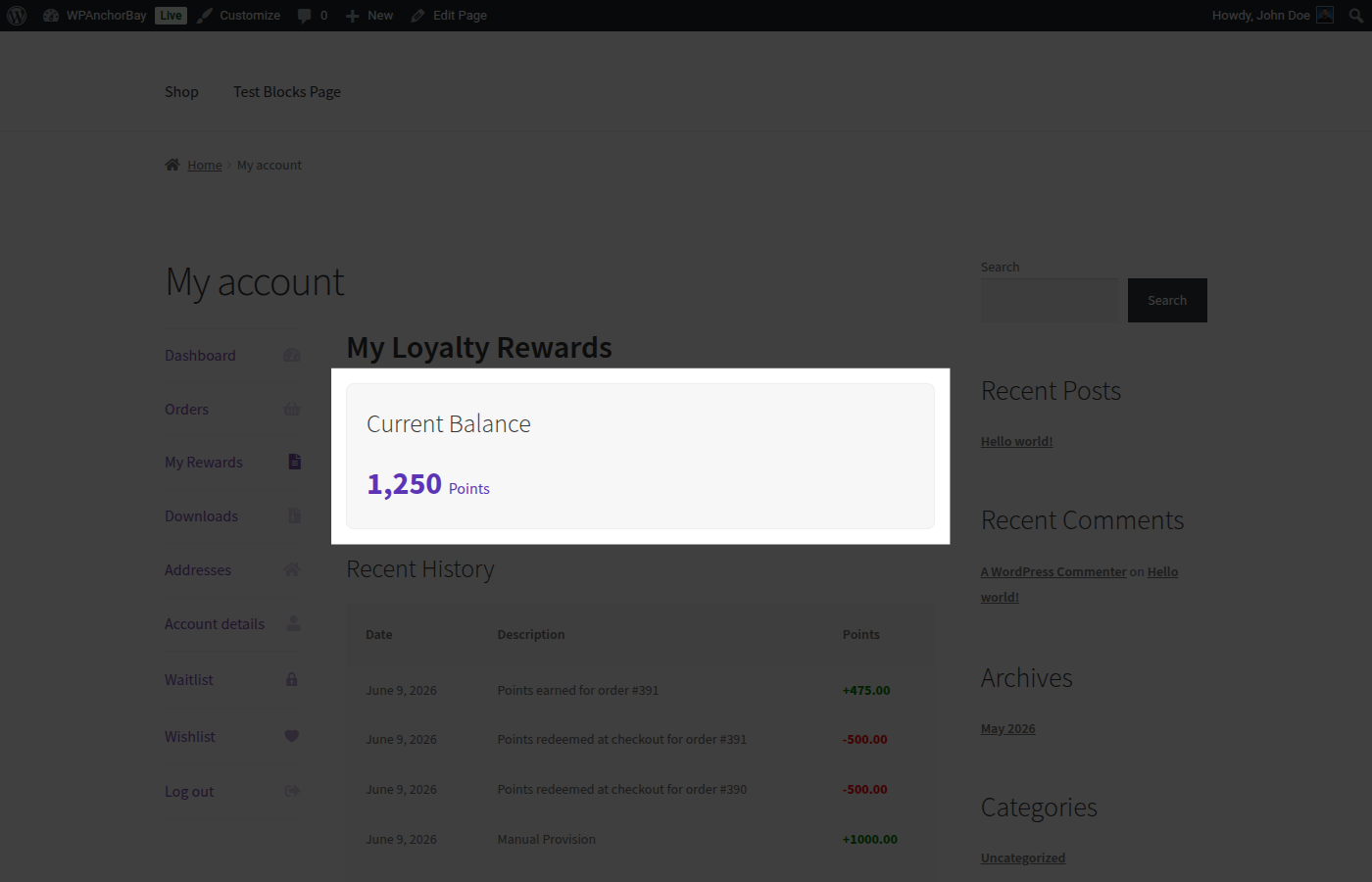
### 1. Points Balance Card
Displays the customer's current points balance in large, clear typography.
* Shows the exact points currently available.
* Indicates the equivalent monetary value of the points (based on the *Point Value* setting).
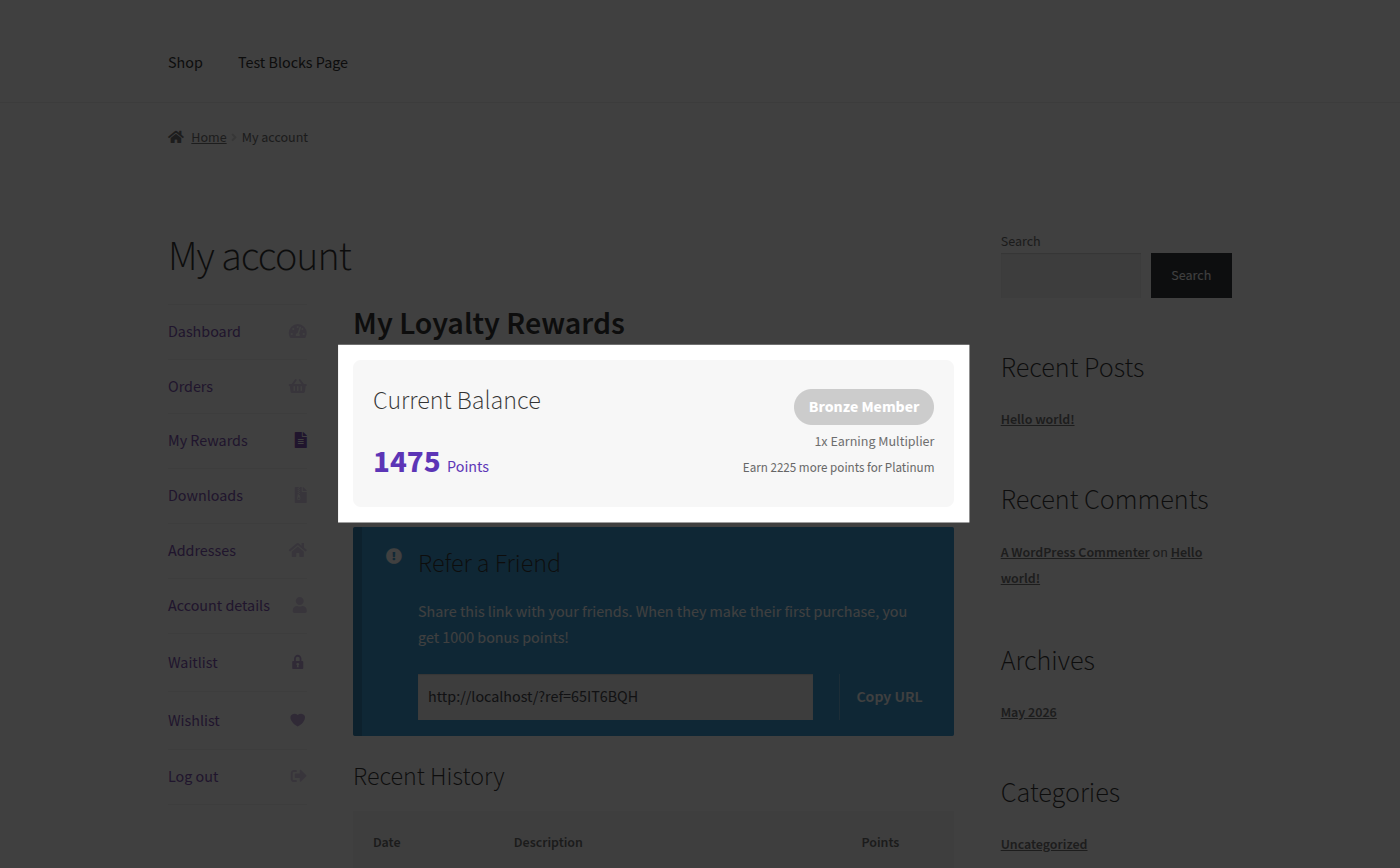
### 2. VIP Tier Progress (If Enabled)
Displays the customer's active VIP loyalty level inside the balance card.
* Shows the current tier badge (e.g., Bronze Member).
* Displays the active tier's earning multiplier (e.g., 1x Earning Multiplier).
* Displays the remaining points required to upgrade to the next tier.
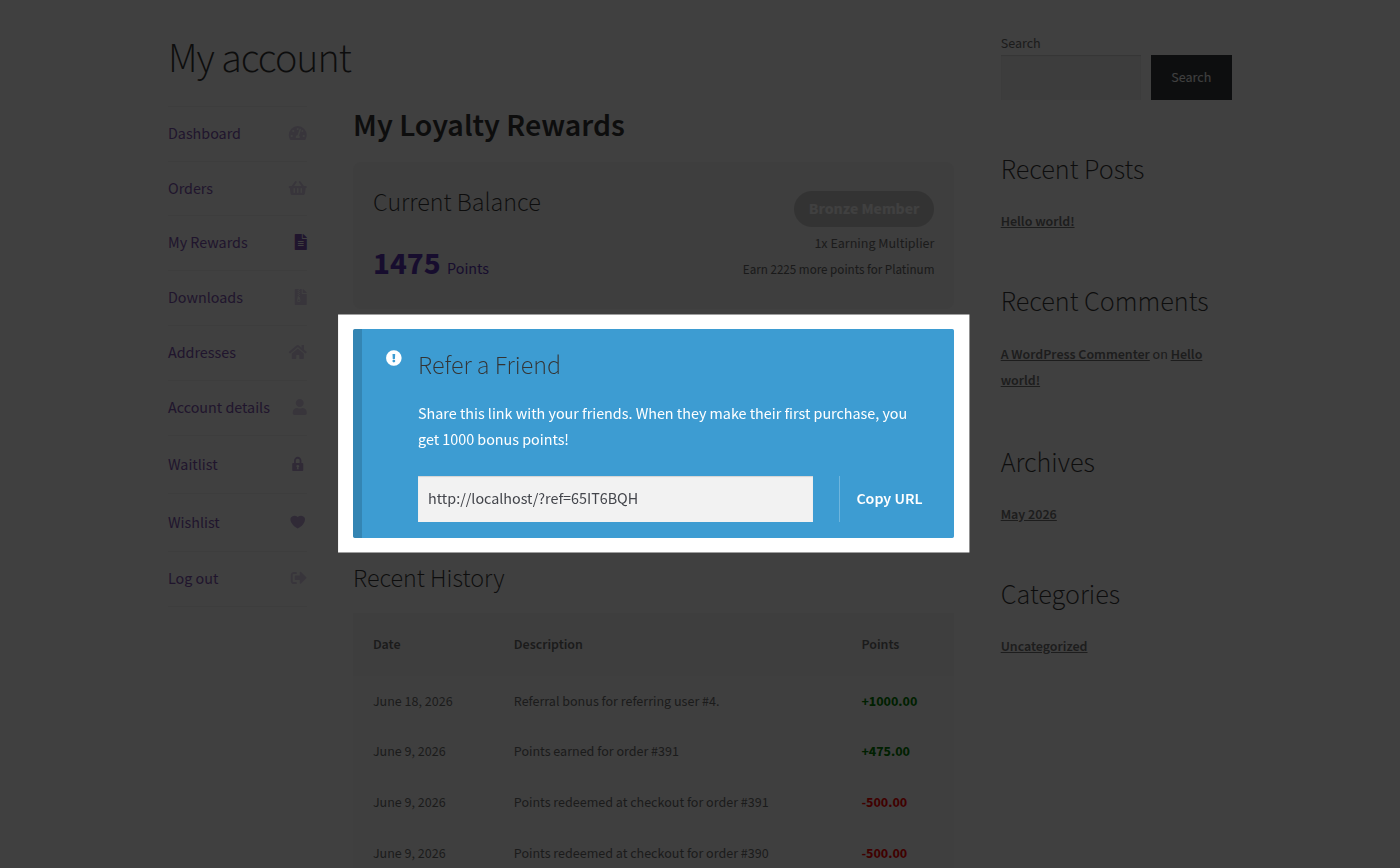
### 3. Referral Sharing Card (If Enabled)
Displays the customer's refer-a-friend links and statistics.
* Displays the customer's unique referral URL.
* Features a single-click "Copy URL" button.
* Shows the count of successful referrals completed.
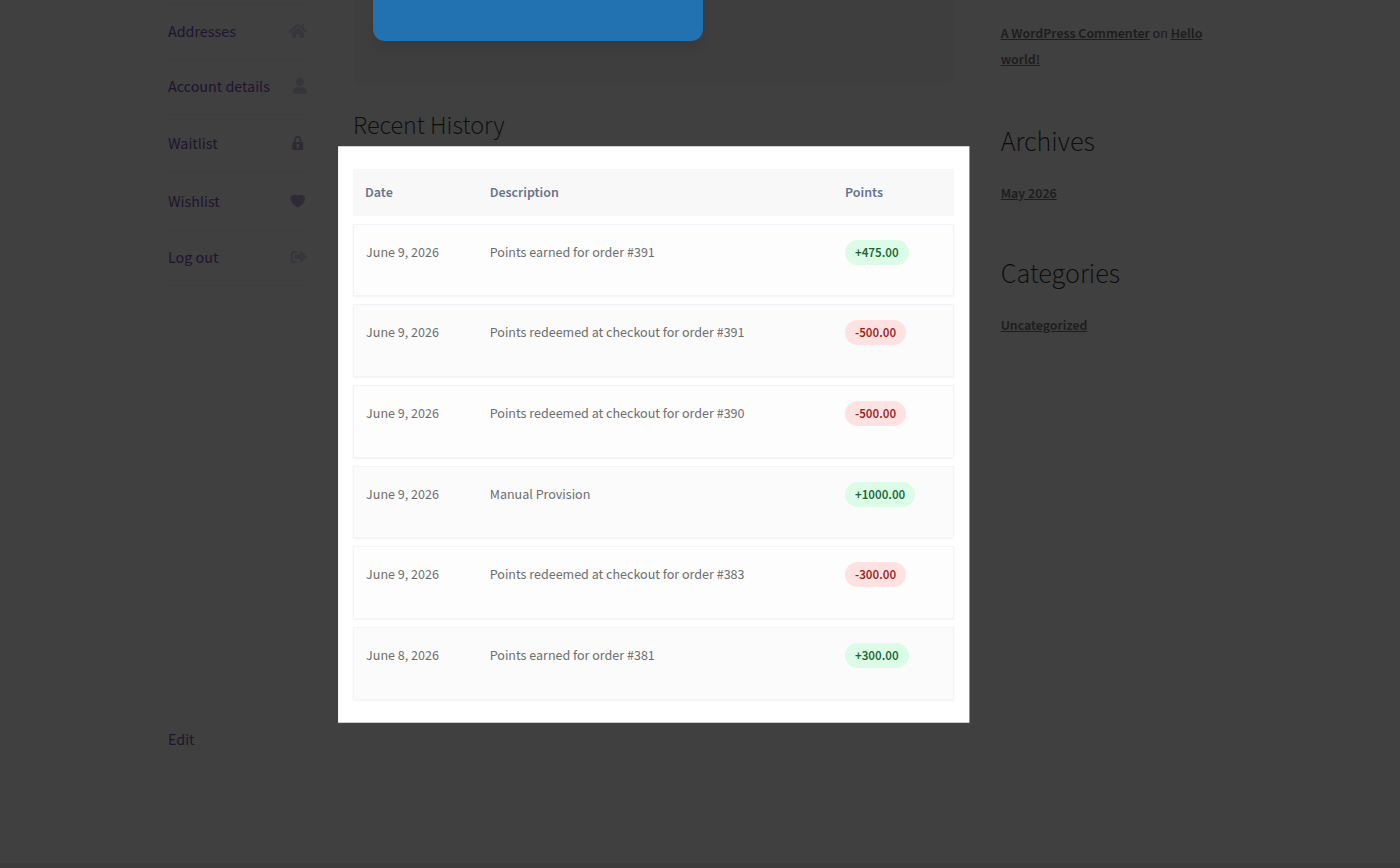
### 4. Transaction History Table
A detailed, paginated audit log of all point activities for the customer.
* **Date**: The date and time the points were updated.
* **Transaction Type**: Marked by visual badges:
* `Credit` (Green): Points earned from orders, registration, reviews, or manual adjustment.
* `Debit` (Red): Points redeemed at checkout, expired, or clawed back via refund.
* **Amount**: The number of points credited or debited.
* **Description**: Detailed text indicating why the points were adjusted (e.g. *"Points earned for order #1234"* or *"Admin adjustment"*).
## Earning Points
URL: https://wpanchorbay.github.io/loyaltybay/features/earning-points/
Description: Detailed guide on configuring points earning rules, calculations, notices, and refund clawbacks.
LoyaltyBay Pro provides a robust points earning engine. Customers can earn points automatically for purchase orders, account registrations, and product reviews.
---
## How Points Are Earned
Points are written to the database ledger through two main paths:
1. **Automated System Hooks**: Standard customer actions trigger background calculations and ledger updates.
2. **Manual Adjustments**: Administrators manually credit accounts (e.g., for customer service resolution).
---
## Earning Settings & Trigger Hooks
Settings are managed in **WooCommerce > Settings > Loyalty Points > Earning Points**.
### Account Registration Bonus
* **Settings Key**: `earning_pointsForRegistration`
* **Behavior**: Credits points once to a customer upon registration.
* **Backend Implementation**: Hooks into the WordPress native `user_register` action (priority 20).
* **Referrals Integration**: If the registering user was referred, this hook also triggers `ReferralManager` to link the new account to the referrer using the tracking cookie.
### Product Review Bonus
* **Settings Key**: `earning_pointsForReview`
* **Behavior**: Credits points when a logged-in user submits an approved product review.
* **Backend Implementation**: Hooks into `comment_approved_comment` and `wp_insert_comment` (to handle auto-approved reviews).
* **Exclusions & Guards**:
* The comment type must be `review` (WooCommerce product review).
* The commenter must be a logged-in user (points cannot be awarded to guest reviewers).
* It must be the user's first approved review for this specific product (prevents points spamming). This is checked by querying the ledger for an entry matching `reference_type = 'review'` and `reference_id = [Product_ID]`.
---
## Earn Calculation & Mathematical Examples
Point earning uses the following mathematical logic:
$$\text{Points} = \text{floor}(\text{Eligible Subtotal} \times \text{Earning Ratio} \times \text{VIP Multiplier})$$
### 1. Eligible Subtotal Definition
The eligible subtotal is the base monetary amount used to calculate points.
* **Excluded**: Shipping costs, taxes, coupon discounts, and points redeemed at checkout are subtracted.
* **Base Formula**:
$$\text{Eligible Subtotal} = \text{Subtotal} - \text{Discount Value}$$
### 2. Earning Ratio
Defined by the *Points per dollar* (`earning_pointsPerDollar`) setting.
### 3. VIP Multiplier
Determined by the customer's current level in the VIP Tiers manager (e.g. `1.5` for Silver, `2.0` for Gold).
---
### Mixed-Cart Calculation Example
A Gold Tier customer (2.0x earning multiplier) makes a purchase with the following cart composition:
* **Standard Product A**: $80.00
* **Sale Product B**: $40.00
* **Coupon Code Discount**: $10.00 (Applied to cart)
* **Shipping Fee**: $15.00
* **VAT Tax**: $10.00
* **Earning Ratio Setting**: 1 point per $1
#### Subtotal Calculation:
1. **Gross Items Subtotal**: $\$80.00 + \$40.00 = \$120.00$
2. **Deduct Coupon**: Subtract Discount ($\$10.00$) -> $\$110.00$
3. **Ignore Shipping & Tax**: Shipping ($\$15.00$) and Tax ($\$10.00$) are ignored.
4. **Eligible Subtotal** = $\$110.00$
#### Points Earning Calculation:
$$\text{Base Points} = \$110.00 \times 1\text{ pt/\$} = 110\text{ points}$$
$$\text{Gold Multiplier} = 110 \times 2.0 = 220\text{ points}$$
$$\text{Final Earning} = \mathbf{220\text{ points}}$$
---
## Database Idempotency Mechanics
To prevent double-crediting if a page is refreshed, an order is re-saved, or an order status transitions back and forth:
* **Composite Unique Key**: The custom database ledger table (`{prefix}_loyaltybay_ledger`) enforces a unique composite constraint:
```sql
UNIQUE KEY unique_transaction (user_id, reference_type, reference_id, transaction_type)
```
* **Execution Safeguard**: Before writing a credit entry to the database, `LedgerService` queries the ledger to check if an entry with `reference_type = 'order'` and `reference_id = [Order_ID]` already exists. If found, the write is aborted, preventing duplicate earnings.
---
## Refund Clawbacks
If a customer returns a product, the points they earned from that order are debited to prevent loops.
* **Hook**: Hooks into `woocommerce_order_refunded` (priority 20), which covers both full and partial refunds.
* **Calculations**:
* *Full Refund*: Credits are fully debited.
* *Partial Refund*: Points are debited proportionally based on the refund ratio:
$$\text{Debit Amount} = \text{floor}\left( \frac{\text{Refund Value}}{\text{Original Order Total}} \times \text{Points Earned} \right)$$
* **Negative Balance Handling**: If the customer has already spent the points earned from that order, the clawback will still execute, pulling their balance below zero (e.g. `-120 points`). Their balance must return to positive before they can redeem points again.
## Redeeming Points
URL: https://wpanchorbay.github.io/loyaltybay/features/redeeming-points/
Description: Detailed guide on configuring checkout point redemption, application modes, and double-spend security.
LoyaltyBay Pro allows customers to redeem points for monetary discounts at checkout. The system supports Block and Classic checkouts, and handles transactions with database-level security.
---
## How Redemption Works
1. **Checkout Panel**: When a logged-in customer goes to checkout, the plugin checks if their balance meets the **Minimum Points to Redeem** threshold.
2. **Input & Slider**: The customer specifies the point amount they wish to apply.
3. **AJAX Application**: Clicking **Apply Discount** sends a REST API request to the server, which validates the points and stores the pending discount in the WooCommerce session.
4. **Checkout Finalization**: When the order is placed, a database-level lock is acquired. The customer's points are debited from the ledger, their cached balance is updated, and the order is completed.
---
## Session Management
* **Session Key**: Pending redemptions are saved in the WooCommerce session under `loyaltybay_points_redemption`.
* **Properties**: The session object tracks:
* `points`: The number of points applied.
* `discount`: The calculated monetary value of the points.
* `user_id`: The ID of the customer applying the points.
* **Session Lifecycle**: The session value is cleared immediately after the order is processed (`woocommerce_checkout_order_processed`) or if items are added/removed from the cart in a way that makes the applied points invalid (e.g. cart subtotal drops below the discount value).
---
## Redemption Modes (Under the Hood)
You can select the redemption framework in **WooCommerce > Settings > Loyalty Points > Redemption Rules**.
### 1. Cart Fee Mode (`fee`)
* **How it works**: The discount is applied as a negative fee to the cart.
* **Backend Implementation**: Hooks into `woocommerce_cart_calculate_fees`. It retrieves the applied points from the session, calculates the negative value (e.g. `-$5.00`), and adds it to the cart:
```php
$cart->add_fee( __( 'Points Discount', 'loyaltybay' ), -$discount_amount );
```
* **Tax Considerations**: Some third-party tax calculation plugins do not read negative fees. If you notice incorrect tax totals, switch to Coupon Mode.
### 2. Virtual Coupon Mode (`coupon`)
* **How it works**: Generates a temporary virtual coupon on the fly.
* **Backend Implementation**:
1. Hooks into `woocommerce_get_shop_coupon_data` (priority 10). If the coupon code requested starts with `loyaltybay_points_`, the plugin intercepts the request and generates a virtual `WC_Coupon` object populated with dynamic settings (discount type: `fixed_cart`, discount amount: matching the session value, individual use: `true`).
2. Hooks into `woocommerce_before_calculate_totals` to verify the virtual coupon is present in the cart, adding or removing it based on session state.
* **Tax Considerations**: This is the most reliable mode for tax calculations because it uses WooCommerce's native coupon framework.
---
## Double-Spend & Race Condition Protection
To prevent checkout exploits (for example, if a customer runs concurrent checkout scripts or clicks "Place Order" simultaneously in multiple browser tabs to spend the same points twice), LoyaltyBay executes redemption inside an atomic database lock.
During order finalization, the checkout processor (`Checkout\CheckoutProcessor`) handles the transaction using the following sequence:
### Step 1: Open DB Transaction
```sql
START TRANSACTION; -- Opens a database transaction
```
### Step 2: Acquire Row-Level Lock
The processor selects the customer's cached balance row from the InnoDB cache table using a write lock:
```sql
SELECT balance FROM wp_loyaltybay_ledger_cache WHERE user_id = 5 FOR UPDATE;
```
* **Blocking behavior**: Any concurrent checkout request for user ID `5` will be forced to wait at this line until the first transaction is either committed or rolled back.
### Step 3: Re-Verify Balance
The system checks if the locked balance is greater than or equal to the points applied at checkout.
### Step 4: Write to Ledger & Cache
If the balance is valid, the system processes the credit/debit:
1. Inserts a new debit row into the ledger table `{prefix}_loyaltybay_ledger` with `reference_type = 'order'`.
2. Calculates the new balance and updates the cache row in `{prefix}_loyaltybay_ledger_cache`.
3. Updates the redundant cache in `wp_usermeta` under key `loyaltybay_balance`.
### Step 5: Commit or Rollback
* **Success**: The transaction is committed:
```sql
COMMIT;
```
* **Failure**: If the balance check fails (e.g. the customer's points were already debited by a concurrent transaction), the database rolls back all writes:
```sql
ROLLBACK;
```
The order is halted, the applied discount is removed, and WordPress returns an error notice to the checkout page: *"Insufficient points balance to complete this purchase."*
## Referral Program
URL: https://wpanchorbay.github.io/loyaltybay/features/referral-program/
Description: Guide to the built-in refer-a-friend system, referral links, and reward policies in LoyaltyBay.
The LoyaltyBay Referral Program turns your customers into brand advocates by rewarding them when they introduce new customers to your store.
---
## How It Works
1. **Share**: Logged-in customers copy their unique referral URL from the **My Account > Loyalty Points** dashboard.
2. **Visit**: A new visitor clicks the referral link and browses your site. The system drops a tracking cookie.
3. **Register**: The new visitor registers an account on your store.
4. **Purchase**: The new customer completes their first order.
5. **Reward**:
* The **Referrer** receives bonus points (e.g. 1,000 points).
---
## Technical Architecture & Cookie Capture
### Database Meta Keys
The referral system tracks associations using default WordPress user metadata:
* `loyaltybay_referral_code` — Unique alphanumeric identifier code assigned to each customer.
* `loyaltybay_referred_by` — Stores the User ID of the referrer inside the referee's user metadata.
* `loyaltybay_referral_rewarded` — A boolean check flag stored in the referee's metadata preventing multiple referral reward triggers.
### Cookie Tracking Flow
When a visitor arrives at the site:
1. **Hook**: The plugin hooks into `init` during `template_redirect` execution.
2. **Check**: It checks if the URL contains the query parameter `?ref=CODE`.
3. **Validate**: It queries the database to find the User ID matching the referral code.
4. **Cookie Drop**: If valid, it drops a browser cookie named `loyaltybay_ref` storing the Referrer ID with a 30-day lifespan (configurable via `referrals_cookieDuration`).
5. **User Link**: When the visitor registers a user account, the plugin checks for the `loyaltybay_ref` cookie. If found, it writes the Referrer ID to the new user's meta under `loyaltybay_referred_by` and deletes the cookie.
---
## Referral Reward Validation
Rewards are finalized when the referee places their first order:
### 1. Order Completion Hook
The processing logic hooks into `woocommerce_order_status_completed` at priority 30 (after base purchase points are already awarded).
### 2. Validation Checks
Before crediting points, the referral processor (`Referrals\ReferralProcessor`) runs the following checks:
* **Referred Check**: Verifies if the buyer has the `loyaltybay_referred_by` meta key.
* **Double Trigger Check**: Confirms the buyer does not have meta `loyaltybay_referral_rewarded` set to `true`.
* **Self-Referral Prevention**: Verifies that the Referrer ID does not equal the Buyer ID (e.g., a customer trying to use their own referral link).
* **First Order Verification**: Runs a WooCommerce query to verify this is the customer's first completed purchase:
```php
$order_count = count( wc_get_orders( [
'customer' => $buyer_id,
'status' => [ 'completed', 'processing' ],
'limit' => 2,
] ) );
```
If `$order_count` is greater than `1`, the referral reward is rejected.
### 3. Credit Transaction
If all validations pass:
1. Credits the referrer with points (reference type: `referral`, reference ID: Order ID).
2. Updates the referee's metadata: `loyaltybay_referral_rewarded = true`.
3. Fires a custom WordPress action hook: `loyaltybay_referral_processed`.
---
## Key Rules & Policies
### One-Time Earning Limit
Referral rewards are strictly **one-time** incentives. Points are only awarded to the referrer on the **first completed order** of the referee. Subsequent orders placed by the referee do not award additional points to the referrer.
### Refund Isolation Policy
To protect referrer relationships and maintain customer trust, the system enforces a strict isolation policy:
> [!NOTE]
> If a referred customer (referee) requests a refund on their first order, the referee's earned points are clawed back, but the **referrer's referral bonus points are NOT deducted**. This ensures referrers are not penalized for the return behavior of their referred friends.
## VIP Tiers
URL: https://wpanchorbay.github.io/loyaltybay/features/vip-tiers/
Description: Detailed guide on VIP customer tiers, rolling points checks, and developer hooks.
VIP Tiers allow you to reward your most loyal customers with increased earning rates. Customers automatically progress through tiers as they earn points on your store.
---
## Default VIP Tiers
By default, the plugin includes the following tier configuration:
| Tier Level | Required Points (Lifetime) | Earning Multiplier | Description |
|---|---|---|---|
| **Bronze** | `0` points | `1.0x` | Standard tier for all registered users. |
| **Silver** | `1,000` points | `1.5x` | Earns 50% more points on purchases. |
| **Gold** | `5,000` points | `2.0x` | Earns double points on purchases. |
| **Platinum** | `10,000` points | `3.0x` | Earns triple points on purchases. |
---
## How VIP Tiers Work
### 1. Lifetime Points Qualification
Unlike current balance (which decreases when points are spent), VIP Tiers are calculated using the customer's **total lifetime credits** (all earned points) over a rolling 365-day period.
### 2. Multiplier Application
When a customer makes a purchase, the system calculates their base points and multiplies the total by their current tier's earning multiplier.
* *Example*: A customer in the **Gold** tier (2.0x) places an order with a subtotal of $100.
* Base points earned: 100 points.
* Tier points credited: $100 \times 1 \text{ pt/\$} \times 2.0 = 200$ points.
---
## Technical Details & Database Queries
### Meta Storage
* The customer's active tier slug (e.g. `gold`) is saved in the WordPress `wp_usermeta` table under the metadata key **`loyaltybay_vip_tier`**.
### The Recalculation Query
To determine a customer's tier, the system runs a sum query on the custom ledger table:
```sql
SELECT SUM(amount)
FROM wp_loyaltybay_ledger
WHERE user_id = %d
AND transaction_type = 'credit'
AND created_at >= DATE_SUB(NOW(), INTERVAL 365 DAY);
```
*This rolling check ensures that customers remain active to maintain their VIP privileges.*
---
## Automatic Recalculation (WP-Cron)
Tiers are recalculated in the background automatically:
* **Real-time Upgrades**: When a customer is credited with points (e.g. after order completion), the system checks if their lifetime points qualify them for a higher tier. If so, they are upgraded immediately, their user meta (`loyaltybay_vip_tier`) is updated, and a custom action `loyaltybay_tier_changed` is fired.
* **Daily Batch Recalculation**: A scheduled daily background job (`loyaltybay_cron_recalculate_tiers`) executes to audit all user accounts. This ensures that users who should drop tiers due to points expiring, or who qualify for upgrades through non-purchase actions, are updated.
* **Execution Logs**: Admins can audit tier recalculation cron runs in the database log table `{prefix}_loyaltybay_cron_log`.
---
## Developer Customization: Adding Custom Tiers
Developers can override the default VIP levels entirely by hooking into the **`loyaltybay_vip_tiers`** filter.
Add the following helper function to your child theme's `functions.php` file to register a custom tier:
```php
add_filter( 'loyaltybay_vip_tiers', 'custom_loyaltybay_vip_tiers' );
function custom_loyaltybay_vip_tiers( $tiers ) {
return [
'bronze' => [
'name' => 'Bronze Member',
'threshold' => 0,
'multiplier' => 1.0,
],
'silver' => [
'name' => 'Silver VIP',
'threshold' => 500,
'multiplier' => 1.2,
],
'gold' => [
'name' => 'Gold VIP',
'threshold' => 2000,
'multiplier' => 1.5,
],
'diamond' => [
'name' => 'Diamond VIP',
'threshold' => 5000,
'multiplier' => 2.0,
],
];
}
```
*This code registers a new "Diamond VIP" tier and adjusts the Silver/Gold multiplier rates.*
## Initial Setup
URL: https://wpanchorbay.github.io/loyaltybay/getting-started/initial-setup/
Description: Step-by-step instructions to configure and test LoyaltyBay for the first time.
Once you have installed and activated LoyaltyBay, follow this guide to configure settings, understand calculation models, and test the plugin in your store.
---
## Step 1: Configure Point Earning Rules
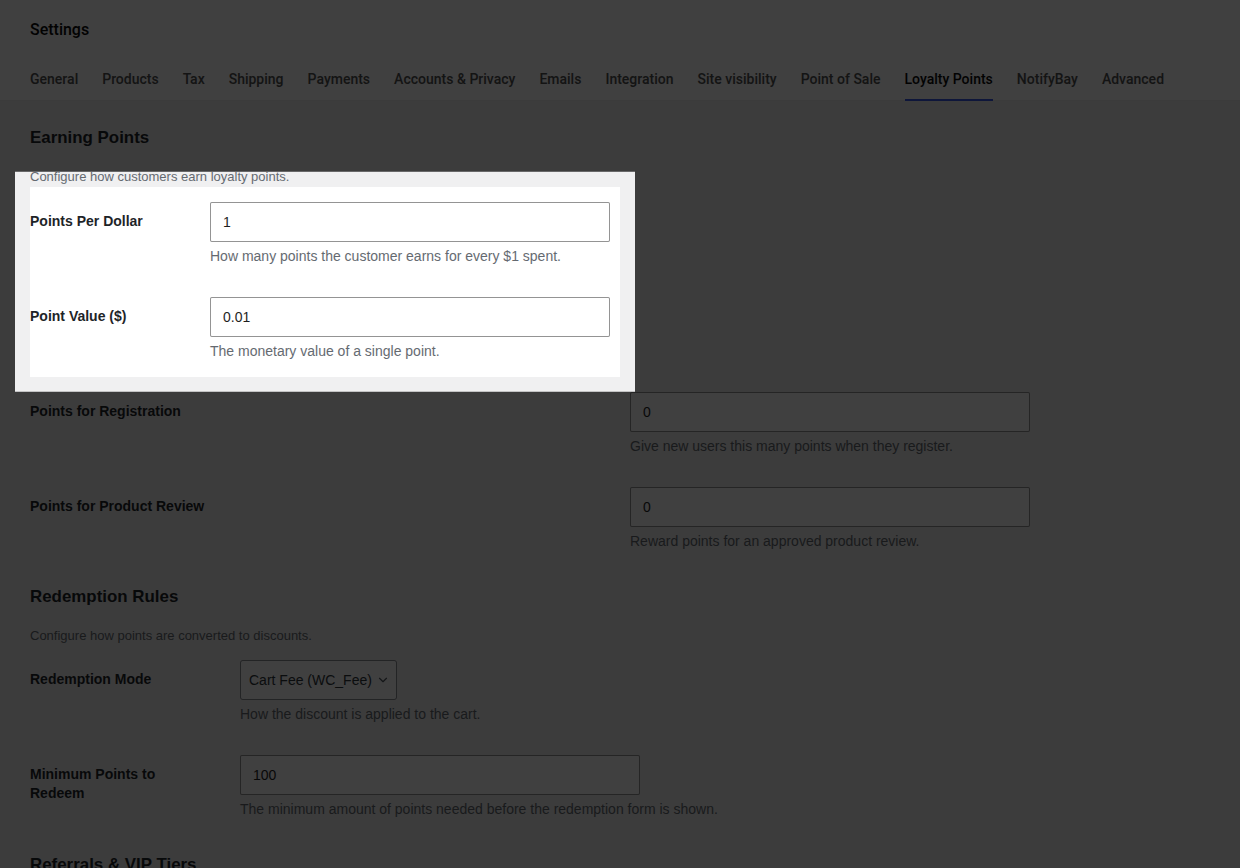
By default, the plugin awards 1 point for every $1 spent. You should configure these ratios to align with your store's economy and customer acquisition costs.
1. Navigate to **WooCommerce > Settings** and click the **Loyalty Points** tab.
2. Scroll down to the **Earning Points** section.
3. Modify the **Points per dollar** field (default is `1`).
* *Example*: If you want customers to receive 5 points per $1 spent, set this value to `5`. A $10 purchase will then award 50 points.
4. Optionally configure additional reward activities:
* **Points for Registration**: Points awarded immediately upon user account creation (e.g. 100 points). This is a great incentive to drive guest checkouts into registering.
* **Points for Product Review**: Points awarded when a logged-in user submits a product review, once it is **Approved** (e.g. 50 points).
5. Click **Save Changes** at the bottom of the page.
---
## Step 2: Configure Redemption Rules
Redemption settings control how customers convert their points into monetary discounts at checkout.
1. Navigate to **WooCommerce > Settings > Loyalty Points** and click the **Redemption Rules** section.
2. Set the **Point Value**. This is the monetary value of a single loyalty point.
* *Default*: `0.01` (1 point = $0.01, so 100 points = $1.00 discount).
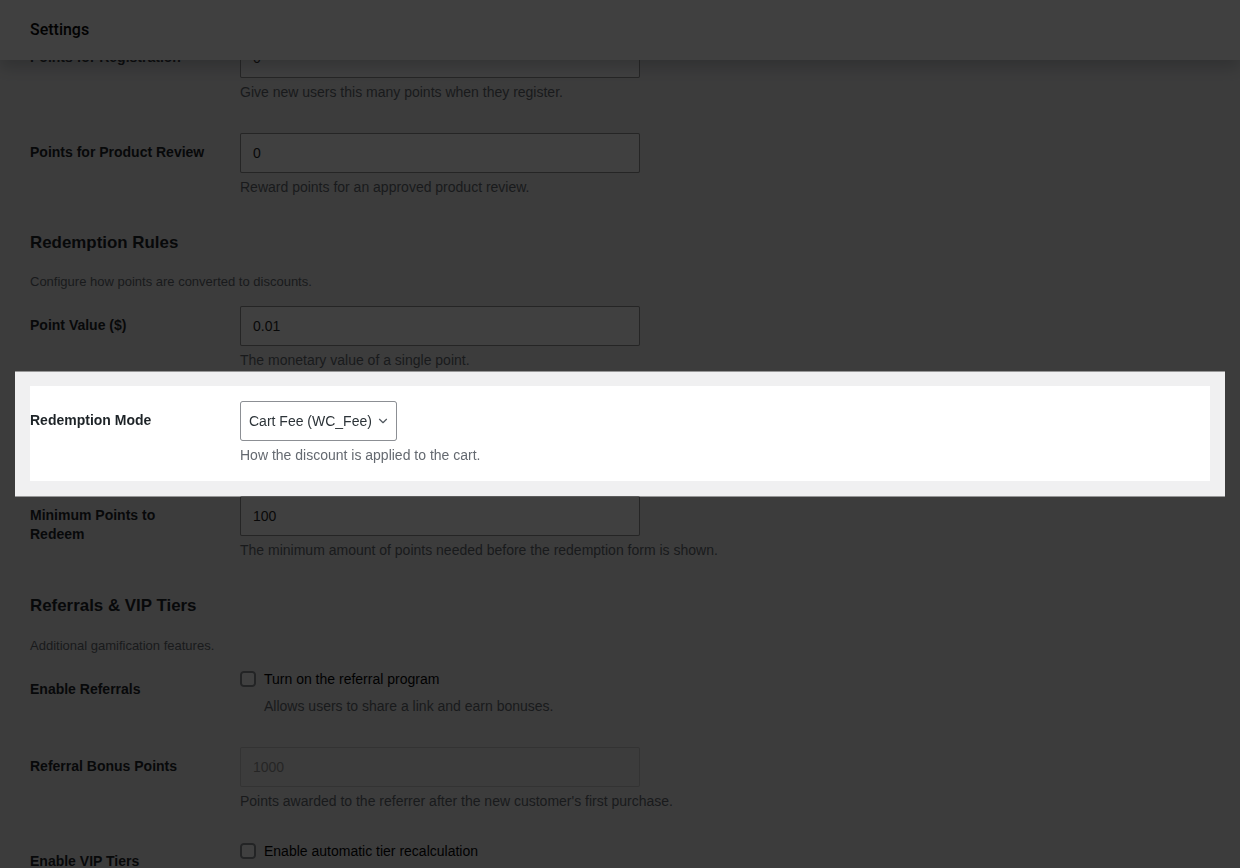
3. Choose your **Redemption Mode**:
* **Cart Fee (Fee Mode)**: The discount is applied as a negative checkout fee (`WC_Fee`). This keeps checkout and order detail structures clean but may conflict with some third-party automated tax software that does not calculate taxes on negative fees.
* **Virtual Coupon (Coupon Mode)**: Generates a temporary virtual WooCommerce coupon on the fly. This has 100% compatibility with external tax plugins (such as Avalara, TaxJar) and multi-currency plugins because it uses WooCommerce's native coupon framework.
4. Set the **Minimum Points to Redeem**. The checkout points widget will remain hidden or locked unless the customer has accumulated at least this amount (default: `100`).
5. Set the **Max Discount %** (default: `50`). This prevents points from discounting more than a specified percentage of the cart total, ensuring you always maintain a healthy margin.
---
## Step 3: Test the Earning Flow
To verify that points are credited accurately:
1. Open an incognito browser tab or log in as a test customer.
2. Add a product to the cart and complete the checkout process.
3. In your WordPress admin panel, go to **WooCommerce > Orders**, select the test order, and change its status to **Completed** (or whatever status you selected as the *Order Status Trigger*).
4. Verify that the points appear:
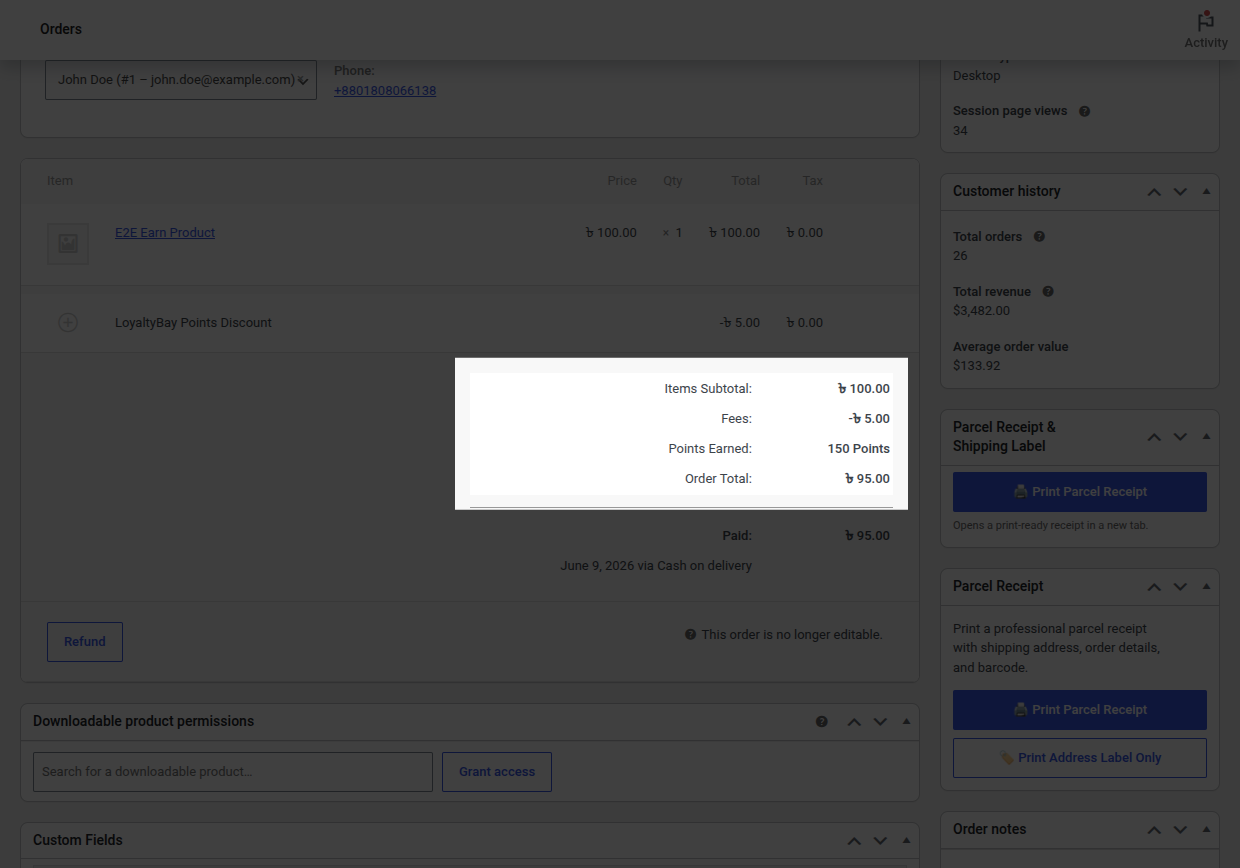
* **In the Admin Ledger**: Go to **WooCommerce > Loyalty**. You should see a credit entry for the test customer with a reference to the order ID.
* **On the Order Details**: Check the order totals block in the WooCommerce admin. It should contain a row highlighting the points earned.
---
## Step 4: Test the Redemption Flow
To confirm customers can apply points to their orders:
1. Ensure your test customer has accumulated enough points to meet the **Minimum Points to Redeem** threshold (e.g. 100 points).
2. Log in as the test customer, add items to the cart, and proceed to the checkout page.
3. Look for the points slider or manual redemption form:
* Use the slider to select a point amount to apply.
* Click **Apply Discount**.
4. Verify that the cart total decreases by the correct value of points applied, and complete the order.
5. Check the admin ledger to confirm a corresponding **debit** transaction has been recorded.
## Installation & License Activation
URL: https://wpanchorbay.github.io/loyaltybay/getting-started/installation/
Description: System requirements, installation, and activation steps for the LoyaltyBay Pro plugin.
LoyaltyBay Pro is a premium WooCommerce plugin distributed exclusively through the official website. It is **not** available in the WordPress.org plugin directory. This guide explains how to install the plugin, verify requirements, and activate your pro license.
---
## System Requirements
Before installation, verify that your server meets the following requirements:
* **WordPress**: 6.2 or higher
* **WooCommerce**: 8.0 or higher (required dependency)
* **PHP**: 7.0 or higher (PHP 8.0+ recommended for optimal performance)
* **Database**: MySQL 5.6+ or MariaDB 10.1+ with **InnoDB** engine support.
> [!CAUTION]
> **InnoDB Engine Requirement**: The `{prefix}_loyaltybay_ledger_cache` table utilizes InnoDB's row-level locking (`SELECT ... FOR UPDATE`) during checkout processing. If your database uses the MyISAM engine, table-level locks will occur instead, which will fail to prevent race conditions and can cause database deadlocks at checkout.
---
## Installation Steps
### Method 1: WordPress Admin Upload (Recommended)
1. Log in to your **LoyaltyBay Account Dashboard** where you purchased the plugin.
2. Download the latest release `.zip` archive of the plugin to your computer.
3. Log in to your WordPress dashboard as an administrator.
4. Navigate to **Plugins > Add New** and click the **Upload Plugin** button at the top of the page.
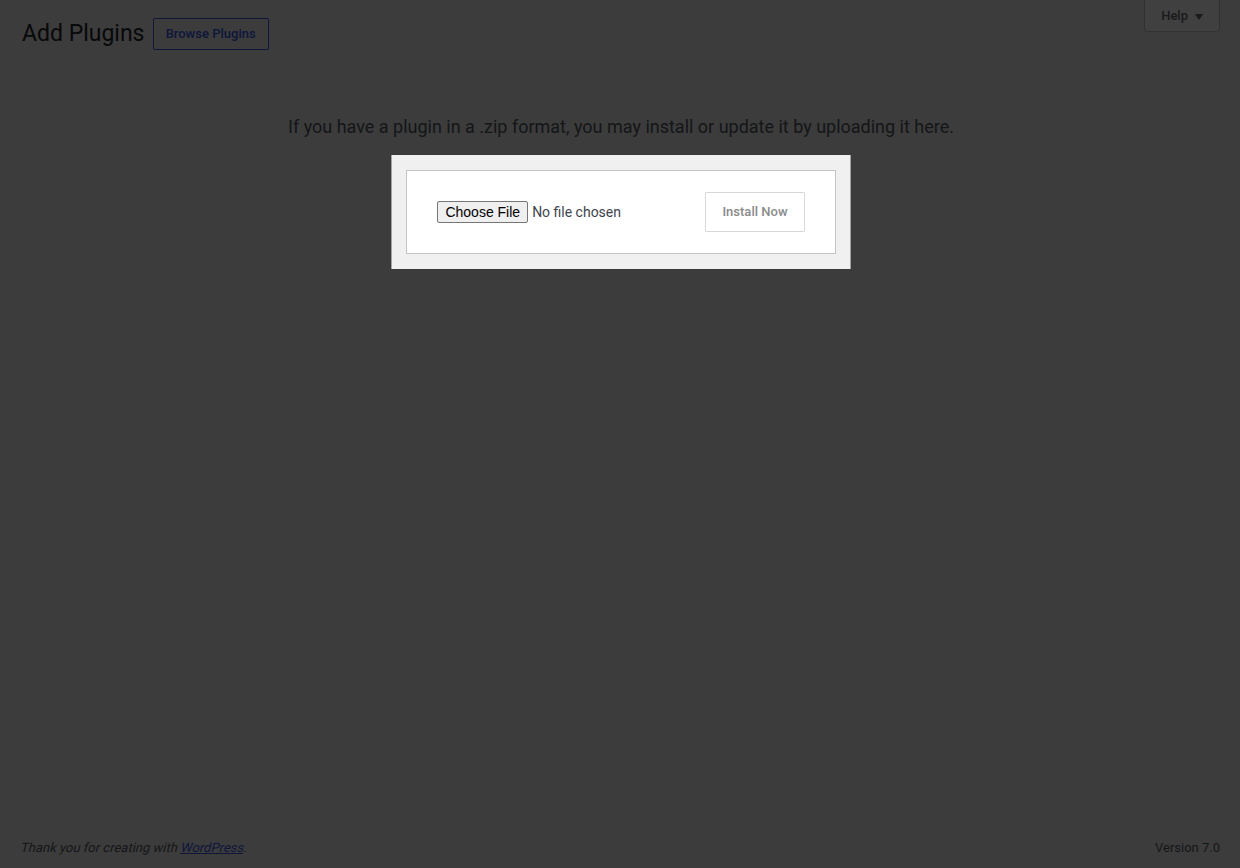
5. Click **Choose File**, select the downloaded `loyaltybay.zip` file, and click **Install Now**.
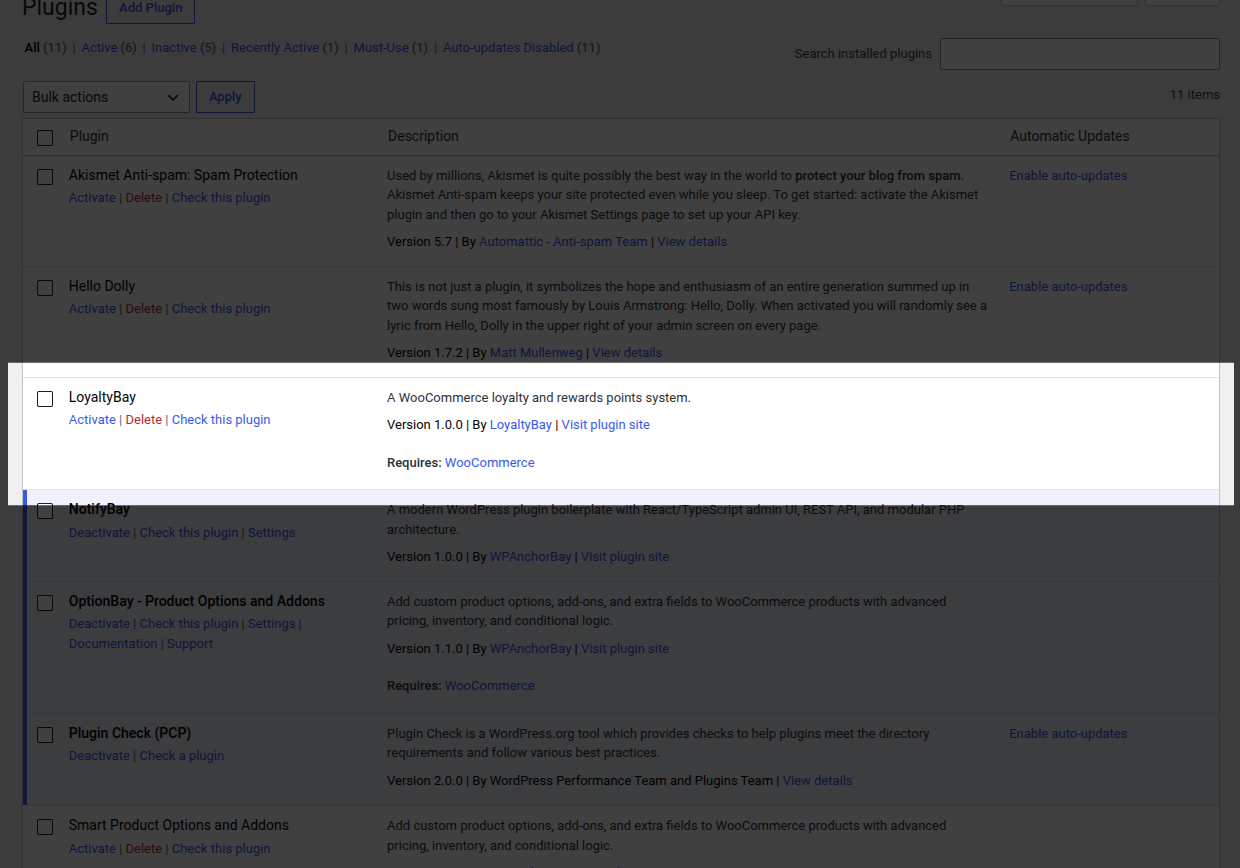
6. Once WordPress completes the upload and extraction, click the **Activate Plugin** button.
### Method 2: Manual SFTP/FTP Installation
Use this method if your server restricts web-based file uploads or has low file-upload limits:
1. Extract the downloaded `loyaltybay.zip` file on your computer. This will extract a folder named `loyaltybay`.
2. Connect to your web server using your preferred SFTP/FTP client.
3. Navigate to the `/wp-content/plugins/` directory of your WordPress installation.
4. Upload the extracted `loyaltybay` directory there. Verify that the file permissions for the directory are set to `755` and files are set to `644`.
5. Log in to your WordPress admin, go to **Plugins > Installed Plugins**, find **LoyaltyBay**, and click **Activate**.
---
## Post-Activation Processes
Upon activation, the plugin performs the following tasks automatically:
1. **Database Migration**: Executes schema migrations to build three custom InnoDB tables:
* `{prefix}_loyaltybay_ledger` — Holds point transaction rows.
* `{prefix}_loyaltybay_ledger_cache` — Caches point balances for fast lookups.
* `{prefix}_loyaltybay_cron_log` — Tracks scheduled background jobs.
2. **Add Menu Link**: Registers the **Loyalty** menu item under **WooCommerce**.
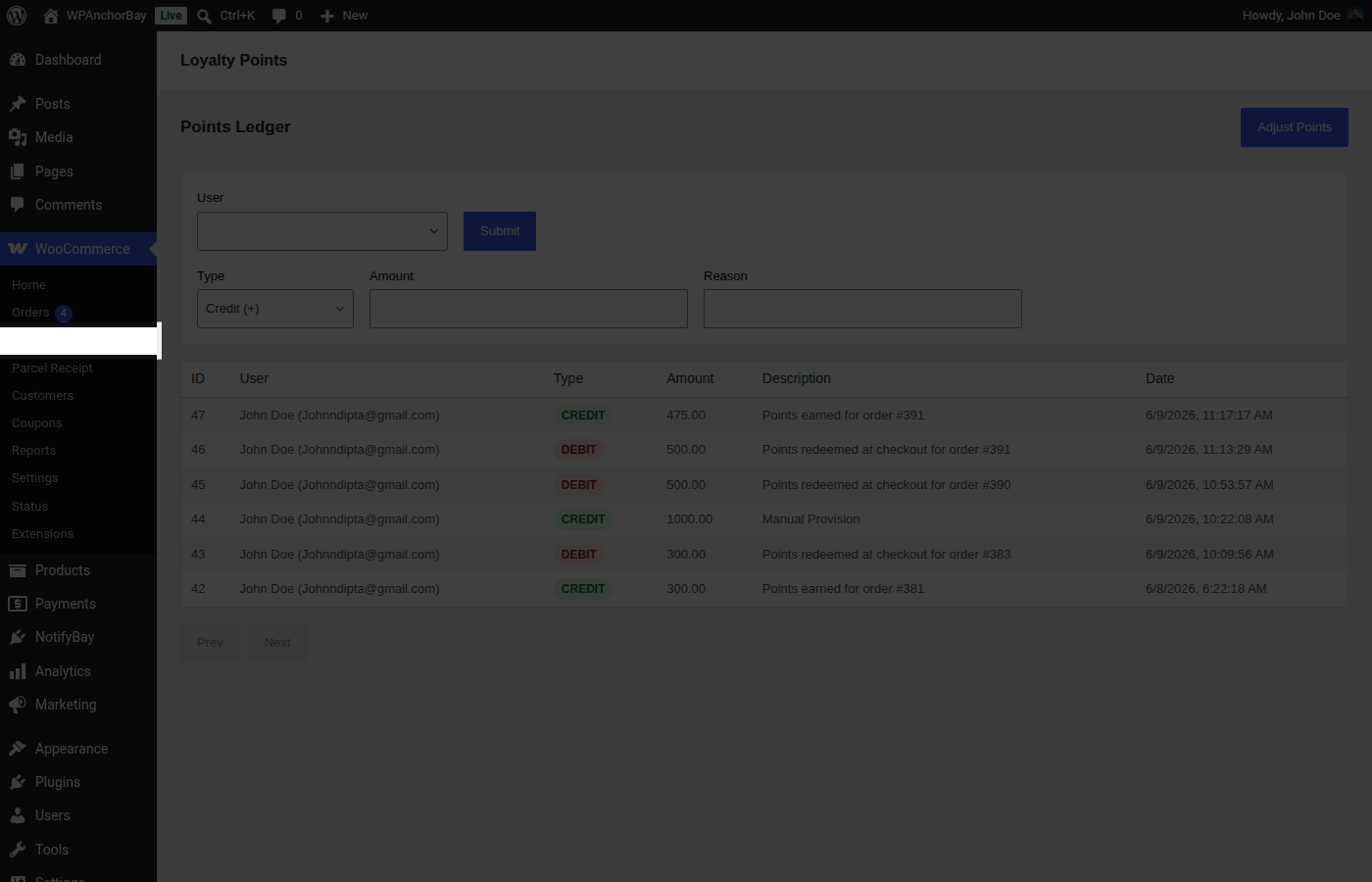
3. **Register Custom Capabilities**: Adds the `manage_loyaltybay` capability to the `administrator` role.
4. **Rewrite Rules**: Registers the `/my-account/my-rewards/` endpoint and flushes WordPress rewrite rules so the customer dashboard is immediately accessible.
5. **Schedules Background Cron Events**:
* `loyaltybay_cron_recalculate_tiers` (daily)
* `loyaltybay_check_expiry` (daily)
---
## License Key Activation
Since LoyaltyBay is a Pro plugin, you must input your license key to enable automated updates:
1. Navigate to **WooCommerce > Loyalty > Settings**.
2. In the **Display & System** section, locate the **License Key** field.
3. Enter the license key from your purchase receipt.
4. Click **Save Changes**. The plugin will make an API call to verify the license and enable background updates.
## Meta files and discovery endpoints
URL: https://wpanchorbay.github.io/loyaltybay/others/ai-crawler/
Description: Learn more about Astro Starlight.
These public machine-readable files help crawlers, agents, and automation discover the docs and related integration metadata:
- [robots.txt](../../robots.txt) for crawler policy and the sitemap reference.
- [llms.txt](../../llms.txt) for the concise LLM-friendly overview of the documentation set. This endpoint is also advertised with a site-wide `` tag.
- [llms-full.txt](../../llms-full.txt) for the expanded plain-text export of the docs corpus. This endpoint is also advertised with a site-wide `` tag.
- Per-page Markdown/MDX source exports under `/markdown/` (`/markdown/.md`), for example [markdown/index.md](../../markdown/index.md) or [markdown/others/ai-crawler.md](../../markdown/others/ai-crawler.md). Each documentation page advertises its own export with a page-specific `` tag.
- [sitemap-index.xml](../../sitemap-index.xml) for the top-level sitemap index.
- [sitemap-0.xml](../../sitemap-0.xml) for the generated URL list currently referenced by the sitemap index.
- [.well-known/mcp.json](../../.well-known/mcp.json) for MCP discovery metadata related to the public documentation site.
## Changelog
URL: https://wpanchorbay.github.io/loyaltybay/resources/changelog/
Description: Version release history for the LoyaltyBay WooCommerce plugin.
This page logs the updates, features, and fixes released for the LoyaltyBay plugin.
---
## v1.0.0 — Initial Release
Released on June 17, 2026.
### Features
* **Points Earning**:
* Automatic points calculation and crediting on WooCommerce order status completions.
* Exclusion list support for specific products and categories.
* Optional points rewards for user registrations and approved product reviews.
* Earning limits cap configuration.
* **Points Redemption**:
* Points slider and numeric input for checkout redemption.
* Supports WooCommerce Block Checkout and WooCommerce Classic Checkout layouts.
* Flexible redemption modes: Cart Fee (Fee) mode and Virtual Coupon (Coupon) mode.
* Minimum point threshold and maximum checkout discount percentage settings.
* **Database & Core**:
* Immutable, append-only points transaction ledger (`wp_loyaltybay_ledger`).
* High-performance user balance cache tables.
* Double-spend race condition protection using InnoDB row-level database locking.
* Fail-safe background cron infrastructure with auto-retry and logging.
* **Admin Tools**:
* React-powered admin dashboard and configuration tab.
* Detailed transaction log table with user, type, and date-range filters.
* One-click manual adjustments (credits and debits) with reason logging.
* CSV data export matching current filters.
* **Loyalty Features**:
* VIP Earning Tiers (Bronze, Silver, Gold, Platinum) with customizable lifetime point thresholds and multipliers.
* Referral tracking system using unique customer URLs and cookies.
* Customer My Account "Loyalty Points" dashboard showing history, tier, and copy-link panels.
* **Security & Uninstall**:
* Full sanitization, escaping, and WP nonce validation.
* Graceful uninstall option to completely purge tables and metadata.
## FAQ
URL: https://wpanchorbay.github.io/loyaltybay/resources/faq/
Description: Frequently asked questions about the LoyaltyBay WooCommerce plugin.
Here are answers to the most common questions about configuring, using, and extending LoyaltyBay.
---
## General Questions
### What is LoyaltyBay?
LoyaltyBay is a high-performance customer retention and rewards engine for WooCommerce. It lets customers earn points for purchases, account registrations, and product reviews, which they can redeem for discounts during checkout.
### Does it work with the WooCommerce Block Checkout?
Yes. LoyaltyBay is fully compatible with modern, React-based WooCommerce Checkout Blocks. It registers a custom points slider block in the checkout flow. It also supports traditional WooCommerce Classic Checkout templates.
### Does it support guest checkout?
Customers must have a registered account to earn or redeem points. Guests cannot earn points. However, LoyaltyBay displays helpful notices at checkout encouraging guest shoppers to create an account to secure the points their order would generate.
---
## Point Earning Questions
### When are points credited to a customer's account?
Points are credited automatically when an order's status changes to the configured trigger value. By default, this is set to **Completed**, but it can be changed to **Processing** in the plugin settings.
### Can I exclude certain products or categories from earning points?
Yes. Earning rules allow you to exclude specific products or entire categories. If a customer checks out with a mixed cart, the system automatically subtracts the excluded items' value before calculating points.
### What happens if an order is refunded?
If an order is fully or partially refunded, the points earned from that order are automatically debited (clawed back). If the customer has already spent those points, their balance is allowed to go **negative** to prevent return-policy exploitation.
---
## Point Redemption Questions
### How do customers redeem points?
Logged-in customers who meet the minimum point balance requirement will see a points slider or input field at checkout. They can choose how many points to apply, see a live preview of the discount, and apply it to their cart.
### What is the difference between Fee and Coupon redemption modes?
* **Cart Fee (Fee) Mode**: Applies the discount as a negative fee to the cart. It offers a very clean presentation but can conflict with third-party automated tax software.
* **Virtual Coupon Mode**: Generates a temporary coupon code on the fly. This has 100% compatibility with third-party automated tax and multi-currency services.
### Can customers partially redeem their points?
Yes. If enabled in settings, customers can use a slider at checkout to select exactly how many points they wish to redeem, up to their available balance or the maximum allowed order discount.
### How are concurrent double-spend attempts prevented?
LoyaltyBay opens a database transaction and requests a row lock (`SELECT ... FOR UPDATE`) on the user's balance cache. If a second request tries to redeem the same points before the first commits, the database blocks it until the first completes. The second transaction then reads the new, depleted balance and safely aborts.
---
## Technical Questions
### What database tables does the plugin create?
LoyaltyBay creates three custom database tables on activation:
1. `wp_loyaltybay_ledger` — Logs every credit and debit transaction.
2. `wp_loyaltybay_ledger_cache` — Caches user balances for high performance.
3. `wp_loyaltybay_cron_log` — Tracks scheduled background jobs.
### Is data deleted when the plugin is uninstalled?
By default, plugin data is preserved. It will only be permanently deleted if the **Delete All on Uninstall** option is checked in the plugin's admin settings prior to deletion.
## Troubleshooting
URL: https://wpanchorbay.github.io/loyaltybay/resources/troubleshooting/
Description: Diagnostic guides and solutions for common issues in LoyaltyBay.
This page provides troubleshooting guidelines for resolving common configuration, display, or database issues.
---
## Earning Issues
### Points Are Not Being Awarded on Purchases
If completed orders are not crediting points to customers, perform the following checks:
1. **Check Order Status**: Verify that the order's status matches your **Order Status Trigger** setting (default is **Completed**). If the order is in "Processing" or "Pending" status, points will not be awarded.
2. **Verify Customer Registration**: Guests cannot earn points. Check if the order was placed by a registered user.
3. **Check Exclusions**: Ensure the items purchased were not in excluded categories or products. Exclusions deduct the item value before calculation.
4. **Audit Ledger for Duplicates**: Check the ledger in **WooCommerce > Loyalty**. If points were already awarded for that order ID, the database blocks subsequent attempts to prevent double-crediting.
5. **Check DB Engine**: Confirm your MySQL tables use InnoDB. If they use MyISAM, transactional commits might fail.
---
## Redemption Issues
### Redemption Form Does Not Appear at Checkout
If the points slider or entry form is missing at checkout, verify:
1. **User Login**: Ensure the customer is logged in. Guests cannot redeem points.
2. **Point Balance vs. Minimum Threshold**: Ensure the customer's balance is equal to or greater than the **Minimum Points to Redeem** setting (default is `100` points).
3. **Compatibility check**:
* If using WooCommerce Blocks Checkout, confirm that your theme supports the block layout registry.
* If using Classic Checkout, ensure your theme calls the `woocommerce_checkout_before_order_review` hook. If your custom theme has stripped default hooks, select a different **Widget Position** hook in settings.
---
## Integration Conflicts
### Tax Calculations Are Wrong When Points Are Redeemed
Redeeming points on storefronts that use automated tax calculation plugins (such as TaxJar, Avalara, or custom tax structures) can sometimes create calculation conflicts.
* **Symptom**: Tax rates calculate on the subtotal *before* the discount is subtracted, or the checkout API returns errors.
* **Solution**: Switch your **Redemption Mode** from **Cart Fee (Fee)** to **Virtual Coupon (Coupon)** in settings. In Coupon mode, the discount is processed as a standard WooCommerce coupon, which tax automation plugins support natively.
---
## Admin Dashboard Issues
### The Loyalty Admin Screen Is Blank
If the ledger or settings panel fails to load:
1. **Check Browser Console**: Right-click the page, click **Inspect**, and view the **Console** tab. Look for JavaScript load errors.
2. **REST API Blocked**: Confirm that your server does not block the WordPress REST API. LoyaltyBay's admin screens are written in React and fetch all data via `/wp-json/loyaltybay/v1/`. Security plugins (e.g. Wordfence, Web Application Firewalls) sometimes block REST requests.
3. **Missing Script Locales**: Check if your theme is calling `wp_footer()` or `wp_head()` correctly. Admin bundles require WordPress scripts to be enqueued.
---
## Error Logs
If you encounter an unexplained error, you can check the plugin's dedicated log file.
### Log Location
LoyaltyBay writes its critical error logs (`ERROR` level) to a dedicated directory in your uploads folder, not the standard WooCommerce logger:
```text
wp-content/uploads/loyaltybay-logs/plugin-log-YYYY-MM-DD.log
```
*Note: This directory is automatically created by the plugin when errors occur.*