---
title: License Activation
description: Activate a CartBay license key, learn where to find it, and understand license checks, dev domains, and support options.
---
CartBay uses a WPAnchorBay license key for private updates and support checks. Activate the license after installing the plugin and before relying on update delivery.
## Where to Find Your License Key
Most users receive the license key in the purchase confirmation email after buying CartBay.
You can also retrieve your license key by logging in to your WPAnchorBay account dashboard at [wpanchorbay.com](https://wpanchorbay.com/).
If you cannot find your key or need account help, contact WPAnchorBay support at [support@wpanchorbay.com](mailto:support@wpanchorbay.com).
## Where to Activate
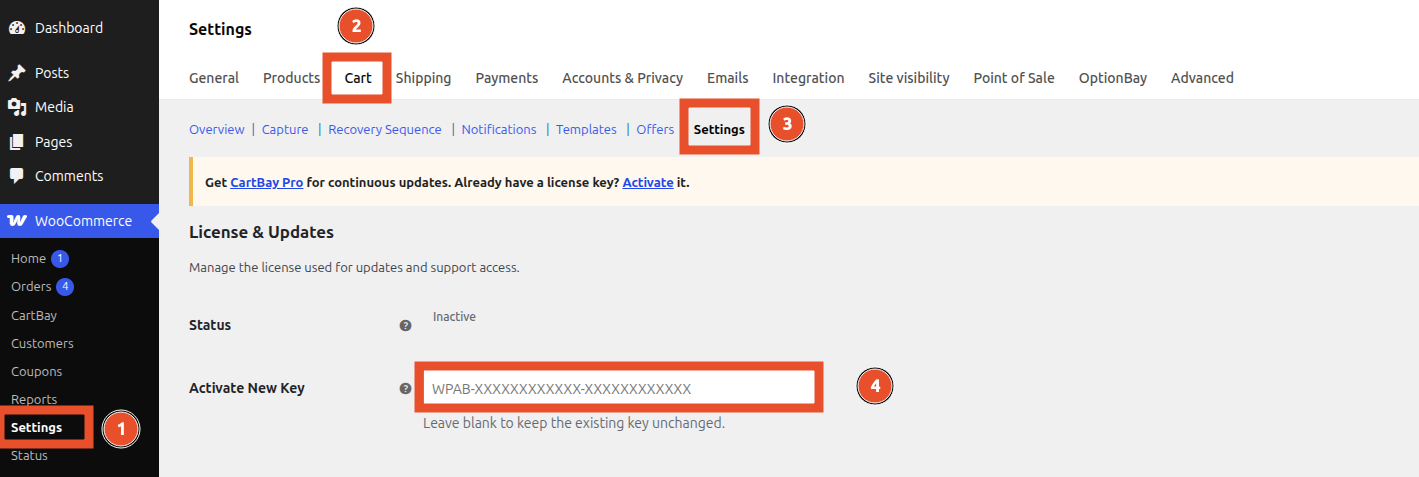
Open **WooCommerce > Settings > Cart > Settings**.
Find the **License & Updates** area and use **Activate New Key**.
 ## Activate the Key
1. Copy your license key from the purchase email or WPAnchorBay dashboard.
2. Paste it into **Activate New Key**.
3. Go to the bottom of the page and click **Save Changes**.
## Activate the Key
1. Copy your license key from the purchase email or WPAnchorBay dashboard.
2. Paste it into **Activate New Key**.
3. Go to the bottom of the page and click **Save Changes**.
 4. Confirm the license status updates.
Expected key format:
```text
WPAB-XXXXXXXXXXXX-XXXXXXXXXXXX
```
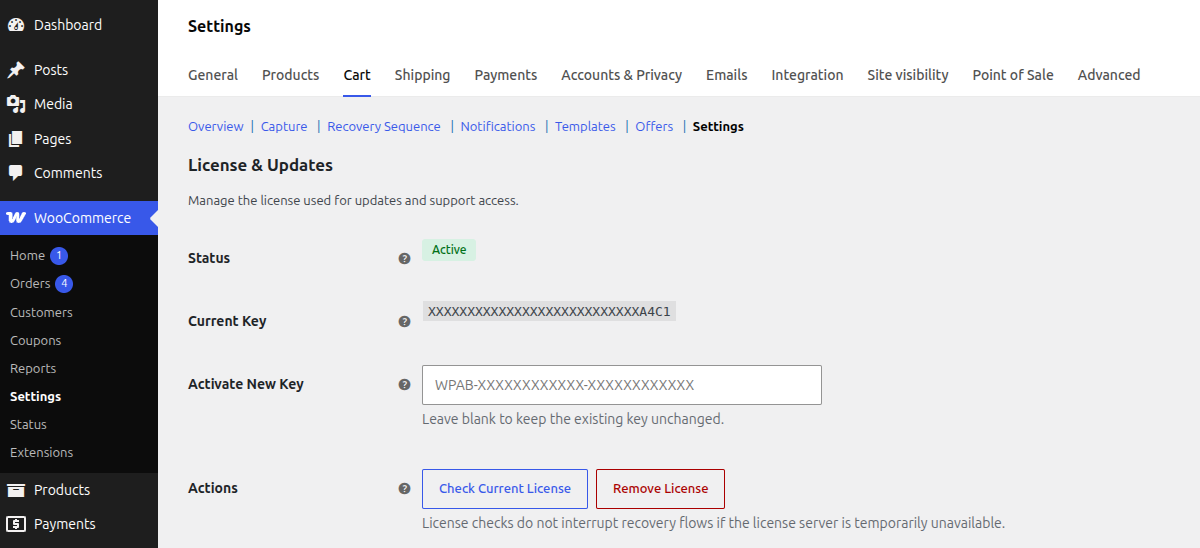
Once activated, you will see the following license states -
| Label | Value | Description |
--------|-------|--------------
| **Status** | `Active` | Shows the most recent license state returned by CartBay licensing. |
| **Current Key** | `XXXXXXXXXXXXXXXXXXXXXXXXXXXA4C1` | Only a masked version is shown here. The full key stays stored in the protected license option. |
| **Activate New Key** | Input Box | In case of new license activation, reactivate or license update, this field will be used to enter the license key. Then use the `Save Changes` below of the page to save the license key. |
| **Actions** | `Check Current License`, `Remove License` | Use these tools to verify the current license status or remove a stored key from this site. |
4. Confirm the license status updates.
Expected key format:
```text
WPAB-XXXXXXXXXXXX-XXXXXXXXXXXX
```
Once activated, you will see the following license states -
| Label | Value | Description |
--------|-------|--------------
| **Status** | `Active` | Shows the most recent license state returned by CartBay licensing. |
| **Current Key** | `XXXXXXXXXXXXXXXXXXXXXXXXXXXA4C1` | Only a masked version is shown here. The full key stays stored in the protected license option. |
| **Activate New Key** | Input Box | In case of new license activation, reactivate or license update, this field will be used to enter the license key. Then use the `Save Changes` below of the page to save the license key. |
| **Actions** | `Check Current License`, `Remove License` | Use these tools to verify the current license status or remove a stored key from this site. |
 ## License Statuses
| Status | Meaning |
|---|---|
| Active | The license server accepted the key. |
| Inactive | No active license state is stored locally. |
| Expired | The license server reported an expired license. |
| Invalid | The stored key was rejected. |
| Dev Mode | Development-domain bypass is active. |
| Server Error | The license server was unreachable. Runtime recovery features continue. |
## Actions
### Check Current License
Use `Check Current License` in Settings after renewal, domain changes, or support troubleshooting.
### Remove License
Use `Remove License` only when disconnecting the site from licensed update checks or replacing the key.
Removing the local license does not stop capture, recovery emails, restore links, or analytics. It disconnects private updates and support checks until a new key is activated.
## License Server Outages
If the license server is temporarily unreachable, CartBay will function normally. CartBay will automatically retry to connect to the server later for license status check and updates.
## Need Help?
Contact [support@wpanchorbay.com](mailto:support@wpanchorbay.com) for license, account, purchase, or activation support.
## License Statuses
| Status | Meaning |
|---|---|
| Active | The license server accepted the key. |
| Inactive | No active license state is stored locally. |
| Expired | The license server reported an expired license. |
| Invalid | The stored key was rejected. |
| Dev Mode | Development-domain bypass is active. |
| Server Error | The license server was unreachable. Runtime recovery features continue. |
## Actions
### Check Current License
Use `Check Current License` in Settings after renewal, domain changes, or support troubleshooting.
### Remove License
Use `Remove License` only when disconnecting the site from licensed update checks or replacing the key.
Removing the local license does not stop capture, recovery emails, restore links, or analytics. It disconnects private updates and support checks until a new key is activated.
## License Server Outages
If the license server is temporarily unreachable, CartBay will function normally. CartBay will automatically retry to connect to the server later for license status check and updates.
## Need Help?
Contact [support@wpanchorbay.com](mailto:support@wpanchorbay.com) for license, account, purchase, or activation support.