# CartBay Documentation
Canonical: https://wpanchorbay.github.io/cartbay/
This file contains the main public documentation content in a machine-readable text format.
## CartBay Documentation
URL: https://wpanchorbay.github.io/cartbay/
Description: Learn how to configure, operate, extend, and automate CartBay abandoned cart recovery for WooCommerce.
import { CardGrid } from '@astrojs/starlight/components';
import Card from '../../components/starlight/Card.astro';
import WPAnchorBayFooter from '../../components/WPAnchorBayFooter.astro';
## What It Does
CartBay helps WooCommerce stores recover abandoned checkout revenue. It captures opted-in checkout visitors, tracks abandoned carts, sends a focused three-email recovery sequence, restores carts through secure links, offers optional recovery coupons, and reports recovered revenue inside the WordPress admin.
## How CartBay Works
CartBay captures a customer's email from the checkout page when they enter it (classic and block checkouts are both supported). If the customer leaves without completing the purchase, CartBay marks the session as **abandoned** after a configurable timeout. A sequence of up to three recovery emails is then sent automatically, each with customizable timing and optional discount coupons. Every email includes a unique restore link that, when clicked, reloads the customer's cart and redirects them to checkout. Analytics track the full funnel — tracked, abandoned, recovered, and revenue — so you can measure recovery performance at a glance.
## Core Capabilities
- Consent-based checkout capture for classic checkout and WooCommerce Block Checkout.
- WooCommerce-native abandoned cart sessions stored through order objects.
- Action Scheduler-powered abandonment detection and email scheduling.
- Three recovery email steps with editable WooCommerce email templates.
- Secure restore and unsubscribe links using hashed tokens.
- Optional CartBay-generated recovery coupons with validation safeguards.
- Overview analytics for tracked carts, abandoned carts, recoveries, revenue, restore clicks, and failed restores.
- Notification tracking for queued, attempted, sent, failed, retry-queued, delivered, and canceled recovery emails.
- Optional protected AI-agent REST and WordPress Abilities access.
## Main Workflows
1. Install CartBay and activate the license.
2. Configure checkout capture, consent text, and abandonment timeout.
3. Set the three-email recovery sequence timing.
4. Customize recovery email templates in WooCommerce email settings.
5. Configure recovery coupons in Offers if your sequence uses incentives.
6. Verify email delivery with Test Mode and the test flow.
7. Monitor CartBay Overview and Notifications after launch.
## Start From
Learn what CartBay does, confirm requirements, install the plugin, activate your license, and launch your first recovery sequence.
Configure CartBay admin sections for capture, recovery sequence, notifications, templates, offers, settings, and troubleshooting.
Review CartBay architecture, storage, REST routes, hooks, background jobs, templates, emails, build, and QA references.
Use protected agent access, safe automation workflows, and operational guardrails for CartBay AI-agent integrations.
## Quick Links
- [Requirements](/cartbay/getting-started/requirements/)
- [Installation](/cartbay/getting-started/installation/)
- [License Activation](/cartbay/getting-started/license-activation/)
- **[Quick Start](/cartbay/getting-started/quick-start/)**
- [CartBay Overview](/cartbay/user-guide/overview/)
- [Capture](/cartbay/user-guide/capture/)
- [Recovery Sequence](/cartbay/user-guide/recovery-sequence/)
- [Templates](/cartbay/user-guide/templates/)
- [Offers](/cartbay/user-guide/offers/)
- [Notifications](/cartbay/user-guide/notifications/)
- [Settings](/cartbay/user-guide/settings/)
- [FAQ](/cartbay/others/faq/)
## Who This Is For
- Store owners who want to recover more WooCommerce checkout revenue.
- Store administrators who need to configure capture, emails, coupons, and reporting.
- Support teams who need to diagnose email delivery, restore links, coupons, or recovery attribution.
- Developers who need architecture, storage, REST API, hooks, templates, and QA details.
- AI agents and automation systems that need safe, least-privilege CartBay workflows.
## How to Navigate This Documentation
Start with Getting Started if you are installing CartBay for the first time. Use the User Guide when configuring a specific CartBay admin section. Use Developers for architecture, integration, and extension details. Use AI Agents when enabling automation or MCP-based workflows. Use Others for FAQ, discovery endpoints, and documentation metadata.
## Agent Access
URL: https://wpanchorbay.github.io/cartbay/agents/agent-access/
Description: Configure and understand CartBay's protected AI-agent REST endpoints, WordPress Abilities, token scopes, MCP exposure, and audit logging.
CartBay includes an optional agent access layer for trusted automation systems. It is closed by default and becomes active only after a store administrator enables it.
## Surfaces
| Surface | Use case | Authentication |
|---|---|---|
| CartBay Agent REST | CartBay-specific automation endpoints. | WordPress auth or CartBay Bearer token. |
| WordPress Abilities | WordPress-native ability discovery and execution. | WordPress authentication, often Application Passwords. |
| MCP Adapter exposure | Expose CartBay Abilities to MCP clients through the official WordPress MCP Adapter. | Authenticated WordPress MCP user. |
CartBay Bearer tokens authenticate only CartBay agent REST endpoints. They are not accepted as general WordPress authentication.
## Settings Gates
Open `WooCommerce > CartBay > Settings > AI Agent Access`.
| Setting | Default | Meaning |
|---|---:|---|
| Enable Agent Access | Off | Master gate for all agent capabilities. |
| REST Access | On | Enables `/wp-json/cartbay/v1/agent` when master access is enabled. |
| Abilities Access | On | Registers CartBay WordPress Abilities for authenticated users. |
| MCP Public Exposure | Off | Marks abilities as MCP-public for the MCP Adapter. |
| Agent Write Actions | Off | Allows safe settings/campaign updates. |
| Agent Contact Actions | Off | Allows email-oriented session actions. |
| Agent Sensitive Data | Off | Allows raw PII and sensitive recovery details. |
| Agent Destructive Actions | Off | Allows expiring or deleting sessions. |
## Capabilities and Scopes
WordPress capabilities:
- `cartbay_agent_read`
- `cartbay_agent_write`
- `cartbay_agent_contact`
- `cartbay_agent_sensitive`
- `cartbay_agent_destructive`
- `cartbay_agent_manage_tokens`
- `cartbay_agent_manage_access`
Bearer token scopes:
- `read`
- `write`
- `contact`
- `sensitive`
- `destructive`
- `manage_tokens`
- `manage_access`
Administrators receive all agent capabilities. Shop managers receive read, write, and contact capabilities.
## Agent REST Endpoints
| Method | Path |
|---|---|
| `GET` | `/wp-json/cartbay/v1/agent/manifest` |
| `GET` | `/wp-json/cartbay/v1/agent/sessions` |
| `GET` | `/wp-json/cartbay/v1/agent/sessions/{id}` |
| `POST` | `/wp-json/cartbay/v1/agent/sessions/{id}/actions` |
| `GET` | `/wp-json/cartbay/v1/agent/analytics` |
| `GET`, `PATCH` | `/wp-json/cartbay/v1/agent/settings` |
| `GET`, `PATCH` | `/wp-json/cartbay/v1/agent/campaign` |
| `GET`, `POST` | `/wp-json/cartbay/v1/agent/tokens` |
| `DELETE` | `/wp-json/cartbay/v1/agent/tokens/{public_id}` |
| `GET` | `/wp-json/cartbay/v1/agent/audit-log` |
Session output masks PII by default. Raw customer email, cart snapshots, coupon data, and linked order details require sensitive access and the sensitive data gate.
## Session Actions
Supported actions:
- `mark_abandoned_now`
- `cancel_pending_emails`
- `send_email_step_now`
- `expire_session`
- `delete_session`
Contact and destructive actions require both a matching capability/scope and the corresponding settings gate.
## WordPress Abilities
When the WordPress Abilities API is available, CartBay registers the `cartbay-agent` category and abilities such as:
- `cartbay/get-agent-manifest`
- `cartbay/list-sessions`
- `cartbay/get-session`
- `cartbay/get-analytics`
- `cartbay/get-settings`
- `cartbay/update-settings`
- `cartbay/get-campaign`
- `cartbay/update-campaign`
- `cartbay/run-session-action`
CartBay does not bundle the MCP Adapter. Site owners can install the official WordPress MCP Adapter and expose CartBay abilities as MCP tools.
## Audit Logging
CartBay stores a redacted rolling audit log in `cartbay_agent_audit_log`. Reads and writes should be attributable to the resolved principal, whether that is a WordPress user or CartBay Bearer token.
## Safe Enablement Pattern
1. Create a dedicated least-privilege WordPress user or CartBay token.
2. Enable only `Enable Agent Access` and the surface needed for the workflow.
3. Start with read-only access.
4. Enable write/contact/sensitive/destructive gates only when required.
5. Review the audit log after the first automation run.
:::danger
Do not enable sensitive or destructive agent access for general-purpose agents, shared credentials, browser extensions, or untrusted automation runners.
:::
## Automation Workflows
URL: https://wpanchorbay.github.io/cartbay/agents/automation-workflows/
Description: Recommended AI-agent and automation workflows for monitoring, diagnosing, configuring, and safely operating CartBay.
Use these workflows as starting points for AI agents, MCP clients, and automation systems.
## Read-Only Health Check
Recommended permissions: `read` scope or `cartbay_agent_read` capability.
Workflow:
1. Read the agent manifest.
2. Read analytics for 7, 30, and 90 days.
3. List recent sessions with masked PII.
4. Identify high failed-email counts, low restore rates, or many pending notifications.
5. Report findings without modifying settings.
Safe output:
- Session IDs.
- Status counts.
- Recovery rates.
- Notification status counts.
- Recommendations that require human approval.
Avoid outputting raw customer emails unless sensitive access is explicitly enabled and required.
## Email Failure Diagnosis
Recommended permissions: `read`; optionally sensitive access for trusted support workflows.
Workflow:
1. Read notification-heavy sessions.
2. Identify failed and retry-queued notifications.
3. Inspect error fields and lifecycle timestamps.
4. Check whether Action Scheduler queues are delayed.
5. Recommend SMTP/ESP verification if WordPress mail failures appear.
Do not resend emails automatically unless contact actions are enabled and the store owner approves.
## Campaign Review
Recommended permissions: `read`; `write` only for approved changes.
Workflow:
1. Read current campaign settings.
2. Compare Email 1, 2, and 3 timings with defaults.
3. Check coupon-enabled steps against offer settings.
4. Read analytics by sequence step.
5. Recommend changes such as delaying a step or moving coupons later.
6. Apply changes only when `Agent Write Actions` is enabled and approval is explicit.
## Controlled Send Action
Recommended permissions: `contact` plus read access.
Workflow:
1. Read target session.
2. Confirm it is a CartBay session and currently abandoned.
3. Confirm email is not suppressed.
4. Confirm no recovered order exists.
5. Run `send_email_step_now` only for the intended step.
6. Re-read session notifications and audit log.
## Cleanup Workflow
Recommended permissions: destructive access only for trusted admin automation.
Workflow:
1. List sessions older than the retention policy or clearly test-only sessions.
2. Present candidate session IDs and reasons.
3. Require explicit approval.
4. Use `expire_session` before `delete_session` when possible.
5. Confirm logs and analytics after completion.
:::danger
Agents should never bulk-delete sessions without an explicit, human-reviewed list of session IDs.
:::
## MCP Workflow
For WordPress MCP Adapter users:
1. Create a dedicated WordPress user with least-privilege CartBay capabilities.
2. Use Application Passwords for the MCP client.
3. Enable Abilities Access.
4. Enable MCP Public Exposure only for the dedicated user/workflow.
5. Keep destructive and sensitive gates off unless the workflow requires them.
## Agent Reporting Format
Recommended report fields:
- Time range reviewed.
- Settings gates enabled.
- Capabilities/scopes used.
- Read operations performed.
- Write/contact/destructive operations performed.
- Session IDs touched.
- Warnings and unresolved questions.
- Whether any PII was accessed.
## Safety Rules
URL: https://wpanchorbay.github.io/cartbay/agents/safety-rules/
Description: Operational safety rules, constraints, and guardrails for AI agents and automation systems working with CartBay.
AI agents can help operate CartBay, but recovery systems touch customer data, email outreach, coupons, order attribution, and destructive cleanup. Use strict guardrails.
## Default Rule
Use read-only access unless the store owner explicitly asks for a change and the required CartBay setting gate is enabled.
## Never Do These Without Explicit Approval
- Send or resend recovery emails.
- Cancel pending emails.
- Change campaign timing.
- Enable coupons on additional steps.
- Increase coupon amount.
- Enable sensitive data access.
- Enable destructive actions.
- Expire or delete sessions.
- Remove license keys.
- Enable uninstall data deletion.
## PII Rules
- Prefer masked session output.
- Do not print raw customer emails unless the task requires it.
- Do not export cart snapshots unless sensitive access was approved.
- Do not include raw tokens in logs, reports, prompts, or tickets.
- Do not send full license keys to third-party systems.
## Contact Rules
Recovery emails are customer contact. Agents must treat these actions as high impact.
Before any contact action, verify:
- The session is abandoned.
- The email is not suppressed.
- The requested step has not already been sent unless resending is intentional.
- The store owner approved the action.
- The action will be audited.
## Destructive Rules
Before expiring or deleting a session, verify:
- It is a CartBay-created WooCommerce order-backed session.
- The status and age match the cleanup reason.
- The session ID was explicitly approved.
- No active recovery investigation depends on the record.
## Coupon Rules
- Do not recommend percentage discounts without margin context.
- Do not apply coupons outside a matching restored recovery flow.
- Do not bypass CartBay coupon validation.
- Do not use recovery coupons on carts containing subscription products.
## License Rules
- License server outages should not be treated as runtime failures.
- Do not remove the license key unless the user asks.
- Do not change license metadata or updater behavior to satisfy WordPress.org-only checks.
## Developer-Agent Rules
When modifying CartBay code, agents must:
- Read project instructions before editing.
- Preserve namespace `WPAnchorBay\CartBay\`.
- Use WooCommerce CRUD for orders.
- Use Action Scheduler for jobs.
- Sanitize inputs and escape outputs.
- Run `composer phpcs` and `composer phpstan` before claiming code work complete.
- Run `bun run build` after JS changes.
- Update docs when behavior changes.
## Recommended Human Approval Prompt
```text
I found the following CartBay action candidates: [session IDs and reasons].
This will [send emails/change settings/delete records/access PII].
Required gate: [write/contact/sensitive/destructive].
Approve exactly these actions? Reply with the session IDs and action name.
```
Agents should stop if approval is ambiguous.
## Architecture
URL: https://wpanchorbay.github.io/cartbay/developers/architecture/
Description: Developer overview of CartBay's runtime architecture, core modules, data flow, services, and implementation constraints.
CartBay is a namespaced WooCommerce plugin under `WPAnchorBay\CartBay\`. It uses WooCommerce order objects as recovery sessions, Action Scheduler for background work, WooCommerce email classes for recovery messages, and REST routes for checkout capture, admin analytics, licensing, tests, and agent automation.
## Runtime Boundaries
| Boundary | Value |
|---|---|
| Plugin file | `cartbay.php` |
| Namespace root | `WPAnchorBay\CartBay\` |
| Source root | `app/` |
| REST namespace | `cartbay/v1` |
| Text domain | `cartbay` |
| Settings option | `cartbay_settings` |
| Campaign option | `cartbay_campaign_settings` |
| Woo status prefix | `wc-cartbay-` |
## Major Modules
| Module | Main files | Responsibility |
|---|---|---|
| Core | `Core/Plugin.php`, `Container.php`, `Installer.php`, `Settings.php`, `Updater.php`, `CheckoutFields.php` | Bootstrap, hooks, service container, settings normalization, updater, checkout fields. |
| Admin | `Admin/Settings/*`, `Admin/Wizard/WizardController.php` | WooCommerce settings tab, wizard, fields, dashboards, logs, test UI. |
| API | `Api/Routes/*` | REST route registration and request handling. |
| Recovery | `Recovery/*` | Capture, abandonment, sequencing, coupons, restore, matching, notifications. |
| Email | `Email/*` | WooCommerce recovery email classes and shared email behavior. |
| Data | `Data/SessionRepository.php` | WooCommerce order-backed session CRUD. |
| Analytics | `Analytics/AnalyticsService.php` | Period metrics and cached reporting. |
| License | `License/LicenseClient.php` | WPAnchorBay license activation/check/deactivation. |
| Agent | `Agent/*` | Agent auth, scopes, permissions, tokens, abilities, audit logging. |
| Utils | `Utils/TokenHelper.php`, `RateLimiter.php`, `Logger.php` | Token hashing, rate limiting, logging. |
## Bootstrap Flow
1. `cartbay.php` registers constants and Composer autoloading.
2. `plugins_loaded` checks WooCommerce availability.
3. `Plugin::instance()->init()` declares HPOS compatibility, registers container services, hooks runtime events, initializes updater, and fires `cartbay_loaded`.
4. Activation creates default options, seeds email templates, registers install-time statuses/CPTs, schedules recurring jobs, and flushes rewrites.
5. Deactivation unschedules recurring CartBay jobs and flushes rewrites.
## End-to-End Data Flow
```text
Checkout consent + email
-> POST /wp-json/cartbay/v1/capture
-> CaptureService
-> SessionRepository creates/updates WooCommerce order session
-> Action Scheduler marks abandoned
-> EmailSequenceService sends recovery email
-> RestoreService rebuilds cart from token link
-> RecoveryMatcher attributes completed order
-> AnalyticsService reports recovery metrics
```
## Design Constraints
- Use WooCommerce CRUD APIs for order/session data.
- Do not query WooCommerce order tables directly.
- Use Action Scheduler, not WordPress cron events.
- Store restore/unsubscribe/agent tokens as hashes.
- Keep public REST endpoints rate-limited before database work.
- Keep checkout assets scoped to checkout pages.
- Keep license-server failures from blocking capture, email, or restore flows.
## Notable Implementation Details
- CartBay declares HPOS compatibility on `before_woocommerce_init`.
- Classic checkout and Block Checkout share the same capture REST endpoint.
- Restore and unsubscribe use query parameters, not REST routes.
- `wp_mail_succeeded` means WordPress accepted mail, not provider-confirmed delivery.
- PHP requirement differs between plugin header (`8.2`) and Composer (`>=8.3`); use PHP 8.3+ for development.
## Build & QA
URL: https://wpanchorbay.github.io/cartbay/developers/build-and-qa/
Description: Development setup, coding standards, build commands, static analysis, plugin check policy, i18n, and release verification for CartBay contributors.
CartBay is a private premium WooCommerce plugin. Contributions should preserve WooCommerce-native APIs, HPOS compatibility, Action Scheduler usage, and private licensing behavior.
## Requirements
- PHP 8.2 (recommended 8.3+) for Composer development alignment.
- [WordPress](https://wordpress.org/) and [WooCommerce](https://wordpress.org/plugins/woocommerce/) matching the plugin support matrix.
- [Composer](https://getcomposer.org/).
- [Bun](https://bun.com/) (only needed for dev) or Node tooling for WordPress scripts, depending on the local environment.
## PHP Commands
```sh
composer install
composer phpcs
composer phpstan
composer test
composer plugin-check
```
`composer plugin-check` intentionally ignores WordPress.org-only findings for private updater and proprietary license metadata.
## JavaScript Commands
```sh
bun install
bun run build
bun run i18n:make-pot
bun run i18n:make-json
```
Run `bun run build` when changing JS source. Run `bun run i18n:make-pot` after adding or changing translatable strings.
## Coding Standards
- Namespace PHP under `WPAnchorBay\CartBay\`.
- Use tabs for PHP indentation.
- Sanitize input immediately and escape output late.
- Use `manage_woocommerce` for admin actions.
- Use WooCommerce CRUD APIs for order data.
- Use Action Scheduler for jobs.
- Store tokens as hashes.
- Keep frontend assets scoped to their pages.
## High-Risk Areas
Treat these as high-risk changes:
- Checkout capture.
- Restore/cart mutation.
- Coupons and subscriptions.
- Order matching and recovered revenue.
- License enforcement.
- Agent write/contact/sensitive/destructive actions.
- Data deletion and uninstall behavior.
## Verification Checklist
- Classic checkout capture works.
- Block Checkout consent field renders and submits.
- Consent withdrawal deletes active capture and cancels pending work.
- Abandonment jobs mark inactive sessions abandoned.
- All three email steps send in order.
- Restore links rebuild cart and redirect to checkout.
- Coupons validate only in the matching recovery flow.
- Recovered orders are attributed correctly.
- Unsubscribe suppresses future capture/recovery for the email.
- Agent endpoints remain disabled by default.
- Logs do not expose raw tokens or full license keys.
## Data & Storage
URL: https://wpanchorbay.github.io/cartbay/developers/data-and-storage/
Description: Reference for CartBay options, WooCommerce order-backed sessions, statuses, meta keys, transients, suppression records, coupons, and retention.
CartBay stores recovery sessions as WooCommerce orders. There are no custom recovery-session database tables in v1.
## Session Entity
A CartBay session is a WooCommerce order with:
- `created_via` set to `cartbay`.
- Billing email set to the captured checkout email.
- A CartBay lifecycle status.
- CartBay metadata prefixed with `_cartbay_`.
## Statuses
| Status | Meaning |
|---|---|
| `wc-cartbay-captured` | Shopper consented and the cart was captured. |
| `wc-cartbay-abandoned` | Captured session exceeded the inactivity timeout. |
| `wc-cartbay-recovered` | A later order matched the abandoned session. |
| `wc-cartbay-expired` | Session passed retention or was expired. |
| `wc-cartbay-suppressed` | Shopper unsubscribed or was suppressed. |
## Important Meta Keys
| Meta key | Purpose |
|---|---|
| `_cartbay_session_id` | CartBay session identity. |
| `_cartbay_email_hash` | Normalized email hash for grouping and fallback attribution. |
| `_cartbay_email` | Captured email. Use carefully; this is PII. |
| `_cartbay_consent`, `_cartbay_consent_text`, `_cartbay_consent_at` | Consent state and context. |
| `_cartbay_source` | `classic` or `block`. |
| `_cartbay_cart_hash`, `_cartbay_cart_fingerprint` | Cart identity and dedupe/update inputs. |
| `_cartbay_cart_total`, `_cartbay_currency`, `_cartbay_cart_item_count` | Cart value summary. |
| `_cartbay_cart_snapshot` | Restore-ready cart snapshot. |
| `_cartbay_captured_at`, `_cartbay_last_activity_at`, `_cartbay_abandoned_at` | Lifecycle timestamps. |
| `_cartbay_recovered_at`, `_cartbay_recovered_order_id`, `_cartbay_recovered_revenue` | Recovery attribution. |
| `_cartbay_events` | Structured session event log. |
| `_cartbay_notifications` | Notification lifecycle records. |
| `_cartbay_token_hash`, `_cartbay_token_hashes`, `_cartbay_token_expires_at` | Restore token hashes and expiry. |
| `_cartbay_unsub_token_hash` | Unsubscribe token hash. |
| `_cartbay_coupon_code`, `_cartbay_coupon_expires_at` | Generated recovery coupon context. |
## Event Names
Implemented session events include `captured`, `updated`, `abandoned`, `email_sent`, `email_failed`, `restore_clicked`, `cart_restore_started`, `cart_restored`, `cart_restore_partial`, `cart_restore_failed`, `completed_before_abandonment`, `recovered`, and `unsubscribed`.
## Options
| Option | Purpose |
|---|---|
| `cartbay_settings` | Capture, consent, timeout, offers, retention, logs, test mode, admin navigation, and agent gates. |
| `cartbay_campaign_settings` | Recovery sequence enabled state, delay settings, and per-step coupon controls. |
| `cartbay_license_data` | Stored license key and license status data. |
| `cartbay_wizard_complete` | First-run wizard completion flag. |
| `cartbay_sequence_defaults_version` | Sequence default migration marker. |
## Transients
| Transient | Purpose |
|---|---|
| `cartbay_license_valid` | Cached license validity for 12 hours. |
| `cartbay_analytics_cache` | Cached analytics metrics. |
| `cartbay_rl_{endpoint}_{md5(REMOTE_ADDR)}` | Public endpoint rate-limit counters. |
| `cartbay_notification_ctx_{notification_id}` | Notification context for mail success/failure hooks. |
| `cartbay_wizard_redirect` | Short-lived first-run redirect flag. |
## Suppression Records
Suppression entries use a private `cartbay_suppressed` post type. The post slug/title is the SHA-256 hash of the normalized email. This allows suppression lookup without storing a plain email in the suppression identifier.
## Coupon Storage
CartBay creates recovery coupons with `WC_Coupon`. Coupon metadata includes `_cartbay_session_id`, `_cartbay_email`, `_cartbay_generated`, and `_cartbay_offer_note`.
## Retention
Retention is controlled by `cartbay_settings['data_retention_days']`. The daily `cartbay_prune_sessions` action delegates cleanup to `SessionRepository::prune_expired()`.
:::caution
Use WooCommerce CRUD APIs and CartBay services when extending storage. Do not query `wp_posts`, `wp_postmeta`, or HPOS tables directly.
:::
## Hooks & Jobs
URL: https://wpanchorbay.github.io/cartbay/developers/hooks-and-jobs/
Description: WordPress hooks, WooCommerce hooks, Action Scheduler jobs, filters, and extension points used by CartBay.
CartBay is event-driven. Most behavior is registered from `Core/Plugin.php` and executed through WordPress, WooCommerce, and Action Scheduler hooks.
## Core Hooks
| Hook | Purpose |
|---|---|
| `before_woocommerce_init` | Declare HPOS compatibility. |
| `init` | Register custom statuses, private CPTs, restore/unsubscribe handlers. |
| `woocommerce_register_shop_order_statuses` | Register CartBay statuses with WooCommerce. |
| `wc_order_statuses` | Add CartBay statuses to status lists. |
| `rest_api_init` | Register REST routes. |
| `admin_menu` | Register WooCommerce menu shortcut and hidden wizard page. |
| `admin_init` | Handle wizard redirect. |
## Frontend Hooks
| Hook | Purpose |
|---|---|
| `wp_enqueue_scripts` | Enqueue classic checkout capture asset when eligible. |
| `woocommerce_blocks_enqueue_checkout_block_scripts_after` | Enqueue Block Checkout capture asset. |
| `woocommerce_init` | Register Block Checkout additional consent field. |
| `woocommerce_get_default_value_for_cartbay/marketing-consent` | Return configured default checkbox state. |
| `woocommerce_checkout_get_value` | Prefill restored checkout email. |
| `wp` | Display frontend notices after restore. |
## Recovery Hooks
| Hook | Purpose |
|---|---|
| `woocommerce_payment_complete` | Attempt recovery matching after payment completion. |
| `woocommerce_order_status_changed` | Attempt matching when order becomes processing/completed. |
| `woocommerce_checkout_create_order` | Attach CartBay attribution identity to the new order. |
| `woocommerce_coupon_is_valid` | Validate CartBay-generated coupons against restored identity. |
## Email Hooks
| Hook | Purpose |
|---|---|
| `woocommerce_email_classes` | Register CartBay recovery email classes. |
| `wp_mail_failed` | Mark notification failures and retry when applicable. |
| `wp_mail_succeeded` | Mark notifications sent when WordPress accepts mail. |
| `cartbay_mark_notification_delivered` | Optional provider integration hook for confirmed delivery. |
## Action Scheduler Jobs
Recurring jobs in group `cartbay`:
| Hook | Schedule | Purpose |
|---|---:|---|
| `cartbay_detect_abandonment` | Every 5 minutes | Fallback scanner for inactive captured sessions. |
| `cartbay_refresh_analytics` | Hourly | Refresh analytics cache. |
| `cartbay_prune_sessions` | Daily | Prune expired sessions. |
| `cartbay_check_license` | Daily | Refresh license state. |
Single jobs in group `cartbay`:
| Hook | Args | Purpose |
|---|---|---|
| `cartbay_detect_session_abandonment` | `[session_id]` | Exact abandonment boundary check. |
| `cartbay_send_recovery_email` | `[session_id, step_index]` | Send one recovery email step. |
## Filters
Known extension filters include:
| Filter | Purpose |
|---|---|
| `cartbay_mail_delivery_plugins` | Extend known mail delivery plugin detection. |
| `cartbay_email_logger_plugins` | Extend known email logger detection. |
| `cartbay_mail_environment_status` | Override or enrich detected mail environment status. |
| `cartbay_license_dev_domain_bypass` | Control development-domain license bypass behavior. |
## Extension Guidance
- Prefer adding hooks around service boundaries instead of bypassing services.
- Keep recovery job callbacks idempotent.
- Do not schedule duplicate Action Scheduler actions; check existing actions first.
- Keep all order access HPOS-safe through WooCommerce CRUD.
- Treat public REST and agent input as untrusted.
## REST API
URL: https://wpanchorbay.github.io/cartbay/developers/rest-api/
Description: REST route inventory for CartBay capture, analytics, licensing, tests, and protected AI-agent endpoints.
All REST routes register under the namespace `cartbay/v1`.
## Public Capture
```http
POST /wp-json/cartbay/v1/capture
```
Purpose: create, update, or delete a consented checkout capture.
Permission: public.
Protection: `RateLimiter::check('capture')` before capture work.
Arguments:
| Argument | Type | Notes |
|---|---|---|
| `email` | string | Sanitized and validated email. |
| `consent` | boolean | `true` captures; `false` withdraws and deletes active capture. |
| `cart` | object/array | Restore-safe client cart fallback. |
| `source` | string | `classic` or `block`. |
| `session_id` | string | Optional existing CartBay session ID. |
## Admin Analytics
```http
GET /wp-json/cartbay/v1/analytics?days=30
```
Permission: `manage_woocommerce`.
Allowed `days`: `7`, `30`, `90`.
Returns analytics generated by `AnalyticsService`.
## License Routes
All require `manage_woocommerce`.
| Method | Path | Purpose |
|---|---|---|
| `POST` | `/wp-json/cartbay/v1/license/activate` | Activate a WPAnchorBay license key. |
| `GET` | `/wp-json/cartbay/v1/license/status` | Read local/current license status. |
| `POST` | `/wp-json/cartbay/v1/license/deactivate` | Remove/deactivate local license state. |
## Test Routes
All require `manage_woocommerce`.
| Method | Path | Purpose |
|---|---|---|
| `POST` | `/wp-json/cartbay/v1/test/trigger` | Requires Test Mode; creates a dummy abandoned session and near-term email job. |
| `POST` | `/wp-json/cartbay/v1/test/email` | Sends a basic test email or recovery email preview by step. |
## Agent Routes
Agent routes live under:
```http
/wp-json/cartbay/v1/agent
```
They require `cartbay_settings['agent_access_enabled']` and `cartbay_settings['agent_rest_enabled']`.
Authentication can be:
- Normal WordPress authentication, including Application Passwords.
- CartBay Bearer token accepted only on CartBay agent routes.
Route inventory:
| Method | Path | Purpose |
|---|---|---|
| `GET` | `/agent/manifest` | Capabilities and surface metadata. |
| `GET` | `/agent/sessions` | List CartBay sessions. |
| `GET` | `/agent/sessions/{id}` | Read one CartBay session. |
| `POST` | `/agent/sessions/{id}/actions` | Run session action. |
| `GET` | `/agent/analytics` | Read analytics. |
| `GET`, `PATCH` | `/agent/settings` | Read or update safe settings. |
| `GET`, `PATCH` | `/agent/campaign` | Read or update campaign settings. |
| `GET`, `POST` | `/agent/tokens` | List or create CartBay Bearer tokens. |
| `DELETE` | `/agent/tokens/{public_id}` | Revoke a CartBay Bearer token. |
| `GET` | `/agent/audit-log` | Read redacted agent audit log. |
## Query-Arg Recovery Endpoints
Restore and unsubscribe are intentionally not REST routes.
| Query arg | Handler | Purpose |
|---|---|---|
| `?cartbay_restore={token}` | `template_redirect` | Restore cart and redirect to checkout. |
| `?cartbay_unsubscribe={token}` | `init` | Suppress email and cancel future work. |
## Integration Notes
- Public capture protection is rate limiting and strict validation, not authentication.
- Admin routes must use real WordPress capabilities; nonce checks are not authorization.
- Agent routes centralize permission decisions through `AgentService` and `PermissionService`.
- Do not expose CartBay Bearer tokens to non-CartBay endpoints.
## Templates & Emails
URL: https://wpanchorbay.github.io/cartbay/developers/templates-and-emails/
Description: Developer reference for CartBay WooCommerce email classes, templates, placeholders, notification lifecycle, and delivery integrations.
CartBay recovery emails are WooCommerce email classes. This lets CartBay use WooCommerce email settings, wrappers, preview behavior, and mail infrastructure.
## Classes
| Class | Purpose |
|---|---|
| `AbstractCartBayRecoveryEmail` | Shared WooCommerce email behavior, placeholders, URLs, headers, template rendering. |
| `CartBay_Email_Recovery_1` | Step 1 email class. |
| `CartBay_Email_Recovery_2` | Step 2 email class. |
| `CartBay_Email_Recovery_3` | Step 3 email class. |
WooCommerce email IDs:
- `cartbay_email_recovery_1`
- `cartbay_email_recovery_2`
- `cartbay_email_recovery_3`
## Template Files
| File | Step |
|---|---|
| `templates/emails/recovery-email-1.php` | Email 1. |
| `templates/emails/recovery-email-2.php` | Email 2. |
| `templates/emails/recovery-email-3.php` | Email 3. |
Templates include hidden preheader support, body content, restore button, plain restore link fallback, optional coupon text, additional content, and unsubscribe link.
## Placeholder Pipeline
`AbstractCartBayRecoveryEmail` replaces:
- `{site_title}`
- `{site_name}`
- `{store_name}`
- `{customer_email}`
- `{restore_url}`
- `{coupon_code}`
- `{coupon_expiry}`
- `{unsubscribe_url}`
Restore and unsubscribe URLs are generated per send using hashed token storage. Coupon placeholders depend on per-step coupon settings and generated coupon state.
## Notification Lifecycle
Notification records are stored on the session in `_cartbay_notifications`.
Lifecycle states:
- `queued`
- `attempted`
- `sent`
- `failed`
- `retry_queued`
- `canceled`
- `delivered` for explicit provider integrations
Transient context keys use `cartbay_notification_ctx_{notification_id}` so mail hooks can resolve session and notification data.
## Provider Delivery Integration
WordPress `wp_mail_succeeded` only confirms WordPress accepted the send. If an ESP integration can confirm delivery, it may fire:
```php
do_action( 'cartbay_mark_notification_delivered', $notification_id );
```
Integrations should avoid logging raw emails, raw tokens, or full license keys.
## Template Override Guidance
- Preserve WooCommerce email wrappers unless intentionally changing email structure.
- Keep the restore URL visible as both button and fallback text.
- Keep unsubscribe behavior available in customer-facing recovery emails.
- Escape all output by context.
- Do not directly read order tables for session data.
## Installation
URL: https://wpanchorbay.github.io/cartbay/getting-started/installation/
Description: Install and activate the private CartBay WooCommerce plugin safely on a WordPress site.
CartBay is distributed as a private premium plugin from WPAnchorBay. Install it like a normal WordPress plugin ZIP, then activate it from the WordPress admin.
## Before You Install
Confirm the store meets the [Requirements](/cartbay/getting-started/requirements/), especially WooCommerce, PHP, checkout, and email delivery requirements.
## Install from WordPress Admin
Get the CartBay plugin ZIP (`cartbay.zip`) file from WPAnchorBay site, or from your purchase email or the marketplace you purchased from. Then follow these steps:
1. In WordPress admin, go to **Plugins**.
2. Make sure you have already installed [WooCommerce](/cartbay/getting-started/requirements/#woocommerce) and activated it.
3. Click **Add New**.
4. Click **Upload Plugin**.
5. Choose the CartBay ZIP (`cartbay.zip`) file.
6. Click **Install Now**.
7. Click **Activate Plugin**.
:::note
If WooCommerce is not active, CartBay shows an admin notice and does not initialize its recovery runtime.
:::
## After Activation
After plugin activation, CartBay creates its default options, registers recovery session statuses, seeds default recovery email content, and schedules recurring Action Scheduler jobs.
You can go to the CartBay dashboard by clicking on the **Overview** link on the CartBay row of the plugins list.
**CartBay appears in:**
There are several ways to access CartBay:
- **WordPress Admin Settings:** `WooCommerce > Settings > Cart`
- **WordPress Admin Direct:** `WooCommerce > CartBay`
- **From Plugins Page:** `Plugins > CartBay > Overview`
**Verify Installation:**
- Confirm `WooCommerce > CartBay` and/or `WooCommerce > Settings > Cart` opens.
- Confirm the CartBay settings tab appears under `WooCommerce > Settings > Cart`.
- Confirm no WooCommerce-missing notice appears.
- Continue to [Setup Wizard](/cartbay/getting-started/setup-wizard/).
## Updating CartBay
CartBay uses a private updater connected to the WPAnchorBay license server. Activate a valid license key to receive continuous updates.
:::note
CartBay is not intended for WordPress.org hosting. The private updater and proprietary license metadata are intentional.
:::
## Introduction
URL: https://wpanchorbay.github.io/cartbay/getting-started/introduction/
Description: Start here to understand what CartBay does, where it appears in WooCommerce, and how the recovery workflow works.
CartBay is a WooCommerce abandoned cart recovery plugin. It captures consented checkout visitors, detects inactive carts, sends a three-email recovery sequence, restores carts through secure links, and attributes recovered orders back to the abandoned session.
## What CartBay Does
- Captures checkout email and cart data after shopper consent.
- Supports classic WooCommerce checkout and WooCommerce Block Checkout.
- Stores recovery sessions using WooCommerce order objects, not custom database tables.
- Detects abandonment through Action Scheduler.
- Sends three WooCommerce-native recovery emails.
- Generates optional single-use recovery coupons.
- Restores carts through secure hashed-token links.
- Tracks notification, restore, recovery, and revenue analytics.
- Provides optional protected REST and WordPress Abilities access for AI agents.
## Where CartBay Appears
- Main admin area: `WooCommerce > CartBay`.
- WooCommerce settings tab: `WooCommerce > Settings > Cart`.
- Recovery email editing: WooCommerce email settings, linked from `CartBay > Templates`.
- WooCommerce logs: source `cartbay`.
- CartBay file logs: hidden Logs section linked from `CartBay > Settings`.
## Recovery Workflow
1. A shopper reaches checkout.
2. CartBay shows the recovery consent checkbox.
3. When consent is checked and a valid email is available, CartBay captures the cart session.
4. After the configured inactivity timeout, CartBay marks the session abandoned.
5. If the recovery sequence is enabled, CartBay schedules up to three recovery emails.
6. Each email can include a restore link, unsubscribe link, and optional coupon.
7. Restore links rebuild the cart and redirect the shopper to checkout.
8. Completed or processing WooCommerce orders are matched back to abandoned sessions.
9. CartBay updates recovery analytics and cancels future emails for recovered sessions.
## Recommended Reading Order
1. [Requirements](../requirements/)
2. [Installation](../installation/)
3. [License Activation](../license-activation/)
4. [Quick Start](../quick-start/)
## Important Notes
- CartBay is privately distributed by WPAnchorBay and is not hosted on WordPress.org.
- A working email delivery service is strongly recommended before enabling recovery emails.
- Store owners remain responsible for consent wording, privacy policy updates, and local compliance requirements.
## License Activation
URL: https://wpanchorbay.github.io/cartbay/getting-started/license-activation/
Description: Activate a CartBay license key, learn where to find it, and understand license checks, dev domains, and support options.
CartBay uses a WPAnchorBay license key for private updates and support checks. Activate the license after installing the plugin and before relying on update delivery.
## Where to Find Your License Key
Most users receive the license key in the purchase confirmation email after buying CartBay.
You can also retrieve your license key by logging in to your WPAnchorBay account dashboard at [wpanchorbay.com](https://wpanchorbay.com/).
If you cannot find your key or need account help, contact WPAnchorBay support at [support@wpanchorbay.com](mailto:support@wpanchorbay.com).
## Where to Activate
Open **WooCommerce > Settings > Cart > Settings**.
Find the **License & Updates** area and use **Activate New Key**.
## Activate the Key
1. Copy your license key from the purchase email or WPAnchorBay dashboard.
2. Paste it into **Activate New Key**.
3. Go to the bottom of the page and click **Save Changes**.
4. Confirm the license status updates.
Expected key format:
```text
WPAB-XXXXXXXXXXXX-XXXXXXXXXXXX
```
Once activated, you will see the following license states -
| Label | Value | Description |
--------|-------|--------------
| **Status** | `Active` | Shows the most recent license state returned by CartBay licensing. |
| **Current Key** | `XXXXXXXXXXXXXXXXXXXXXXXXXXXA4C1` | Only a masked version is shown here. The full key stays stored in the protected license option. |
| **Activate New Key** | Input Box | In case of new license activation, reactivate or license update, this field will be used to enter the license key. Then use the `Save Changes` below of the page to save the license key. |
| **Actions** | `Check Current License`, `Remove License` | Use these tools to verify the current license status or remove a stored key from this site. |
## License Statuses
| Status | Meaning |
|---|---|
| Active | The license server accepted the key. |
| Inactive | No active license state is stored locally. |
| Expired | The license server reported an expired license. |
| Invalid | The stored key was rejected. |
| Dev Mode | Development-domain bypass is active. |
| Server Error | The license server was unreachable. Runtime recovery features continue. |
## Actions
### Check Current License
Use `Check Current License` in Settings after renewal, domain changes, or support troubleshooting.
### Remove License
Use `Remove License` only when disconnecting the site from licensed update checks or replacing the key.
Removing the local license does not stop capture, recovery emails, restore links, or analytics. It disconnects private updates and support checks until a new key is activated.
## License Server Outages
If the license server is temporarily unreachable, CartBay will function normally. CartBay will automatically retry to connect to the server later for license status check and updates.
## Need Help?
Contact [support@wpanchorbay.com](mailto:support@wpanchorbay.com) for license, account, purchase, or activation support.
## Quick Start
URL: https://wpanchorbay.github.io/cartbay/getting-started/quick-start/
Description: Understand how CartBay works and launch it with the recommended first-run setup, verification steps, and safe production checklist.
Understand how CartBay works and launch it with the recommended first-run setup, verification steps, and safe production checklist.
Before starting, review [Requirements](/cartbay/getting-started/requirements/), complete [Installation](/cartbay/getting-started/installation/), and keep your license key active ([License Activation](/cartbay/getting-started/license-activation/)).
## 1. Configure Capture
Open [Capture](/cartbay/user-guide/capture/): **WooCommerce > CartBay > Capture** or **WooCommerce > Settings > Cart > Capture**
Recommended starting values:
| Setting | Recommended value |
|---|---|
| Enable Capture | Enabled |
| Consent Text | Short, explicit recovery consent copy |
| Consent Checkbox Default State | Match your legal/compliance policy |
| Abandonment Timeout | `30` minutes |
Example consent text:
```text
Save my email to recover my cart if I leave.
```
## 2. Configure the Recovery Sequence
Open [Recovery Sequence](/cartbay/user-guide/recovery-sequence/): **WooCommerce > CartBay > Recovery Sequence** or **WooCommerce > Settings > Cart > Recovery Sequence**
Default sequence:
| Step | Default timing | Default coupon |
|---|---:|---|
| Email 1 | 45 minutes after abandonment | Off |
| Email 2 | 24 hours after abandonment | Off |
| Email 3 | 72 hours after abandonment | On |
Keep the default timing for a first launch unless you already have a tested recovery cadence.
## 3. Review Templates
Open [Templates](/cartbay/user-guide/templates/): **WooCommerce > CartBay > Templates** or **WooCommerce > Settings > Cart > Templates**
1. Edit each recovery email in WooCommerce email settings.
2. Keep `{restore_url}` in the call to action or body.
3. Keep `{unsubscribe_url}` available unless your legal process provides an equivalent opt-out.
4. Use coupon placeholders only on steps where coupons are enabled.
## 4. Configure Offers
Open [Offers](/cartbay/user-guide/offers/): **WooCommerce > CartBay > Offers** or **WooCommerce > Settings > Cart > Offers**
Recommended first launch:
| Setting | Recommended value |
|---|---|
| Coupon Type | Fixed Cart Discount |
| Coupon Amount | A margin-safe amount, such as `10` in store currency |
| Coupon Expiry | `7` days |
## 5. Verify Email Delivery
Open [Templates](/cartbay/user-guide/templates/) and use `Trigger Test Flow` after enabling Test Mode. The test flow creates a dummy abandoned session and schedules the first recovery email in about 30 seconds.
:::caution
Use Test Mode on staging or during controlled QA. Disable it before normal production monitoring if you do not want shortened test behavior available.
:::
## 6. Monitor the First Week
- Review [CartBay Overview](/cartbay/user-guide/overview/) to monitor tracked, abandoned, recovered, abandoned value, revenue, and recovery rate.
- Review [Notifications](/cartbay/user-guide/notifications/) for failed or retry-queued emails.
- Review WooCommerce logs with source `cartbay` if capture or background jobs behave unexpectedly.
- Adjust email content before changing timing or discounts.
## Requirements
URL: https://wpanchorbay.github.io/cartbay/getting-started/requirements/
Description: Review WordPress, WooCommerce, PHP, Action Scheduler, email delivery, licensing, and system requirements before installing CartBay.
Before installing CartBay, confirm the store meets the WordPress, WooCommerce, server, licensing, and email delivery requirements below.
## WordPress
CartBay requires a modern WordPress installation.
| Requirement | Recommendation |
|---|---|
| WordPress | WordPress version `6.9` or newer. |
| Admin access | Administrator or a user who can manage WooCommerce settings. |
| Permalinks | Normal WordPress permalink handling should be working for admin and frontend URLs. |
## WooCommerce
WooCommerce is required. CartBay does not initialize its recovery runtime when WooCommerce is inactive.
| Requirement | Recommendation |
|---|---|
| WooCommerce | WooCommerce version `10.7` or newer. |
| Checkout | Classic checkout or WooCommerce Block Checkout. |
| Orders | CartBay uses WooCommerce order CRUD APIs and declares HPOS compatibility. |
| Action Scheduler | Provided by WooCommerce and required for background jobs. |
## System and PHP
| Requirement | Recommendation |
|---|---|
| PHP | PHP `8.2` or newer. Use PHP `8.3+` when possible. |
| Server cron | Recommended so Action Scheduler can process jobs promptly. |
| HTTPS | Recommended for checkout, restore links, and admin security. |
| File permissions | WordPress uploads directory must be writable if CartBay file logs are enabled. |
## Email Service
CartBay sends recovery emails through WordPress and WooCommerce mail. A reliable email delivery service is strongly recommended because abandoned cart recovery depends on emails reaching shoppers.
**Recommended setup:**
- Use an SMTP plugin or transactional email service.
- Verify sender authentication such as SPF, DKIM, and DMARC where your email provider supports them.
- Send test emails before launching recovery emails.
- Monitor failed or retry-queued notifications after launch.
CartBay can detect some mail delivery and email logger plugins and may show an admin warning when no delivery plugin is detected. Detection is passive; it does not prove inbox delivery.
**Test your email delivery:**
- Go to WooCommerce → Settings → Cart → Notifications (bottom of the page)
- Identify "Email Delivery Test"
- Enter your email address in the "Send to" field
- Click "Send Test Email"
Related docs:
- [Notifications](/cartbay/user-guide/notifications/) explains sent, failed, retry-queued, and canceled recovery email records.
- [Templates](/cartbay/user-guide/templates/) explains recovery email editing and the test flow.
- [Settings](/cartbay/user-guide/settings/) explains mail environment warnings and log links.
- [Troubleshooting](/cartbay/user-guide/troubleshooting/) explains common delivery and queue problems.
## License
A WPAnchorBay license key is required for private updates and support checks. The key is provided after purchase and can also be found in the WPAnchorBay account dashboard.
Read [License Activation](/cartbay/getting-started/license-activation/).
## Browser and Checkout Compatibility
CartBay supports both classic checkout and WooCommerce Block Checkout. Test the checkout type used by your store before launch.
## Pre-Launch Checklist
- WooCommerce is active.
- Checkout page works for test orders.
- Email delivery service is configured.
- Store consent wording is approved.
- Action Scheduler is processing jobs.
- CartBay license key is available.
## Setup Wizard
URL: https://wpanchorbay.github.io/cartbay/getting-started/setup-wizard/
Description: Learn how to use the CartBay setup wizard on first install.
## First-Run Wizard
On first install, CartBay may redirect administrators to a setup wizard. The wizard helps configure license, consent, timing, email delivery awareness, and launch settings.
### 1. Welcome
An introduction to CartBay. The setup wizard helps you configure a 3-email recovery sequence for abandoned carts in under 5 minutes.
### 2. License
Enter your CartBay license key to activate the plugin. If your license is already active, this step will confirm it. You also have the option to skip this step by selecting **"I'll do this later"** and activating your license from the settings later.
You can learn more about [License Activation](/cartbay/getting-started/license-activation/) if you skipped the license step.
### 3. Consent & Timing
Configure when carts are considered abandoned and how shoppers consent to recovery emails.
* **Consent Text**: The text that appears beside the checkout consent checkbox. This tells shoppers that CartBay may save their email and cart to send recovery reminders.
* **Abandonment Timeout**: The time (in minutes) CartBay waits after the shopper's last interaction with checkout before marking the cart as abandoned.
* **Recovery Email Schedule**: Configure the delay intervals for the 3-email recovery sequence (e.g., minutes, hours, or days) after a cart becomes abandoned.
### 4. Email Delivery
CartBay checks your environment for an active SMTP delivery service or an email logging plugin.
* If an SMTP service is detected, your emails should deliver reliably.
* If no SMTP service is detected, CartBay will warn you that recovery emails may land in spam and recommend installing an SMTP plugin.
* **Test Email**: You can enter an email address and send a test email to verify that your site can successfully deliver emails.
### 5. Launch
Enable recovery emails to start sending them to abandoned carts immediately, or leave them disabled if you want to further customize the email content and coupons from the CartBay Settings page first.
## AI and Crawler Discovery
URL: https://wpanchorbay.github.io/cartbay/others/ai-crawler/
Description: Machine-readable CartBay documentation endpoints for crawlers, LLMs, MCP clients, and automation systems.
These public machine-readable files help crawlers, agents, and automation discover CartBay documentation and integration metadata:
- [robots.txt](../../robots.txt) for crawler policy and the sitemap reference.
- [llms.txt](../../llms.txt) for the concise LLM-friendly overview of the documentation set. This endpoint is also advertised with a site-wide `` tag.
- [llms-full.txt](../../llms-full.txt) for the expanded plain-text export of the docs corpus. This endpoint is also advertised with a site-wide `` tag.
- Per-page Markdown/MDX source exports under `/markdown/` (`/markdown/.md`), for example [markdown/index.md](../../markdown/index.md) or [markdown/others/ai-crawler.md](../../markdown/others/ai-crawler.md). Each documentation page advertises its own export with a page-specific `` tag.
- [sitemap-index.xml](../../sitemap-index.xml) for the top-level sitemap index.
- [sitemap-0.xml](../../sitemap-0.xml) for the generated URL list currently referenced by the sitemap index.
- [.well-known/mcp.json](../../.well-known/mcp.json) for MCP discovery metadata related to the public documentation site.
Recommended agent entry points (for approved agents):
- [Agent Access](../../agents/agent-access) explains CartBay's protected agent REST endpoints, WordPress Abilities, scopes, settings gates, and audit logging.
- [Automation Workflows](../../agents/automation-workflows) provides safe read-only and approved-write workflows for AI agents.
- [Safety Rules](../../agents/safety-rules) defines PII, contact, coupon, destructive, and developer-agent guardrails.
## FAQ
URL: https://wpanchorbay.github.io/cartbay/others/faq/
Description: Frequently asked questions about CartBay setup, capture, recovery emails, coupons, licensing, privacy, troubleshooting, and automation.
## General
#### What is CartBay?
CartBay is a WooCommerce abandoned cart recovery plugin. It captures consented checkout visitors, detects abandoned carts, sends a three-email recovery sequence, restores carts through secure links, and tracks recovered revenue.
#### Where do I manage CartBay?
Open `WooCommerce > CartBay` or `WooCommerce > Settings > Cart` in WordPress admin.
#### Does CartBay use custom database tables?
No. CartBay stores recovery sessions as WooCommerce order-backed sessions and uses WooCommerce CRUD APIs.
#### Does CartBay support WooCommerce Block Checkout?
Yes. CartBay supports classic checkout and WooCommerce Block Checkout. Block Checkout uses a WooCommerce additional checkout field in the contact section.
## Capture
#### Why is the consent checkbox not showing?
Check that Capture is enabled, WooCommerce is active, and you are viewing the checkout page rather than the order-received page.
#### What happens if a shopper unchecks consent?
CartBay treats that as consent withdrawal. It deletes the active captured or abandoned session and cancels pending abandonment checks and recovery emails for that session.
#### Can one email have multiple active sessions?
Yes. CartBay identifies carts by session ID and cart fingerprint, not email alone. One shopper can have multiple active CartBay sessions if the carts are materially different.
## Recovery Emails
#### When does the first recovery email send?
By default, Email 1 sends 45 minutes after the cart becomes abandoned. If the abandonment timeout is 30 minutes, that means Email 1 sends about 75 minutes after the shopper's last captured activity.
#### What if Action Scheduler is delayed?
Pending recovery emails are not dropped. They run when Action Scheduler resumes, as long as CartBay's send guards still allow the email.
#### What does Sent mean in Notifications?
`Sent` means WordPress/WooCommerce accepted the email send. It does not guarantee inbox delivery unless a provider integration explicitly reports delivery.
## SMTP or Email Services
#### Do I need an SMTP plugin or email service?
CartBay can send through the normal WordPress/WooCommerce email system, but a dedicated SMTP plugin or transactional email service is strongly recommended for reliable inbox delivery.
#### Which email services can I use?
You can use any service that integrates with WordPress mail delivery, such as SMTP.com, Mailgun, Postmark, SendGrid, Amazon SES, Brevo, or your hosting provider's SMTP service.
#### Does CartBay send emails directly through SMTP?
No. CartBay hands recovery emails to WooCommerce and WordPress mail delivery. Your SMTP plugin or transactional email integration controls how those messages are sent.
#### Why do Notifications show Sent but customers do not receive emails?
`Sent` means WordPress accepted the send request. Inbox delivery can still fail because of SMTP configuration, domain authentication, spam filtering, bounces, or provider limits. Check your email provider logs and WooCommerce logs.
#### What DNS records should I configure?
Configure the records recommended by your email provider, usually SPF, DKIM, and DMARC. These records help receiving inboxes trust recovery emails sent from your store domain.
## Templates
#### Where do I edit recovery emails?
Open `WooCommerce > CartBay > Templates`, then click `Edit in WooCommerce` for the recovery email you want to edit.
#### Which placeholders can I use?
Common placeholders include `{site_title}`, `{customer_email}`, `{restore_url}`, `{coupon_code}`, `{coupon_expiry}`, and `{unsubscribe_url}`. Coupon placeholders only resolve for coupon-enabled steps.
#### Why is my coupon placeholder empty?
The email step probably does not have coupons enabled. Enable coupons for that step in Recovery Sequence and configure the coupon in Offers.
## Offers and Coupons
#### When are coupons generated?
Coupons are generated only for recovery email steps where `Include a recovery coupon` is enabled.
#### Can shoppers share recovery coupons?
CartBay-generated coupons are restricted to the recovery session and captured email. CartBay also validates coupon use against restored session identity.
#### Are coupons applied to subscription products?
CartBay avoids applying recovery coupons when the cart contains WooCommerce Subscription products or subscription variations.
## Licensing
#### Where do I get my license key?
Your license key is sent in the purchase confirmation email. You can also retrieve it by logging in to your WPAnchorBay account dashboard at `wpanchorbay.com`.
#### Who should I contact for license help?
Contact `support@wpanchorbay.com`.
#### Will CartBay stop working if the license server is temporarily unavailable?
No. CartBay fails open for license server network failures so capture, recovery emails, and restore flows continue running.
## Data and Privacy
#### Does CartBay store raw restore tokens?
No. Restore and unsubscribe tokens are generated as opaque strings and stored as SHA-256 hashes.
#### What happens when a shopper unsubscribes?
CartBay creates a suppression record, marks the session suppressed, and cancels pending recovery email work.
#### Can I delete CartBay data on uninstall?
Yes. Enable `Delete Data on Uninstall` in Settings before deleting the plugin. Leave it disabled if you may reinstall CartBay later.
## Troubleshooting
#### Why are emails queued but not sending?
Action Scheduler may not be running promptly. Check WooCommerce scheduled actions and server cron behavior.
#### Why did restore fail?
Common causes include expired tokens, deleted sessions, unavailable products, invalid cart snapshots, or cart validation failures.
#### Where are logs?
WooCommerce logs are available in `WooCommerce > Status > Logs` with source `cartbay`. CartBay also has a hidden CartBay Logs section linked from Settings.
## AI Agents
#### Is AI-agent access enabled by default?
No. Agent access is off by default and must be enabled in Settings.
#### Should I enable sensitive or destructive agent actions?
Only for trusted, least-privilege workflows that explicitly need them. Keep sensitive and destructive access disabled for general monitoring agents.
## Capture
URL: https://wpanchorbay.github.io/cartbay/user-guide/capture/
Description: Configure checkout capture, consent text, consent defaults, and abandonment timing for CartBay recovery sessions.
The Capture section controls how CartBay starts the abandoned-cart recovery lifecycle. It determines whether CartBay can collect consented checkout email and cart data, what consent text shoppers see, whether the checkbox starts checked or unchecked, and how long CartBay waits before treating an inactive cart as abandoned.
## Where to Find It
Open `WooCommerce > CartBay > Capture` or `WooCommerce > Settings > Cart > Capture`.
## Purpose
CartBay uses this section to decide when a checkout visitor becomes a recoverable cart session. Capture must work before CartBay can mark carts abandoned, send recovery emails, restore carts, or report recovery revenue.
CartBay captures a recovery session when all of these are true:
- Capture is enabled.
- The shopper is on checkout, not the order-received page.
- A valid email address is available.
- The recovery consent checkbox is checked.
- The email is not suppressed by a previous unsubscribe.
Both classic checkout and WooCommerce Block Checkout use the same public endpoint: `POST /wp-json/cartbay/v1/capture`.
## Enable Capture
`Enable Capture` turns checkout cart capture on or off for both supported checkout types.
Default: enabled.
When enabled:
- CartBay loads the classic checkout capture script on eligible checkout pages.
- CartBay registers the Block Checkout consent field when WooCommerce Blocks checkout is used.
- Consented capture requests are accepted by the REST route and the capture service.
- CartBay can create or update order-backed recovery sessions.
- New captured sessions can later become abandoned and enter the recovery sequence.
When disabled:
- Classic checkout capture script is not loaded.
- Block Checkout consent field registration is skipped.
- New consented capture requests are ignored by the REST route and service layer.
- Existing sessions, already scheduled emails, restore links, reports, and logs remain available.
Use this setting to pause new abandoned-cart tracking without deleting existing CartBay data.
:::note
Disabling capture does not automatically cancel recovery emails that were already scheduled for existing abandoned sessions.
:::
## Consent Text
`Consent Text` is the message shown next to the recovery consent checkbox at checkout.
Default:
```text
Save my email to recover my cart if I leave.
```
Where it appears:
- Classic checkout: near the billing email field.
- Block Checkout: in the contact section as the `cartbay/marketing-consent` additional checkout field.
Why it matters:
- It explains why CartBay is saving the shopper's email and cart data.
- It helps set shopper expectations before recovery emails are sent.
- It should align with the store's privacy policy and marketing consent requirements.
What happens when you change it:
- New checkout page loads show the updated consent text.
- New captured sessions store the current consent text as part of consent context.
- Existing captured sessions keep the consent metadata already stored at capture time.
Good examples:
```text
Save my email to recover my cart if I leave.
```
```text
Email me a reminder if I do not finish checkout.
```
Avoid vague copy such as `Keep me updated` because it does not clearly explain abandoned-cart recovery messaging.
:::caution
Consent rules vary by region. Confirm the wording and default checkbox state with the store owner's legal or privacy process before launch.
:::
## Consent Checkbox Default State
`Consent Checkbox Default State` controls whether the checkout consent checkbox starts checked or unchecked.
Default: checked.
Options:
| Option | Meaning | Capture behavior |
|---|---|---|
| Checked | The checkbox is selected when checkout loads. | CartBay can capture after a valid email appears unless the shopper unchecks it. |
| Unchecked | The checkbox is empty when checkout loads. | CartBay does not capture until the shopper actively checks it. |
Shoppers can change the checkbox either way. CartBay only captures while consent is checked.
If a shopper unchecks consent after a session was captured, CartBay treats that as consent withdrawal. It finds the active captured or abandoned session, cancels pending abandonment checks and recovery email jobs for that session, deletes the session order, and stops future recovery for that withdrawn capture.
## Abandonment Timeout (minutes)
`Abandonment Timeout` is the number of minutes CartBay waits after the shopper's last captured checkout activity before marking the cart abandoned.
Default: `30` minutes.
Allowed range: `5` to `1440` minutes.
Recommended starting values:
| Store type | Suggested timeout |
|---|---:|
| Standard retail | 30 minutes |
| Fast checkout or low-ticket products | 15 to 30 minutes |
| High-consideration products | 45 to 60 minutes |
| B2B or quote-like checkout | 60 minutes or more |
How it affects recovery timing:
- The cart is first captured as `wc-cartbay-captured`.
- CartBay schedules an exact abandonment check for the configured timeout.
- A fallback scanner also checks inactive captured sessions every 5 minutes.
- When the timeout is reached, the session becomes `wc-cartbay-abandoned`.
- Recovery email delays are counted after abandonment, not after the first checkout visit.
Example: if Abandonment Timeout is `30` minutes and Email 1 is scheduled `45` minutes after abandonment, the first email is sent about `75` minutes after the shopper's last captured activity.
## Classic Checkout Behavior
On classic checkout, CartBay:
- Inserts the consent checkbox near the billing email field.
- Watches billing email changes.
- Debounces capture requests to avoid posting on every keystroke.
- Stores `cartbay_session_id` in browser `sessionStorage` so later updates can target the same session.
- Captures a prefilled billing email when consent is checked.
- Skips initial prefilled-email capture for checkouts already tied to a restored CartBay session.
- Sends `source: classic` to the capture endpoint.
## Block Checkout Behavior
On Block Checkout, CartBay:
- Registers a WooCommerce additional checkout field with ID `cartbay/marketing-consent` in the contact location.
- Applies the configured default checked state.
- Finds the contact email input and consent checkbox in the checkout block DOM.
- Reads Store API cart data when available.
- Stores `cartbay_session_id` in browser `sessionStorage`.
- Sends `source: block` to the capture endpoint.
## Stored Session Behavior
Each captured cart is stored as a WooCommerce order-backed session with status `wc-cartbay-captured`. CartBay stores email hash, consent metadata, source, cart total, currency, cart snapshot, cart fingerprint, item count, timestamps, and event history.
One shopper email can have multiple active CartBay sessions when the carts are materially different. Cart identity is based on the CartBay session ID and cart fingerprint, not email alone.
## Rate Limiting
The capture endpoint is public because checkout visitors are not necessarily logged in. CartBay protects it with validation and IP-based transient rate limiting.
Default public limit:
```text
10 requests per 600 seconds per endpoint and IP address
```
The transient key shape is `cartbay_rl_capture_{md5(REMOTE_ADDR)}`.
## Troubleshooting Capture
| Symptom | Check |
|---|---|
| Consent checkbox missing | Confirm Capture is enabled and the page is checkout, not order received. |
| Block Checkout consent missing | Confirm WooCommerce Blocks checkout is active and WooCommerce initialized the additional field. |
| Sessions are not created | Confirm a valid email is entered, consent is checked, and the email is not suppressed. |
| Sessions disappear | Confirm the shopper did not withdraw consent by unchecking the box. |
| Capture is delayed | The frontend intentionally debounces capture requests. |
| Repeated `429` responses | The IP exceeded the public endpoint rate limit. |
## Best Practices
- Configure Capture before editing recovery emails.
- Use a short, privacy-reviewed consent sentence.
- Choose the checkbox default based on the store's compliance requirements.
- Start with a 30-minute abandonment timeout unless the store has a clear reason to change it.
- Test both classic checkout and Block Checkout if the store supports both.
## Notifications
URL: https://wpanchorbay.github.io/cartbay/user-guide/notifications/
Description: Monitor CartBay recovery email queueing, attempts, sends, retries, failures, cancellations, details, and period-based email metrics.
The Notifications section shows the lifecycle of CartBay recovery emails. It helps administrators confirm that emails were queued, attempted, accepted by WordPress/WooCommerce mail, retried after failures, canceled when no longer needed, and connected to restore or recovery activity.
## Where to Find It
Open `WooCommerce > CartBay > Notifications`.
## Purpose
CartBay creates one notification record for each scheduled recovery email. These records are stored on the CartBay session and updated as the email moves through the queue, send attempt, success, failure, retry, cancellation, restore click, and recovery lifecycle.
Use this page when verifying email delivery, diagnosing failed recovery emails, or understanding why future emails were canceled.
## Filter by Days
The period selector changes the notification reporting window.
| Filter | Use it for |
|---|---|
| 7 Days | Recent launch checks, template tests, or delivery debugging. |
| 30 Days | Standard email performance review. |
| 90 Days | Longer-term sequence and delivery trend review. |
The selected period affects the metric cards and notification rows shown on the page.
## Stat Cards
### Pending Queue
Pending Queue shows current recovery emails waiting to send, including first-time queued notifications and retry-queued notifications.
If this number stays high, check whether Action Scheduler is processing jobs.
### Emails Sent
Emails Sent shows recovery emails accepted by WordPress/WooCommerce mail or marked delivered by an integration.
`Sent` does not necessarily mean the shopper's inbox accepted the email. It means WordPress/WooCommerce accepted the send.
### Emails Failed
Emails Failed shows recovery emails tied to sessions in the selected period that ended in failed status.
Review failed rows with the Details action to find the last recorded error.
### Acceptance Rate
Acceptance Rate compares sent or delivered emails against attempted sends.
A low acceptance rate usually points to WordPress mail configuration, SMTP, or provider issues.
### Best Email Step
Best Email Step identifies the sequence step with the strongest tracked recovery performance in the selected period.
Use it to understand whether Email 1, Email 2, or Email 3 is driving the most recovery value.
### More
The `More` card opens a modal with additional status-level counts for queued, attempted, sent, delivered, failed, retry-queued, and canceled notifications.
## Status Filter
The status dropdown filters notification rows by lifecycle status.
| Status | Meaning |
|---|---|
| Queued | A notification record exists and is waiting for its send job. |
| Attempted | CartBay began a send attempt. |
| Sent | WordPress/WooCommerce accepted the message for sending. |
| Delivered | Reserved for explicit provider-confirmed delivery integrations. |
| Retry queued | A failed attempt will be retried. |
| Failed | CartBay could not send after the allowed attempts or a failure was recorded. |
| Canceled | The notification was canceled because it was no longer needed. |
## Search
The search box can match notification rows by recipient, session ID, notification ID, email type, or trigger source.
Use search when a customer or support ticket references a specific email, session, or notification ID.
## Notifications Table
The table shows:
| Column | Meaning |
|---|---|
| Session | CartBay session ID tied to the notification. |
| Status | Current notification lifecycle state. |
| Recipient Email | Captured email address for the recovery message. |
| Email | Recovery email type and notification ID. |
| Scheduled | Scheduled send time. |
| Actions | Opens the notification Details modal. |
## Details Modal
The Details action opens a modal with deeper lifecycle data.
It includes:
- Status.
- Recipient.
- Session ID.
- Email type.
- Notification ID.
- Trigger source.
- Scheduled time.
- Lifecycle timestamps.
- Attempt and retry counts.
- Restore click and recovered order linkage.
- Last recorded error.
## How Notifications Interact With Recovery
- Abandonment schedules recovery email jobs.
- Each recovery job creates or updates notification tracking.
- `wp_mail_succeeded` marks mail as sent when WordPress accepts it.
- `wp_mail_failed` records failure details and can trigger retry behavior.
- Restore clicks can link back to the related notification.
- Recovered sessions cancel future pending notifications.
- Unsubscribed sessions cancel pending notifications.
## Troubleshooting
| Symptom | Likely cause | Action |
|---|---|---|
| Many queued notifications | Action Scheduler is not running promptly. | Check WooCommerce scheduled actions and server cron. |
| Many failed notifications | WordPress mail is failing. | Configure SMTP or transactional email and check WooCommerce logs. |
| Sent but no inbox delivery | WordPress accepted the email, but the provider may have rejected, delayed, or spam-foldered it. | Check SMTP or ESP logs. |
| Notifications canceled | Session recovered, shopper unsubscribed, or pending work was canceled. | Open Details to confirm context. |
| No notifications after abandonment | Recovery sequence may be disabled. | Check [Recovery Sequence](/cartbay/user-guide/recovery-sequence/). |
## Email Delivery Test
The Email Delivery Test section at the bottom of the Notifications page lets you verify that your WordPress email system can send mail before relying on recovery email delivery.
### Delivery Service Detection
CartBay automatically detects which SMTP or transactional email plugin is active by scanning installed plugins and registered mail hooks. Known delivery plugins are identified with high confidence; any plugin hooking `phpmailer_init` or `pre_wp_mail` is detected with medium confidence.
| Detection | Detail column shows |
|---|---|
| High confidence | Known plugin name (e.g. WP Mail SMTP, FluentSMTP, Brevo, Mailgun, Post SMTP) |
| Medium confidence | Callback class or function name hooked to `phpmailer_init` / `pre_wp_mail` |
| Low confidence | Callback on `wp_mail` that contains delivery keywords |
### Mail Configuration Details
A table below the status notice shows the resolved mail configuration:
| Field | Source |
|---|---|
| **From email** | Resolved through the `wp_mail_from` filter — reflects whatever your SMTP plugin or custom code sets. |
| **From name** | Resolved through the `wp_mail_from_name` filter. |
| **Delivery service** | The detected plugin or integration name. Only shown when a service is found. |
These values represent what WordPress would use when sending a recovery email. If your SMTP plugin overrides the from address, the overridden value appears here.
### Sending a Test Email
1. Enter the recipient email address (defaults to your admin email).
2. Click **Send Test Email**.
3. A status message appears next to the button. Check the recipient inbox within a few minutes.
The test email uses `wp_mail()` — the standard WordPress mail function. This means it works with **any** SMTP plugin (WP Mail SMTP, Post SMTP, FluentSMTP, Brevo, Mailgun, SendGrid, etc.). If `wp_mail` fails, the result message includes the error.
### When the Test Fails
| Symptom | Likely cause | Action |
|---|---|---|
| "Failed to send test email" | `wp_mail()` returned `false`. | Check that your SMTP plugin is configured with valid credentials and the WordPress site can reach the SMTP server. |
| Email not received | The SMTP provider may have rejected, spam-foldered, or delayed the message. | Check the SMTP plugin's log, your provider's dashboard, or the recipient spam folder. |
---
## Best Practices
- Check Notifications after changing sequence timing.
- Investigate failed and retry-queued emails before changing templates.
- Use provider logs for bounce, spam, and inbox placement analysis.
- Treat provider-confirmed `delivered` as unavailable unless a delivery integration explicitly marks it.
## Offers
URL: https://wpanchorbay.github.io/cartbay/user-guide/offers/
Description: Configure CartBay recovery coupon type, amount, expiry, coupon history, validation behavior, and discount best practices.
The Offers section controls the coupon settings CartBay uses when a recovery email step includes a coupon. In the current version, Offers focuses on CartBay-generated discount coupons; broader incentive types are reserved for future expansion.
## Where to Find It
Open `WooCommerce > CartBay > Offers`.
Coupon history is available through the `View coupon history and details` button.
## Purpose
Offers define the incentive used by coupon-enabled recovery emails. The Recovery Sequence decides which email steps include coupons. The Offers section decides what those coupons look like.
## Coupon Type
`Coupon Type` controls how the CartBay-generated discount is calculated.
Default: Fixed Cart Discount.
Options:
| Type | Meaning | Use when |
|---|---|---|
| Fixed Cart Discount | Applies a fixed store-currency amount to the cart. | You want predictable margin impact. |
| Percentage | Applies a percentage discount to the full cart total. | You intentionally want the discount to scale with cart value. |
When Percentage is selected, the UI shows a warning because the discount applies to the full cart total, regardless of which products the buyer adds or the final cart value.
:::caution
Use percentage discounts carefully on stores with high-value carts or low-margin products.
:::
## Coupon Amount
`Coupon Amount` controls the numeric discount amount.
Default: `10`.
For fixed-cart coupons, enter the store-currency amount. For percentage coupons, enter the percentage number, such as `10` for 10% off.
The Offers section shows a live discount summary so administrators can confirm what future coupon-enabled emails will include.
## Coupon Expiry
`Coupon Expiry` controls how long CartBay-generated coupons remain valid after they are created.
Default: `7` days.
Allowed range: `1` to `365` days.
Shorter expiry windows create urgency. Longer expiry windows reduce friction but can leave incentives available after the shopper's purchase intent has cooled.
## Discount Summary
The Discount Summary explains the current coupon configuration in plain language. It updates when the coupon type, amount, or expiry fields change.
Example:
```text
Recovery emails with coupons enabled will include a $10 off discount coupon. Expires 7 days after generation.
```
Use the summary to verify the merchant-facing meaning of the settings before saving.
## When Coupons Are Generated
CartBay generates coupons only for recovery sequence steps where `Include a recovery coupon` is enabled.
Default behavior:
- Email 1: coupon disabled.
- Email 2: coupon disabled.
- Email 3: coupon enabled.
Generated coupon behavior:
- Code prefix is `CARTBAY-`.
- One active coupon is generated per CartBay session.
- Coupons are single-use.
- Coupons are individual-use.
- Coupons are restricted to the captured email.
- Session meta stores `_cartbay_coupon_code` and `_cartbay_coupon_expires_at`.
- Coupon meta stores CartBay session and generated-coupon context.
## Coupon Validation
CartBay validates generated coupons against restored session identity and restored/checkout email. This prevents a recovery coupon from being used outside the matching recovery flow.
CartBay also avoids applying recovery coupons when the cart contains WooCommerce Subscription products or subscription variations.
## Coupon History
Coupon History is read-only and shows CartBay-generated coupons with recovery context.
Summary cards:
- Generated.
- Active.
- Used.
- Expired.
Table data:
- Masked coupon code.
- CartBay session.
- Discount.
- Usage.
- Expiry.
- Status.
The `More` action expands row-level details such as full code, generated email, email restrictions, restore click timestamp, recovered order, and session recovery events.
## Best Practices
- Start with a fixed-cart discount that protects margin.
- Use coupons later in the sequence unless the store has a proven first-email discount strategy.
- Keep expiry short enough to encourage action.
- Review Coupon History before increasing discount amounts.
- Avoid percentage offers for high-value carts unless margins support them.
## CartBay Overview
URL: https://wpanchorbay.github.io/cartbay/user-guide/overview/
Description: Understand the CartBay Overview admin section, including reporting cards, session table, filters, exports, status guide, and period selector.
The CartBay Overview section is the first reporting screen for abandoned cart recovery activity. It summarizes capture, abandonment, restore, recovery, revenue, and session status data so store administrators can quickly see whether CartBay is tracking carts and recovering orders.
## Where to Find It
Open `WooCommerce > CartBay > Overview` or `WooCommerce > Settings > Cart > Overview`.
## Purpose
Use CartBay Overview to monitor whether checkout capture is working, how many carts become abandoned, how many sessions recover, how much abandoned value exists, and which individual sessions need review. It is a reporting and inspection page; campaign settings are changed in the other CartBay sections.
## Filter by Days
The period selector changes the reporting window for the overview stat cards and the Sessions table.
| Filter | Use it for |
|---|---|
| 7 Days | Short-term QA, launch monitoring, and recent campaign changes. |
| 30 Days | Normal month-to-month performance review. This is the default view. |
| 90 Days | Longer trend review and recovery performance over a quarter. |
The selected period is passed through the `period` query parameter. If an unsupported value is supplied, CartBay falls back to 30 days.
:::note
Overview stat cards use the selected reporting period. The Status Guide counts current sessions by status, which may not match the selected reporting window exactly.
:::
## Stat Cards
CartBay shows the most important cards directly on the page and places additional cards behind a `More` card/modal.
#### Tracked Carts
Tracked Carts is the number of checkout sessions CartBay captured during the selected period.
Use this card to confirm that checkout capture is working. If the value is zero after real checkout traffic, check whether Capture is enabled, the consent checkbox appears, and shoppers are entering valid email addresses.
#### Abandoned Carts
Abandoned Carts is the number of tracked carts that passed the configured inactivity timeout during the selected period.
This value depends on the [Capture](/cartbay/user-guide/capture/) section's `Abandonment Timeout` setting. A cart must first be captured before it can become abandoned.
#### Recovered Carts
Recovered Carts is the number of abandoned CartBay sessions that matched a later WooCommerce order during the selected period.
CartBay can match recovered orders by restored session identity, restore token, CartBay coupon metadata, or billing email hash fallback.
#### Link-Restored and Purchased
Link-Restored and Purchased counts recovered carts where the shopper first clicked a CartBay restore link from a recovery email.
This helps separate recoveries that clearly came through a recovery email click from recoveries attributed by other matching signals.
#### Abandoned Cart Value
Abandoned Cart Value is the total cart value for sessions that became abandoned during the selected period.
This is potential recoverable value, not guaranteed lost revenue. It is useful for estimating opportunity size.
#### Recovered Revenue
Recovered Revenue is revenue from WooCommerce orders matched to recovered CartBay sessions during the selected period.
Use this card to evaluate the monetary impact of CartBay recovery activity.
#### Recovery Rate
Recovery Rate is recovered carts divided by abandoned carts for the selected period.
If this value is low, review recovery email delivery, template copy, offer strength, restore link behavior, and checkout friction.
#### Restore Clicks
Restore Clicks counts clicks on CartBay restore links recorded during the selected period.
This measures engagement with recovery emails. High restore clicks with low purchases can indicate checkout, product availability, coupon, shipping, or payment friction.
#### Click-to-Recovery Rate
Click-to-Recovery Rate is link-restored purchases divided by restore-link clicks for the selected period.
This is not the same as overall recovery rate. It only measures how often restore-link clicks become recovered purchases.
#### Failed Restores
Failed Restores counts restore attempts that failed token, session, or cart validation during the selected period.
Common causes include expired restore tokens, deleted sessions, unavailable products, invalid cart snapshots, or cart validation failures.
## Sessions Table
The Sessions table lists CartBay recovery sessions for the selected reporting period. It helps administrators inspect individual carts behind the summary numbers.
| Column | Meaning |
|---|---|
| Session | WooCommerce order-backed CartBay session ID. The ID links to a session detail URL. |
| Email | Captured checkout email address. |
| Status | Current CartBay lifecycle status for the session. |
| Cart Total | Stored cart total for the captured session. |
| Created | Local date/time when the CartBay session was created. |
| Last Activity | Local date/time of the latest captured cart activity. |
| Emails Sent | Count of successful recovery notifications for the session. `sent` and `delivered` notifications count here. |
### Sorting
Sortable columns include Session, Cart Total, Created, Last Activity, and Emails Sent. Click a sortable column header to change the sort order. Clicking the active sort column toggles between ascending and descending order.
### Status Filter
The status dropdown filters the Sessions table by lifecycle status.
| Filter | Shows |
|---|---|
| All statuses | Captured, abandoned, recovered, and suppressed sessions in the selected period. |
| Captured | Sessions still inside the abandonment timeout. |
| Abandoned | Sessions eligible for recovery emails. |
| Recovered | Sessions matched to later WooCommerce orders. |
| Suppressed | Sessions excluded from recovery messaging. |
Use the filter to focus on carts that need attention. For example, filter by `Abandoned` when reviewing carts currently eligible for recovery emails.
### Pagination
The table shows 20 sessions per page. Pagination controls appear when the selected period and filters return more than one page of sessions.
### Exports
The Overview section includes two export actions.
| Export | What it contains | Common use |
|---|---|---|
| Export Sessions CSV | Session rows matching the current period, status, and sort context. | Reporting, offline analysis, support review. |
| Export Emails | Email data for sessions matching the current period and status context. | Auditing captured/recovery email activity. |
:::caution
Exports can include customer email data. Share exported files only with trusted team members and delete them when they are no longer needed.
:::
## Status Guide
The Status Guide explains what each CartBay lifecycle status means and shows current session counts for each status.
| Status | Meaning |
|---|---|
| Captured | Shopper email and cart data were captured and the cart is still inside the abandonment timeout. |
| Abandoned | The cart passed the inactivity timeout and is eligible for recovery emails. |
| Recovered | A later WooCommerce order matched this CartBay session. |
| Suppressed | The shopper or email is excluded from recovery messaging. |
Use the Status Guide when the Sessions table filter results do not match expectations. Remember that the guide shows current counts, while the overview cards above use the selected reporting period.
## Best Practices
- Check the 7-day view after launch or configuration changes.
- Use the 30-day view for normal reporting.
- Use the 90-day view before making major campaign changes.
- Investigate zero Tracked Carts before adjusting recovery emails.
- Investigate high Failed Restores before increasing offers.
- Treat exports as sensitive files because they may contain customer email addresses.
## Recovery Sequence
URL: https://wpanchorbay.github.io/cartbay/user-guide/recovery-sequence/
Description: Configure CartBay's email sending, three-step recovery timing, per-step coupons, restore links, unsubscribe handling, and recovery matching behavior.
The Recovery Sequence section controls what happens after a captured cart becomes abandoned. It lets you turn recovery email sending on or off, decide when each of the three emails should send, and choose whether each email step includes a recovery coupon.
## Where to Find It
Open `WooCommerce > CartBay > Recovery Sequence`.
## Purpose
CartBay always detects abandoned sessions for reporting. The recovery sequence controls whether CartBay also sends recovery emails for those abandoned sessions.
Use this section to define the recovery cadence: an early reminder, a follow-up, and a final recovery email. Timing is counted after a cart becomes abandoned, not after the shopper first reaches checkout.
## Email Sending
`Send the 3-email recovery sequence` is the master sending toggle.
Default: enabled.
When enabled:
- Captured carts can become abandoned after the abandonment timeout.
- Abandoned sessions schedule recovery email actions.
- Each configured email step runs through Action Scheduler.
- Email jobs still check session state before sending.
When disabled:
- CartBay continues to capture carts.
- CartBay continues to mark inactive carts abandoned.
- No new recovery email sequence is scheduled for newly abandoned sessions.
- Overview analytics still show tracked and abandoned activity.
Use this toggle to pause recovery outreach without turning off checkout capture.
## Email 1: Initial Reminder
Default timing: `45 minutes` after abandonment.
Default coupon: off.
Purpose: remind the shopper while purchase intent is still fresh.
Recommended use:
- Keep the copy short.
- Make the restore button obvious.
- Avoid discounting unless the store intentionally discounts at the first touch.
## Email 2: Value Follow-Up
Default timing: `24 hours` after abandonment.
Default coupon: off.
Purpose: bring the cart back to mind after the shopper has had time to compare options or step away.
Recommended use:
- Reinforce product value.
- Answer common objections.
- Mention shipping, guarantees, support, or trust signals if relevant.
- Use a coupon only when price resistance is a common abandonment reason.
## Email 3: Final Recovery Email
Default timing: `72 hours` after abandonment.
Default coupon: on.
Purpose: make a final recovery attempt with the strongest conversion message.
Recommended use:
- Create a clear reason to return now.
- Use urgency carefully and truthfully.
- Include the recovery coupon when the store uses discounts.
## Timing Controls
Each email card includes a delay value and unit selector.
Units:
- Minutes.
- Hours.
- Days.
Rules:
- Minimum delay is 15 minutes.
- Maximum delay is 7 days (`10080` minutes).
- CartBay normalizes all timing into minutes internally.
- Later steps are automatically moved forward when needed so the sequence remains in order.
- CartBay keeps at least a 15-minute gap between sequence steps.
Example: if Email 2 is accidentally set earlier than Email 1, CartBay saves a safe ordered value instead of allowing the sequence to overlap.
## Include a Recovery Coupon
Each email step has an `Include a recovery coupon` toggle.
When enabled:
- CartBay creates a CartBay-generated coupon before sending that email step.
- The coupon uses the global [Offers](/cartbay/user-guide/offers/) settings for type, amount, and expiry.
- `{coupon_code}` and `{coupon_expiry}` placeholders resolve for that email.
- The coupon is linked to the CartBay session and captured email.
- Coupon use is validated against restored session identity and checkout email.
When disabled:
- No coupon is generated for that step.
- Coupon placeholders should not be used in that step's email copy.
:::tip
The default sequence keeps coupons off for Email 1 and Email 2, and uses a coupon only in Email 3. This avoids training shoppers to expect immediate discounts.
:::
## Background Processing
CartBay uses Action Scheduler for recovery jobs.
| Hook | Type | Purpose |
|---|---|---|
| `cartbay_detect_session_abandonment` | Single action | Checks one captured session at its exact timeout boundary. |
| `cartbay_detect_abandonment` | Recurring every 5 minutes | Fallback scanner for inactive captured sessions. |
| `cartbay_send_recovery_email` | Single action | Sends one recovery email step for one session. |
If the queue is delayed because cron, traffic, or the server is unavailable, pending actions are processed when Action Scheduler resumes. CartBay does not drop overdue pending recovery emails automatically.
## Send Guards
Before sending any recovery email, CartBay verifies:
- The session still exists.
- The session is still abandoned.
- The email is not suppressed.
- The same step has not already been sent.
Failed sends can be retried up to three attempts. Retry delay is `15 * attempts` minutes. These retries cover WordPress/WooCommerce mail failures, not downstream provider bounces unless an integration reports delivery or failure back to CartBay.
## Restore Links
Every recovery email includes a secure restore link. Restore links use the `cartbay_restore` query parameter and hashed token storage.
When clicked, CartBay validates the token, rebuilds the cart when possible, stores checkout attribution in the WooCommerce session, optionally applies the recovery coupon, and redirects the shopper to checkout.
## Unsubscribe Links
Recovery emails can include an unsubscribe link using the `cartbay_unsubscribe` query parameter.
When clicked, CartBay stores a hashed suppression record, marks the session suppressed, cancels pending recovery email work, and prevents future recovery messages for that email.
## Recovery Matching
CartBay marks a session recovered when a completed or processing WooCommerce order matches an abandoned CartBay session.
Attribution priority:
1. CartBay session ID.
2. Restore token hash.
3. CartBay coupon metadata.
4. Billing email hash fallback.
Orders completed before abandonment are recorded separately as `completed_before_abandonment` and are not counted as recovered abandoned revenue.
## Best Practices
- Start with the default three-step sequence.
- Adjust template content before changing timing or discounts.
- Avoid coupons in Email 1 unless the store already uses first-touch discounting.
- Monitor [Notifications](/cartbay/user-guide/notifications/) after changing timing.
- Review [Offers](/cartbay/user-guide/offers/) before enabling coupons on additional steps.
## Settings
URL: https://wpanchorbay.github.io/cartbay/user-guide/settings/
Description: Manage CartBay licensing, retention, uninstall cleanup, admin navigation, AI-agent access, logs, test mode, and mail environment warnings.
The Settings section contains CartBay's operational controls. It is where administrators manage licensing and updates, retention, uninstall behavior, admin menu placement, optional AI-agent access, logs, test mode, and mail-delivery warnings.
## Where to Find It
Open `WooCommerce > CartBay > Settings`.
## Purpose
Use Settings after the recovery workflow is configured to manage site-level behavior: update access, data lifecycle, admin convenience, troubleshooting, and safe automation.
## License Status
`Status` shows the most recent local license state returned by CartBay licensing.
Common statuses:
| Status | Meaning |
|---|---|
| Active | The license server accepted the key. |
| Inactive | No active license state is stored locally. |
| Expired | The license server reported an expired license. |
| Invalid | The stored key was rejected. |
| Dev Mode | Development-domain bypass is active. |
| Server Error | The license server was unreachable. CartBay fails open for runtime continuity. |
License checks do not interrupt checkout capture, recovery emails, or restore behavior if the license server is temporarily unavailable.
## Current Key
`Current Key` shows only a masked version of the stored license key.
CartBay stores the full key only in `cartbay_license_data`. The settings UI does not display the full key after activation.
## Expires and Plan
When the license server returns expiry or plan data, CartBay shows:
- `Expires`: the current license term end date.
- `Plan`: the product plan associated with the license.
These fields are informational and depend on license server response data.
## Activate New Key
`Activate New Key` lets an administrator activate or replace the stored WPAnchorBay license key.
Expected format:
```text
WPAB-XXXXXXXXXXXX-XXXXXXXXXXXX
```
Activation sends the key, product slug, and site domain to the WPAnchorBay license server through the local WordPress admin request. The browser does not call the license server directly.
Development domains such as `localhost`, `.local`, `.dev`, `.test`, and staging domains can be treated as valid locally without consuming production activation slots.
## License Actions
CartBay licenses are provided after purchase. Most users receive the license key in the purchase confirmation email. Users can also retrieve their license by logging in to their WPAnchorBay account dashboard at `wpanchorbay.com`.
If a user cannot find their license key or needs account help, contact WPAnchorBay support at `support@wpanchorbay.com`.
### Check Current License
`Check Current License` requests a fresh license status check from the license server.
Use it after renewal, domain changes, or support troubleshooting.
### Remove License
`Remove License` removes the locally stored license key and cached license transient.
Removing the local license disconnects this site from CartBay updates and support checks until a new key is activated. Recovery flows continue running.
## Retention Period
`Retention Period` controls how long CartBay keeps abandoned cart session data.
Default: `30` days.
Allowed range: `7` to `90` days.
The daily `cartbay_prune_sessions` background job handles retention cleanup for expired sessions.
Use shorter retention when privacy policy or storage requirements demand it. Use longer retention when reporting and support analysis need more history.
## Delete Data on Uninstall
`Delete Data on Uninstall` controls whether CartBay deletes its data when the plugin is deleted.
Default: off.
When off:
- Deleting the plugin preserves CartBay settings and recovery data for a future reinstall.
When on:
- Deleting the plugin removes CartBay settings, license data, campaign settings, sessions, generated coupons, template records, suppression records, scheduled actions, transients, and CartBay-owned log files.
:::danger
Enable this only when intentionally removing CartBay and its data permanently.
:::
## WooCommerce Menu Shortcut
`WooCommerce Menu Shortcut` controls whether CartBay appears under the WooCommerce admin menu.
Default: enabled.
When enabled, `WooCommerce > CartBay` opens the CartBay settings area directly. When disabled, CartBay remains available through `WooCommerce > Settings > Cart`.
## Enable Agent Access
`Enable Agent Access` is the master gate for CartBay AI-agent and automation access.
Default: off.
When off, CartBay agent REST endpoints and agent ability surfaces are not available for automation use. Keep it off unless the store has a defined automation workflow.
Read [Agent Access](/cartbay/agents/agent-access/) before enabling this feature.
## Agent Surfaces
The Agent Surfaces row shows the main automation surfaces:
- `/wp-json/cartbay/v1/agent`
- `cartbay/*` WordPress Abilities
Use Application Passwords for WordPress Abilities and MCP workflows. Use CartBay Bearer tokens only for CartBay agent REST endpoints.
## REST Access
`REST Access` enables CartBay's agent REST endpoints when the master agent access setting is enabled.
Default: on.
Turn this off if the store uses WordPress Abilities or MCP exposure but does not want CartBay Bearer-token REST access.
## Abilities Access
`Abilities Access` exposes CartBay WordPress Abilities for authenticated users when the WordPress Abilities API exists.
Default: on.
This is useful for automation clients that discover tools through WordPress-native ability metadata.
## MCP Public Exposure
`MCP Public Exposure` marks CartBay Abilities as MCP-public for the official WordPress MCP Adapter.
Default: off.
Enable it only for dedicated, least-privilege MCP users. MCP clients act as authenticated WordPress users.
## Agent Write Actions
`Agent Write Actions` allows authorized agents to update safe CartBay settings and campaign settings.
Default: off.
Keep this disabled for read-only monitoring agents.
## Agent Contact Actions
`Agent Contact Actions` allows authorized agents to perform email-related actions, such as sending or canceling recovery emails.
Default: off.
Treat this as high impact because it can affect customer communication.
## Agent Sensitive Data
`Agent Sensitive Data` allows authorized agents to request raw customer email, cart snapshot, coupon, and linked order details.
Default: off.
Keep this disabled unless the automation workflow explicitly needs sensitive data and the store owner approves that access.
## Agent Destructive Actions
`Agent Destructive Actions` allows authorized agents to expire or delete CartBay sessions.
Default: off.
Enable only for tightly controlled cleanup workflows.
## Test Mode
`Test Mode` enables QA-oriented behavior such as shortened email delays and dummy test sessions.
Default: off.
Use it in staging or controlled production testing when you need quick feedback without waiting for the normal recovery schedule.
Test Mode is required for the Templates section's `Trigger Test Flow` button.
## WooCommerce Logs
`WooCommerce Logs` opens the WooCommerce Status log viewer filtered to the `cartbay` log source.
Use it to inspect checkout capture, Action Scheduler, restore, license, and recovery messages written through WooCommerce logging.
## CartBay Logs
`CartBay Logs` opens CartBay's hidden Logs section.
CartBay's sanitized JSON-line log file is stored under:
```text
wp-content/uploads/cartbay/cartbay.log
```
Default log behavior:
- Logging enabled.
- 7 days retention.
- 5 MB maximum file size.
The Logs section supports filtering, pagination, details modal, and copy controls for support workflows.
## Mail Environment Warnings
CartBay passively detects known SMTP/mail delivery plugins and email logger plugins. If no delivery plugin is detected, the admin UI may warn that recovery emails may not reliably reach inboxes.
Detection does not send a test email. Use the Templates test flow and SMTP/ESP logs for real delivery verification.
## Best Practices
- Keep the license active for private updates.
- Use 30 days retention unless privacy or reporting requirements say otherwise.
- Keep uninstall deletion disabled unless removing CartBay permanently.
- Keep agent access disabled until a specific automation workflow requires it.
- Use Test Mode only for controlled QA.
- Check both WooCommerce Logs and CartBay Logs when troubleshooting.
## Templates
URL: https://wpanchorbay.github.io/cartbay/user-guide/templates/
Description: Customize CartBay recovery email content through WooCommerce email settings, placeholders, test flow, and template behavior.
The Templates section connects each CartBay recovery email step to its WooCommerce-native email settings screen. It is the starting point for editing recovery email subject lines, headings, preheaders, body content, button labels, and placeholder usage.
## Where to Find It
Open `WooCommerce > CartBay > Templates`.
To edit a specific recovery email, click `Edit in WooCommerce` for that row.
## Purpose
CartBay recovery emails are WooCommerce email classes. This means they use WooCommerce email wrappers, global email styles, previews, and mail sending behavior while still receiving CartBay-specific restore links, unsubscribe links, coupon data, and session context.
Use Templates to review what each recovery email is, where to edit it, how it is timed, whether it includes a coupon, and which placeholders can be used safely.
## Recovery Email Rows
The Templates table lists all three recovery email steps.
| Row | WooCommerce email ID | Purpose |
|---|---|---|
| Recovery Email 1 | `cartbay_email_recovery_1` | Initial reminder. |
| Recovery Email 2 | `cartbay_email_recovery_2` | Value follow-up. |
| Recovery Email 3 | `cartbay_email_recovery_3` | Final recovery email. |
Each row shows the current subject, timing, coupon status, and an action button.
## Subject
The Subject column shows the subject configured in WooCommerce email settings. If no custom subject is saved, the row shows `Default`.
Changing a subject affects future sends for that email step. It does not rewrite emails that have already been sent.
## Timing
The Timing column shows the current delay for that email step from the [Recovery Sequence](/cartbay/user-guide/recovery-sequence/) section.
Use the small edit icon beside the timing value to jump back to Recovery Sequence. Timing is configured there, not directly on the Templates page.
## Coupon
The Coupon column shows whether that email step is configured to include a recovery coupon.
Use the edit icon beside the coupon value to review [Offers](/cartbay/user-guide/offers/). The per-step coupon on/off setting lives in Recovery Sequence, while coupon type, amount, and expiry live in Offers.
## Edit in WooCommerce
The `Edit in WooCommerce` button opens the WooCommerce email settings screen for that recovery email.
Depending on WooCommerce's email UI, editable fields can include:
- Subject.
- Heading.
- Preheader.
- Body content.
- Button text.
- Additional content.
- Email enablement and format controls.
- WooCommerce global email colors, header, footer, and styling.
- Preview and test-send tools.
CartBay sends each recovery email to the captured checkout email, so these customer recovery emails do not need a fixed recipient field.
## Trigger Test Flow
The `Trigger Test Flow` button creates a test abandoned session and schedules the first recovery email in about 30 seconds.
Requirements:
- Test Mode must be enabled in [Settings](/cartbay/user-guide/settings/).
- The current admin user must be allowed to manage WooCommerce.
- WordPress/WooCommerce mail delivery must be configured.
Use this flow to verify that templates render, placeholders resolve, Action Scheduler runs, and email delivery is accepted.
If Test Mode is disabled, the Templates section shows a warning with a link to enable it.
:::caution
Use test flows in staging or controlled QA. Avoid using test mode as a normal production workflow.
:::
## Available Placeholders
Use placeholders in subject, heading, preheader, body, and button label fields.
| Placeholder | Replaced with |
|---|---|
| `{site_title}` | Store/site title. |
| `{site_name}` | Store/site title alias. |
| `{store_name}` | Store/site title alias. |
| `{customer_email}` | Captured customer email address. |
| `{restore_url}` | Secure cart restore link. |
| `{coupon_code}` | Coupon code when coupons are enabled for that step. |
| `{coupon_expiry}` | Coupon expiry date when coupons are enabled for that step. |
| `{unsubscribe_url}` | One-click unsubscribe link. |
Coupon placeholders only resolve when coupons are enabled for that recovery step.
## Template Files
Developer template files live in the plugin at:
- `templates/emails/recovery-email-1.php`
- `templates/emails/recovery-email-2.php`
- `templates/emails/recovery-email-3.php`
Each template includes hidden preheader support, main body content, restore-cart button, plain restore-link fallback, optional coupon line, additional content, and optional unsubscribe link.
## Recommended Template Strategy
| Step | Recommended copy strategy |
|---|---|
| Email 1 | Friendly reminder, restore button, minimal friction. |
| Email 2 | Reinforce product value, trust, shipping, or support benefits. |
| Email 3 | Final reminder, urgency, and optional coupon. |
## Best Practices
- Keep the restore call to action prominent.
- Include an unsubscribe link in customer-facing recovery emails.
- Do not use coupon language in steps where coupons are disabled.
- Send a test flow after major template changes.
- Use WooCommerce global email styling for brand consistency.
## Troubleshooting
URL: https://wpanchorbay.github.io/cartbay/user-guide/troubleshooting/
Description: Diagnose CartBay capture, recovery sequence, email delivery, templates, offers, restore, analytics, license, and agent issues.
Use this page when CartBay is not capturing carts, sending recovery emails, restoring carts, applying coupons, or showing the expected analytics.
CartBay does not include a standalone Troubleshooting screen. Troubleshooting tools are built into the WooCommerce settings sections listed below.
## Where to Find Troubleshooting Tools
| Tool | Location | Use it for |
|---|---|---|
| CartBay Logs | **WooCommerce > Settings > Cart > Settings > CartBay Logs** > **Open CartBay Logs** | CartBay-owned sanitized log history and log configuration. |
| WooCommerce Logs | **WooCommerce > Settings > Cart > Settings > WooCommerce Logs** > **View Logs** | WooCommerce log entries filtered to the `cartbay` source. |
| Test Mode | **WooCommerce > Settings > Cart > Settings > Test Mode** | Short-cycle QA with shortened recovery email delays and dummy sessions. |
| Coupon History | **WooCommerce > Settings > Cart > Offers** > **View coupon history and details** | Generated coupon status, coupon/session relationships, and coupon usage details. |
| Trigger Test Flow | **WooCommerce > Settings > Cart > Templates > Trigger Test Flow** | Create a test abandoned session and schedule the first recovery email quickly. Requires Test Mode. |
| Email Delivery Test | **WooCommerce > Settings > Cart > Notifications > Email Delivery Test** | Send a test email and inspect detected mail delivery configuration. |
## First Checks
Before diagnosing a specific feature, confirm:
- WooCommerce is installed and active.
- CartBay is active.
- Capture is enabled in [Capture](/cartbay/user-guide/capture/).
- The recovery sequence is enabled if emails should send.
- Action Scheduler is processing scheduled actions.
- WordPress mail is deliverable through SMTP or a transactional provider.
- WooCommerce logs include the `cartbay` source.
- CartBay Logs are enabled if support asks for deeper diagnostics.
## Capture Problems
| Problem | Likely cause | Fix |
|---|---|---|
| Consent checkbox does not appear | Capture is disabled or the page is not checkout. | Enable Capture and test on the checkout page. |
| Block Checkout field is missing | WooCommerce additional field registration did not run. | Confirm WooCommerce Blocks checkout is active and check CartBay logs. |
| No sessions are created | Invalid email, unchecked consent, suppressed email, disabled capture, or rate limit. | Enter a valid email, check consent, inspect CartBay and WooCommerce logs, and reduce repeated test requests. |
| Session disappears after capture | Shopper withdrew consent. | Expected behavior; CartBay deletes the active session and pending jobs. |
| `429` capture responses | Public capture endpoint rate limit reached. | Wait for the transient window to expire before testing again. |
## Recovery Sequence Problems
| Problem | Likely cause | Fix |
|---|---|---|
| No email jobs are scheduled | Email sending is disabled in Recovery Sequence. | Enable the recovery sequence and save the section. |
| Email sends later than expected | Action Scheduler was delayed by server cron or traffic. | Check scheduled actions and WooCommerce logs with source `cartbay`. |
| Email step is skipped | Session recovered, suppressed, expired, not abandoned, or step already sent. | Review the Notifications section and the relevant log entries. |
| Step timing seems reordered | CartBay normalized timing to keep steps in order. | Review the saved Recovery Sequence timing values. |
## Notification and Email Delivery Problems
| Problem | Likely cause | Fix |
|---|---|---|
| Many queued notifications | Action Scheduler is not running promptly. | Check WooCommerce scheduled actions and server cron. |
| Many failed notifications | WordPress mail is failing. | Configure SMTP or a transactional email provider, then use **Email Delivery Test**. |
| Sent but no inbox delivery | WordPress accepted the message, but provider or inbox delivery failed. | Check SMTP/ESP logs, spam placement, and the Notifications section. |
| Test email fails | Mail delivery configuration is missing or blocked. | Use **WooCommerce > Settings > Cart > Notifications > Email Delivery Test** and review the detected delivery status. |
## Template Problems
| Problem | Likely cause | Fix |
|---|---|---|
| Test flow button disabled | Test Mode is off. | Enable **WooCommerce > Settings > Cart > Settings > Test Mode**, then return to **Templates > Trigger Test Flow**. |
| Placeholder is empty | Placeholder is unavailable for that email context. | Confirm coupons are enabled before using coupon placeholders. |
| Restore link missing | Template content removed or did not include the restore placeholder/button. | Re-add `{restore_url}` or restore button text in WooCommerce email settings. |
| Email styling looks wrong | WooCommerce global email settings or a template override changed the layout. | Review WooCommerce email settings and theme/plugin template overrides. |
## Offer and Coupon Problems
| Problem | Likely cause | Fix |
|---|---|---|
| Coupon not generated | Coupon is disabled for that recovery step. | Enable coupon use on the step in Recovery Sequence. |
| Coupon placeholder empty | Email step does not include a coupon. | Use coupon placeholders only in coupon-enabled steps. |
| Coupon not applied on restore | Coupon expired, email/session identity did not match, or the cart includes a subscription product. | Open **WooCommerce > Settings > Cart > Offers > View coupon history and details** and review the cart contents. |
| Discount too high | Percentage discount applied to the full cart total. | Use a fixed-cart discount or lower the percentage amount. |
## Restore Problems
| Problem | Likely cause | Fix |
|---|---|---|
| Restore link expired | Restore token TTL passed. | Send a newer recovery email or use **Trigger Test Flow** during controlled QA. |
| Cart restores partially | Product is deleted, unavailable, out of stock, or not purchasable. | Review product availability. |
| Restore fails before cart changes | Token or session validation failed. | Check CartBay Logs and WooCommerce logs with source `cartbay`. |
| Redirect does not reach checkout | WooCommerce checkout page or session configuration issue. | Verify WooCommerce checkout page settings and session behavior. |
## Settings and License Problems
| Problem | Likely cause | Fix |
|---|---|---|
| License shows Server Error | License server unreachable. | Runtime recovery flows continue; retry status check later. |
| License shows Dev Mode | Development-domain bypass is active. | Expected on local, staging, and development domains. |
| Updates unavailable | No valid local license key. | Activate or check the license in **WooCommerce > Settings > Cart > Settings**. |
| Data removed after uninstall | Delete Data on Uninstall was enabled. | Restore from backup if needed. |
## Analytics Problems
| Symptom | Explanation |
|---|---|
| Completed checkout is not counted as recovered | The order completed before the cart became abandoned. |
| Recovery rate looks low | Recovery rate is recovered carts divided by abandoned carts for the selected period. |
| Click-to-recovery rate differs from recovery rate | It only measures link-restored purchases divided by restore clicks. |
| Metrics lag briefly | Analytics are cached and refreshed after key events and scheduled refreshes. |
## AI-Agent Problems
| Problem | Likely cause | Fix |
|---|---|---|
| Agent endpoint is unauthorized | Agent access disabled, REST disabled, missing capability, or bad token scope. | Review [Agent Access](/cartbay/agents/agent-access/). |
| Sensitive fields are masked | Sensitive data gate is off or caller lacks scope/capability. | Enable sensitive access only for trusted workflows. |
| Session action denied | Required write/contact/destructive gate is off. | Enable only the required gate after approval. |
| MCP tools missing | WordPress MCP Adapter is not installed or MCP public exposure is off. | Install the adapter and enable MCP exposure for a least-privilege user. |
## Logs to Collect for Support
When contacting support, include:
- WooCommerce log entries from **WooCommerce > Settings > Cart > Settings > WooCommerce Logs**.
- CartBay log entries from **WooCommerce > Settings > Cart > Settings > CartBay Logs**.
- Relevant Action Scheduler rows for `cartbay_*` hooks.
- Notification details for failed or delayed recovery emails.
- Coupon history details when the issue involves discounts.
- Session ID, approximate timeframe, and the affected workflow.
:::danger
Do not send raw restore tokens, unsubscribe tokens, full license keys, or unnecessary customer personal data in support tickets.
:::
## Support
For help with licensing, setup, email delivery, recovery behavior, or account questions, contact [support@wpanchorbay.com](mailto:support@wpanchorbay.com).
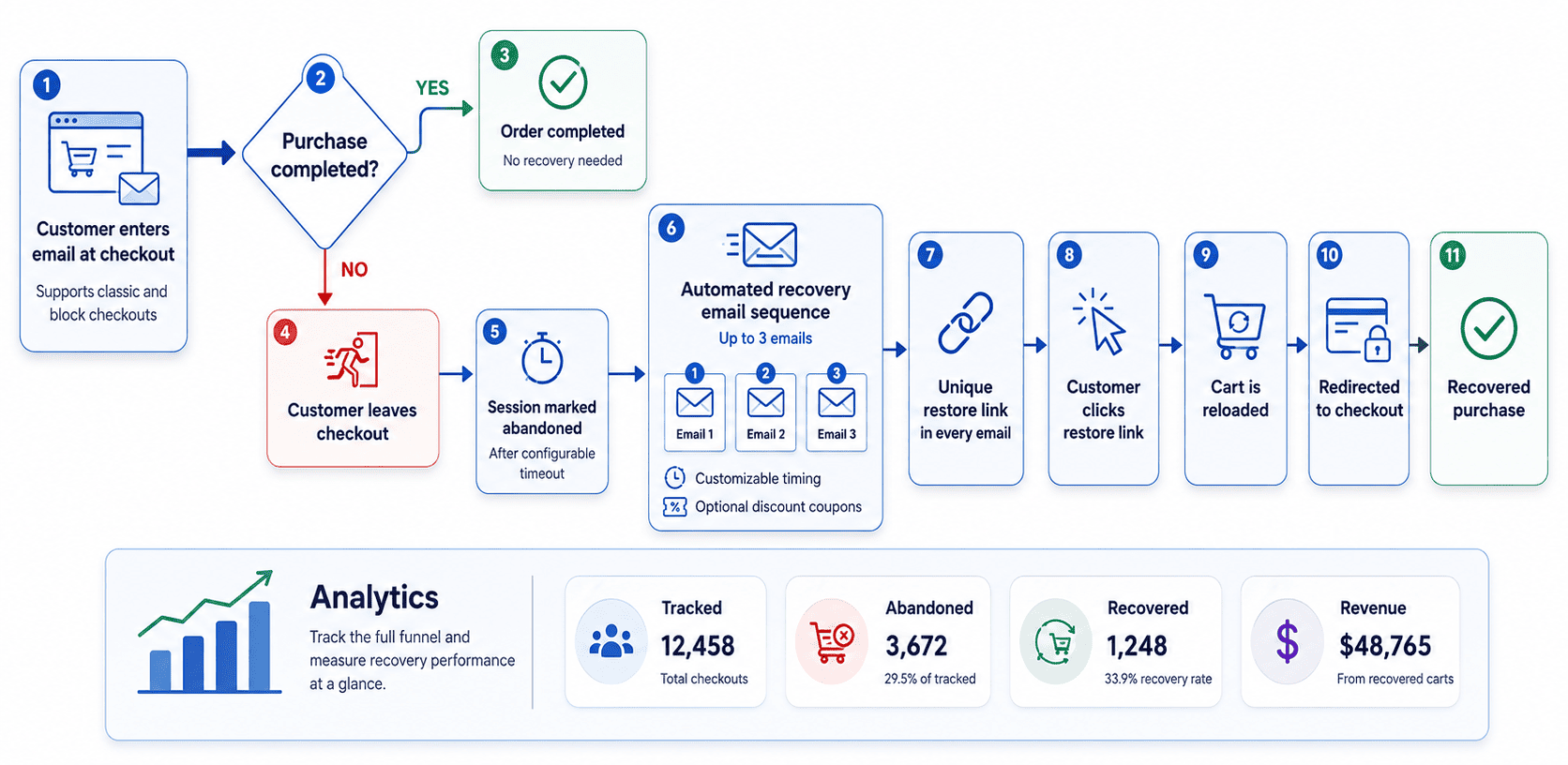 CartBay captures a customer's email from the checkout page when they enter it (classic and block checkouts are both supported). If the customer leaves without completing the purchase, CartBay marks the session as **abandoned** after a configurable timeout. A sequence of up to three recovery emails is then sent automatically, each with customizable timing and optional discount coupons. Every email includes a unique restore link that, when clicked, reloads the customer's cart and redirects them to checkout. Analytics track the full funnel — tracked, abandoned, recovered, and revenue — so you can measure recovery performance at a glance.
## Core Capabilities
- Consent-based checkout capture for classic checkout and WooCommerce Block Checkout.
- WooCommerce-native abandoned cart sessions stored through order objects.
- Action Scheduler-powered abandonment detection and email scheduling.
- Three recovery email steps with editable WooCommerce email templates.
- Secure restore and unsubscribe links using hashed tokens.
- Optional CartBay-generated recovery coupons with validation safeguards.
- Overview analytics for tracked carts, abandoned carts, recoveries, revenue, restore clicks, and failed restores.
- Notification tracking for queued, attempted, sent, failed, retry-queued, delivered, and canceled recovery emails.
- Optional protected AI-agent REST and WordPress Abilities access.
## Main Workflows
1. Install CartBay and activate the license.
2. Configure checkout capture, consent text, and abandonment timeout.
3. Set the three-email recovery sequence timing.
4. Customize recovery email templates in WooCommerce email settings.
5. Configure recovery coupons in Offers if your sequence uses incentives.
6. Verify email delivery with Test Mode and the test flow.
7. Monitor CartBay Overview and Notifications after launch.
## Start From
CartBay captures a customer's email from the checkout page when they enter it (classic and block checkouts are both supported). If the customer leaves without completing the purchase, CartBay marks the session as **abandoned** after a configurable timeout. A sequence of up to three recovery emails is then sent automatically, each with customizable timing and optional discount coupons. Every email includes a unique restore link that, when clicked, reloads the customer's cart and redirects them to checkout. Analytics track the full funnel — tracked, abandoned, recovered, and revenue — so you can measure recovery performance at a glance.
## Core Capabilities
- Consent-based checkout capture for classic checkout and WooCommerce Block Checkout.
- WooCommerce-native abandoned cart sessions stored through order objects.
- Action Scheduler-powered abandonment detection and email scheduling.
- Three recovery email steps with editable WooCommerce email templates.
- Secure restore and unsubscribe links using hashed tokens.
- Optional CartBay-generated recovery coupons with validation safeguards.
- Overview analytics for tracked carts, abandoned carts, recoveries, revenue, restore clicks, and failed restores.
- Notification tracking for queued, attempted, sent, failed, retry-queued, delivered, and canceled recovery emails.
- Optional protected AI-agent REST and WordPress Abilities access.
## Main Workflows
1. Install CartBay and activate the license.
2. Configure checkout capture, consent text, and abandonment timeout.
3. Set the three-email recovery sequence timing.
4. Customize recovery email templates in WooCommerce email settings.
5. Configure recovery coupons in Offers if your sequence uses incentives.
6. Verify email delivery with Test Mode and the test flow.
7. Monitor CartBay Overview and Notifications after launch.
## Start From
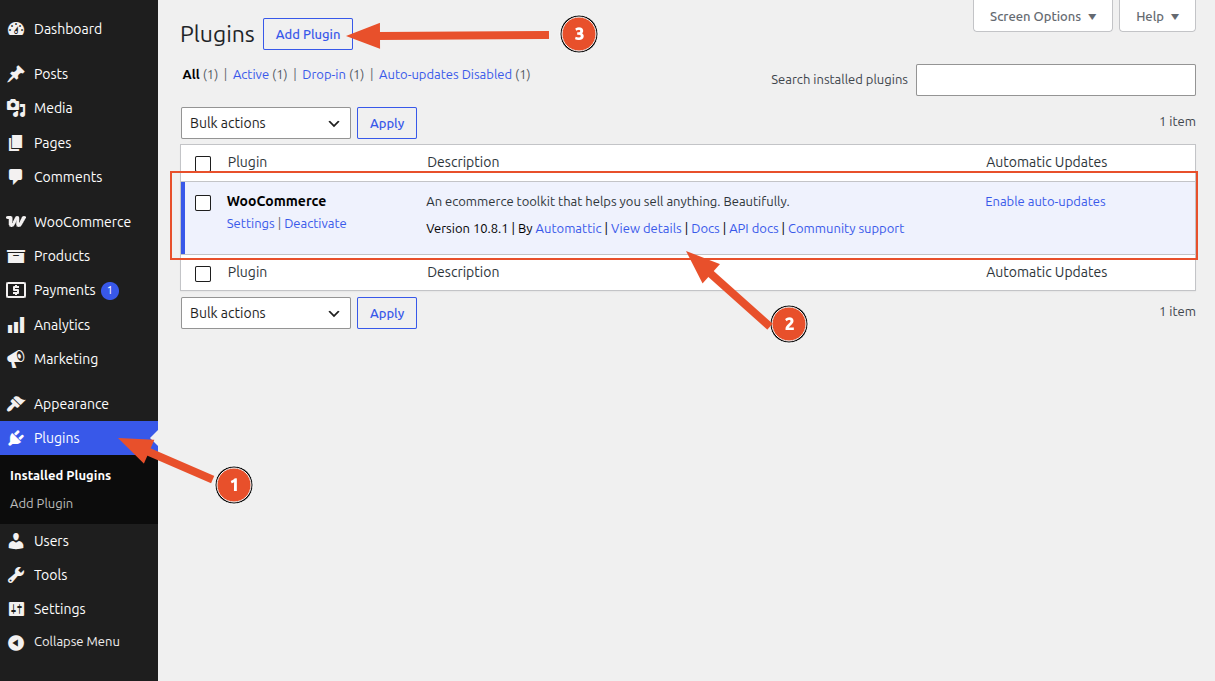 1. In WordPress admin, go to **Plugins**.
2. Make sure you have already installed [WooCommerce](/cartbay/getting-started/requirements/#woocommerce) and activated it.
3. Click **Add New**.
1. In WordPress admin, go to **Plugins**.
2. Make sure you have already installed [WooCommerce](/cartbay/getting-started/requirements/#woocommerce) and activated it.
3. Click **Add New**.
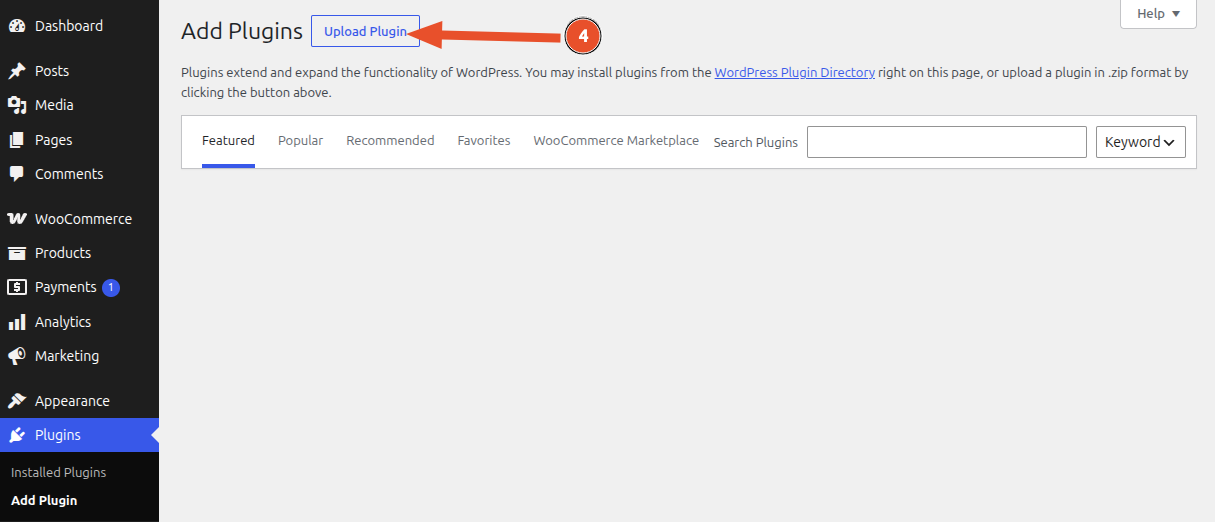 4. Click **Upload Plugin**.
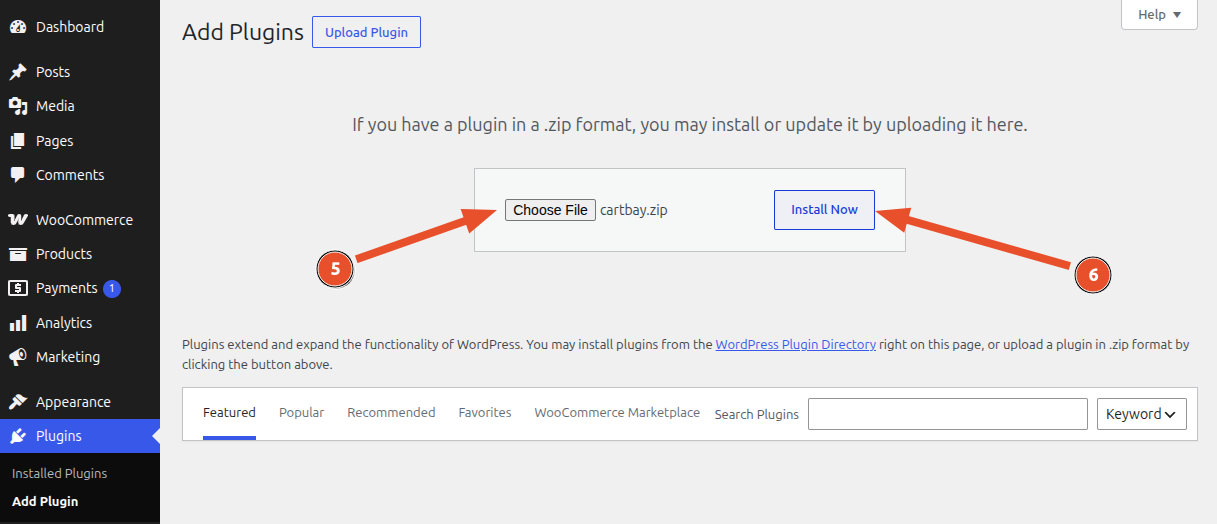 5. Choose the CartBay ZIP (`cartbay.zip`) file.
6. Click **Install Now**.
5. Choose the CartBay ZIP (`cartbay.zip`) file.
6. Click **Install Now**.
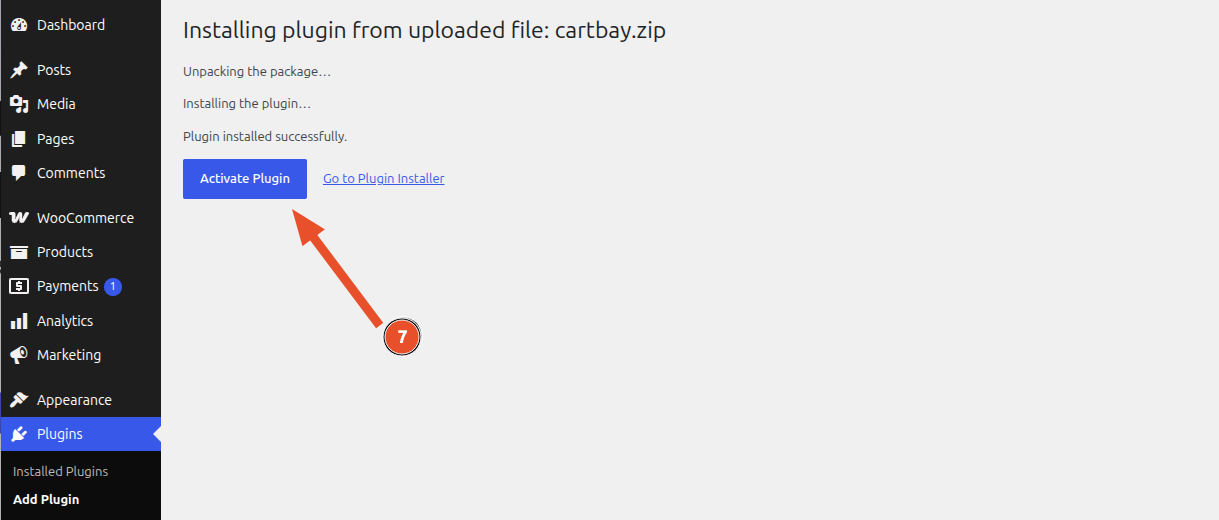 7. Click **Activate Plugin**.
:::note
If WooCommerce is not active, CartBay shows an admin notice and does not initialize its recovery runtime.
:::
## After Activation
After plugin activation, CartBay creates its default options, registers recovery session statuses, seeds default recovery email content, and schedules recurring Action Scheduler jobs.
You can go to the CartBay dashboard by clicking on the **Overview** link on the CartBay row of the plugins list.
7. Click **Activate Plugin**.
:::note
If WooCommerce is not active, CartBay shows an admin notice and does not initialize its recovery runtime.
:::
## After Activation
After plugin activation, CartBay creates its default options, registers recovery session statuses, seeds default recovery email content, and schedules recurring Action Scheduler jobs.
You can go to the CartBay dashboard by clicking on the **Overview** link on the CartBay row of the plugins list.
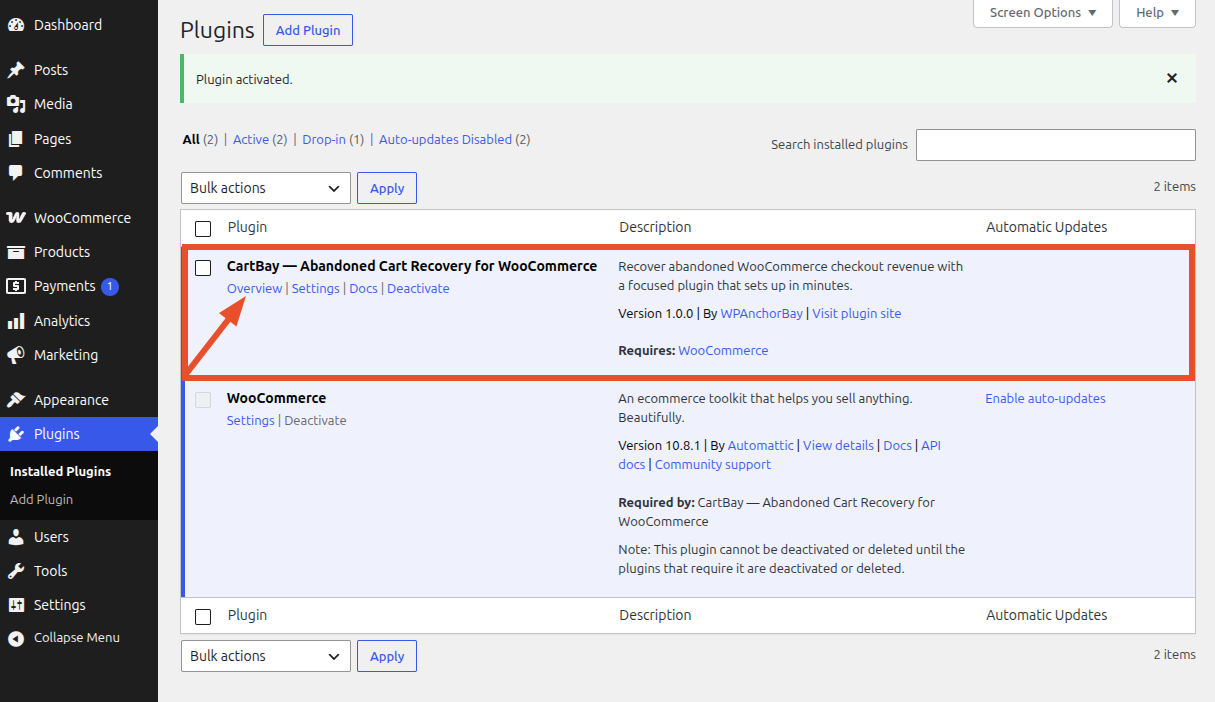 **CartBay appears in:**
There are several ways to access CartBay:
- **WordPress Admin Settings:** `WooCommerce > Settings > Cart`
- **WordPress Admin Direct:** `WooCommerce > CartBay`
- **From Plugins Page:** `Plugins > CartBay > Overview`
**CartBay appears in:**
There are several ways to access CartBay:
- **WordPress Admin Settings:** `WooCommerce > Settings > Cart`
- **WordPress Admin Direct:** `WooCommerce > CartBay`
- **From Plugins Page:** `Plugins > CartBay > Overview`
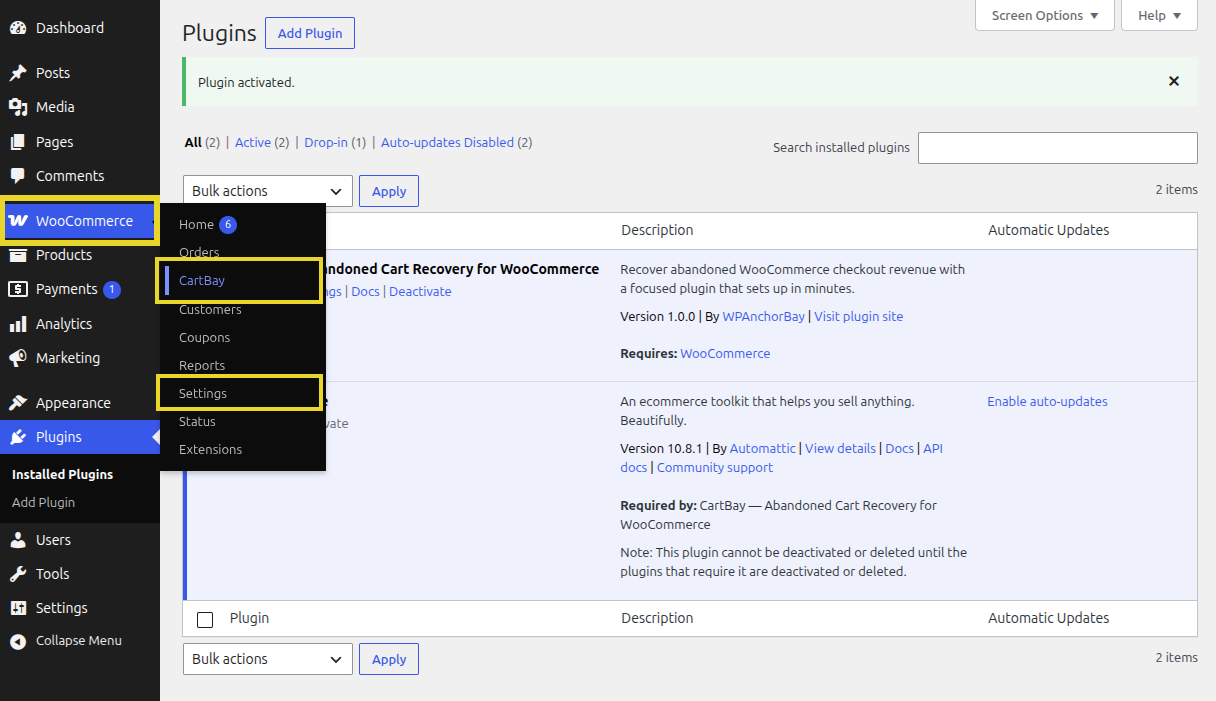
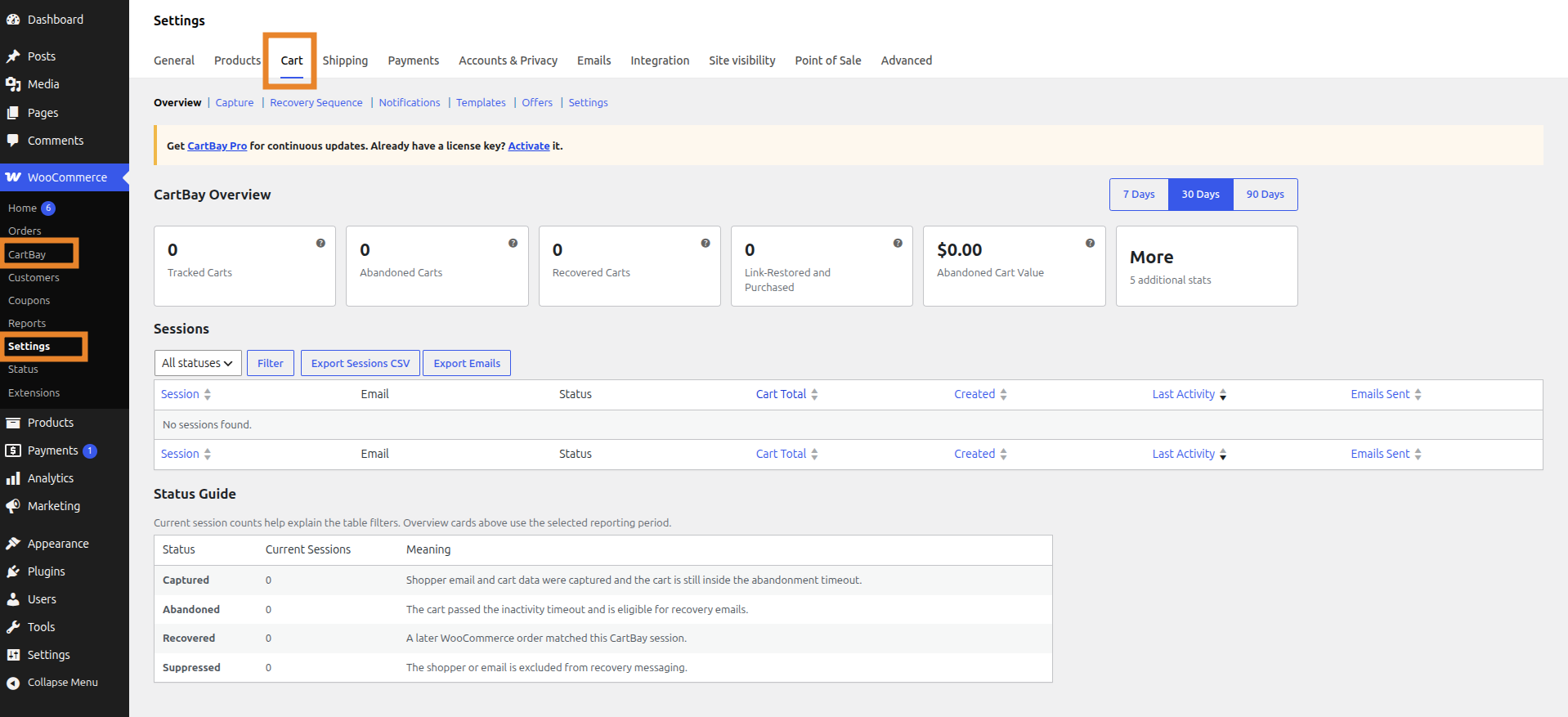 **Verify Installation:**
- Confirm `WooCommerce > CartBay` and/or `WooCommerce > Settings > Cart` opens.
- Confirm the CartBay settings tab appears under `WooCommerce > Settings > Cart`.
- Confirm no WooCommerce-missing notice appears.
- Continue to [Setup Wizard](/cartbay/getting-started/setup-wizard/).
## Updating CartBay
CartBay uses a private updater connected to the WPAnchorBay license server. Activate a valid license key to receive continuous updates.
:::note
CartBay is not intended for WordPress.org hosting. The private updater and proprietary license metadata are intentional.
:::
## Introduction
URL: https://wpanchorbay.github.io/cartbay/getting-started/introduction/
Description: Start here to understand what CartBay does, where it appears in WooCommerce, and how the recovery workflow works.
CartBay is a WooCommerce abandoned cart recovery plugin. It captures consented checkout visitors, detects inactive carts, sends a three-email recovery sequence, restores carts through secure links, and attributes recovered orders back to the abandoned session.
## What CartBay Does
- Captures checkout email and cart data after shopper consent.
- Supports classic WooCommerce checkout and WooCommerce Block Checkout.
- Stores recovery sessions using WooCommerce order objects, not custom database tables.
- Detects abandonment through Action Scheduler.
- Sends three WooCommerce-native recovery emails.
- Generates optional single-use recovery coupons.
- Restores carts through secure hashed-token links.
- Tracks notification, restore, recovery, and revenue analytics.
- Provides optional protected REST and WordPress Abilities access for AI agents.
## Where CartBay Appears
- Main admin area: `WooCommerce > CartBay`.
- WooCommerce settings tab: `WooCommerce > Settings > Cart`.
- Recovery email editing: WooCommerce email settings, linked from `CartBay > Templates`.
- WooCommerce logs: source `cartbay`.
- CartBay file logs: hidden Logs section linked from `CartBay > Settings`.
## Recovery Workflow
1. A shopper reaches checkout.
2. CartBay shows the recovery consent checkbox.
3. When consent is checked and a valid email is available, CartBay captures the cart session.
4. After the configured inactivity timeout, CartBay marks the session abandoned.
5. If the recovery sequence is enabled, CartBay schedules up to three recovery emails.
6. Each email can include a restore link, unsubscribe link, and optional coupon.
7. Restore links rebuild the cart and redirect the shopper to checkout.
8. Completed or processing WooCommerce orders are matched back to abandoned sessions.
9. CartBay updates recovery analytics and cancels future emails for recovered sessions.
## Recommended Reading Order
1. [Requirements](../requirements/)
2. [Installation](../installation/)
3. [License Activation](../license-activation/)
4. [Quick Start](../quick-start/)
## Important Notes
- CartBay is privately distributed by WPAnchorBay and is not hosted on WordPress.org.
- A working email delivery service is strongly recommended before enabling recovery emails.
- Store owners remain responsible for consent wording, privacy policy updates, and local compliance requirements.
## License Activation
URL: https://wpanchorbay.github.io/cartbay/getting-started/license-activation/
Description: Activate a CartBay license key, learn where to find it, and understand license checks, dev domains, and support options.
CartBay uses a WPAnchorBay license key for private updates and support checks. Activate the license after installing the plugin and before relying on update delivery.
## Where to Find Your License Key
Most users receive the license key in the purchase confirmation email after buying CartBay.
You can also retrieve your license key by logging in to your WPAnchorBay account dashboard at [wpanchorbay.com](https://wpanchorbay.com/).
If you cannot find your key or need account help, contact WPAnchorBay support at [support@wpanchorbay.com](mailto:support@wpanchorbay.com).
## Where to Activate
Open **WooCommerce > Settings > Cart > Settings**.
Find the **License & Updates** area and use **Activate New Key**.
**Verify Installation:**
- Confirm `WooCommerce > CartBay` and/or `WooCommerce > Settings > Cart` opens.
- Confirm the CartBay settings tab appears under `WooCommerce > Settings > Cart`.
- Confirm no WooCommerce-missing notice appears.
- Continue to [Setup Wizard](/cartbay/getting-started/setup-wizard/).
## Updating CartBay
CartBay uses a private updater connected to the WPAnchorBay license server. Activate a valid license key to receive continuous updates.
:::note
CartBay is not intended for WordPress.org hosting. The private updater and proprietary license metadata are intentional.
:::
## Introduction
URL: https://wpanchorbay.github.io/cartbay/getting-started/introduction/
Description: Start here to understand what CartBay does, where it appears in WooCommerce, and how the recovery workflow works.
CartBay is a WooCommerce abandoned cart recovery plugin. It captures consented checkout visitors, detects inactive carts, sends a three-email recovery sequence, restores carts through secure links, and attributes recovered orders back to the abandoned session.
## What CartBay Does
- Captures checkout email and cart data after shopper consent.
- Supports classic WooCommerce checkout and WooCommerce Block Checkout.
- Stores recovery sessions using WooCommerce order objects, not custom database tables.
- Detects abandonment through Action Scheduler.
- Sends three WooCommerce-native recovery emails.
- Generates optional single-use recovery coupons.
- Restores carts through secure hashed-token links.
- Tracks notification, restore, recovery, and revenue analytics.
- Provides optional protected REST and WordPress Abilities access for AI agents.
## Where CartBay Appears
- Main admin area: `WooCommerce > CartBay`.
- WooCommerce settings tab: `WooCommerce > Settings > Cart`.
- Recovery email editing: WooCommerce email settings, linked from `CartBay > Templates`.
- WooCommerce logs: source `cartbay`.
- CartBay file logs: hidden Logs section linked from `CartBay > Settings`.
## Recovery Workflow
1. A shopper reaches checkout.
2. CartBay shows the recovery consent checkbox.
3. When consent is checked and a valid email is available, CartBay captures the cart session.
4. After the configured inactivity timeout, CartBay marks the session abandoned.
5. If the recovery sequence is enabled, CartBay schedules up to three recovery emails.
6. Each email can include a restore link, unsubscribe link, and optional coupon.
7. Restore links rebuild the cart and redirect the shopper to checkout.
8. Completed or processing WooCommerce orders are matched back to abandoned sessions.
9. CartBay updates recovery analytics and cancels future emails for recovered sessions.
## Recommended Reading Order
1. [Requirements](../requirements/)
2. [Installation](../installation/)
3. [License Activation](../license-activation/)
4. [Quick Start](../quick-start/)
## Important Notes
- CartBay is privately distributed by WPAnchorBay and is not hosted on WordPress.org.
- A working email delivery service is strongly recommended before enabling recovery emails.
- Store owners remain responsible for consent wording, privacy policy updates, and local compliance requirements.
## License Activation
URL: https://wpanchorbay.github.io/cartbay/getting-started/license-activation/
Description: Activate a CartBay license key, learn where to find it, and understand license checks, dev domains, and support options.
CartBay uses a WPAnchorBay license key for private updates and support checks. Activate the license after installing the plugin and before relying on update delivery.
## Where to Find Your License Key
Most users receive the license key in the purchase confirmation email after buying CartBay.
You can also retrieve your license key by logging in to your WPAnchorBay account dashboard at [wpanchorbay.com](https://wpanchorbay.com/).
If you cannot find your key or need account help, contact WPAnchorBay support at [support@wpanchorbay.com](mailto:support@wpanchorbay.com).
## Where to Activate
Open **WooCommerce > Settings > Cart > Settings**.
Find the **License & Updates** area and use **Activate New Key**.
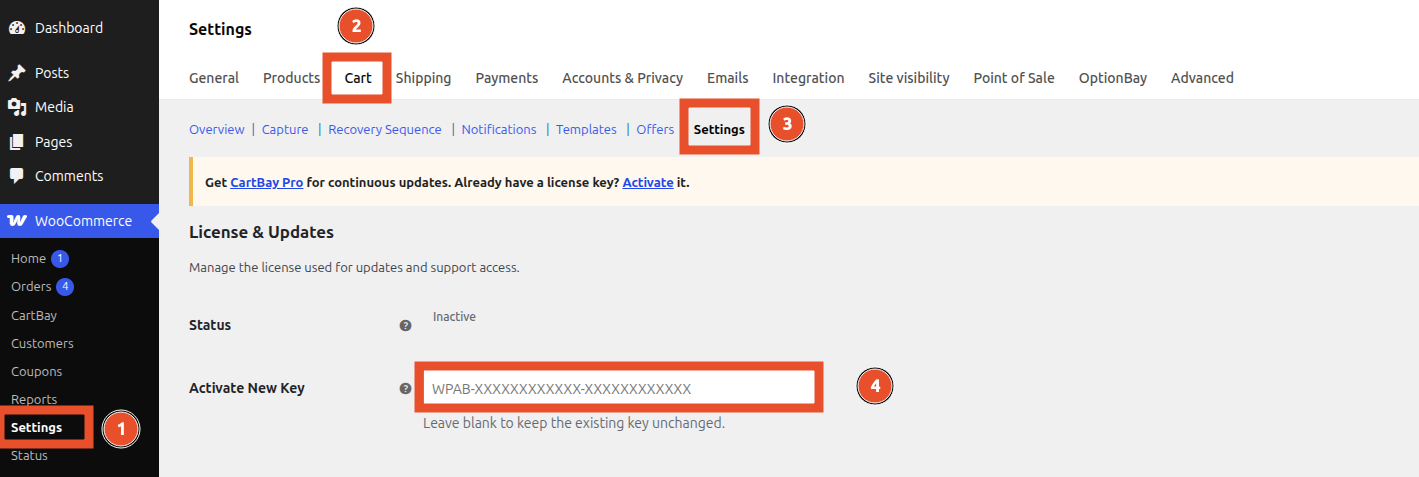 ## Activate the Key
1. Copy your license key from the purchase email or WPAnchorBay dashboard.
2. Paste it into **Activate New Key**.
3. Go to the bottom of the page and click **Save Changes**.
## Activate the Key
1. Copy your license key from the purchase email or WPAnchorBay dashboard.
2. Paste it into **Activate New Key**.
3. Go to the bottom of the page and click **Save Changes**.
 4. Confirm the license status updates.
Expected key format:
```text
WPAB-XXXXXXXXXXXX-XXXXXXXXXXXX
```
Once activated, you will see the following license states -
| Label | Value | Description |
--------|-------|--------------
| **Status** | `Active` | Shows the most recent license state returned by CartBay licensing. |
| **Current Key** | `XXXXXXXXXXXXXXXXXXXXXXXXXXXA4C1` | Only a masked version is shown here. The full key stays stored in the protected license option. |
| **Activate New Key** | Input Box | In case of new license activation, reactivate or license update, this field will be used to enter the license key. Then use the `Save Changes` below of the page to save the license key. |
| **Actions** | `Check Current License`, `Remove License` | Use these tools to verify the current license status or remove a stored key from this site. |
4. Confirm the license status updates.
Expected key format:
```text
WPAB-XXXXXXXXXXXX-XXXXXXXXXXXX
```
Once activated, you will see the following license states -
| Label | Value | Description |
--------|-------|--------------
| **Status** | `Active` | Shows the most recent license state returned by CartBay licensing. |
| **Current Key** | `XXXXXXXXXXXXXXXXXXXXXXXXXXXA4C1` | Only a masked version is shown here. The full key stays stored in the protected license option. |
| **Activate New Key** | Input Box | In case of new license activation, reactivate or license update, this field will be used to enter the license key. Then use the `Save Changes` below of the page to save the license key. |
| **Actions** | `Check Current License`, `Remove License` | Use these tools to verify the current license status or remove a stored key from this site. |
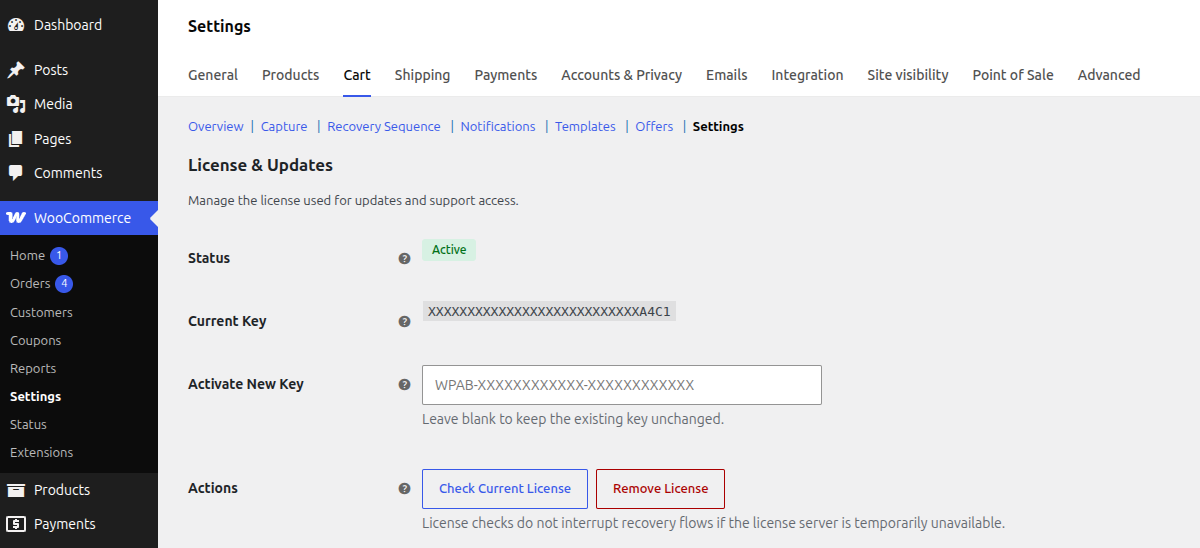 ## License Statuses
| Status | Meaning |
|---|---|
| Active | The license server accepted the key. |
| Inactive | No active license state is stored locally. |
| Expired | The license server reported an expired license. |
| Invalid | The stored key was rejected. |
| Dev Mode | Development-domain bypass is active. |
| Server Error | The license server was unreachable. Runtime recovery features continue. |
## Actions
### Check Current License
Use `Check Current License` in Settings after renewal, domain changes, or support troubleshooting.
### Remove License
Use `Remove License` only when disconnecting the site from licensed update checks or replacing the key.
Removing the local license does not stop capture, recovery emails, restore links, or analytics. It disconnects private updates and support checks until a new key is activated.
## License Server Outages
If the license server is temporarily unreachable, CartBay will function normally. CartBay will automatically retry to connect to the server later for license status check and updates.
## Need Help?
Contact [support@wpanchorbay.com](mailto:support@wpanchorbay.com) for license, account, purchase, or activation support.
## Quick Start
URL: https://wpanchorbay.github.io/cartbay/getting-started/quick-start/
Description: Understand how CartBay works and launch it with the recommended first-run setup, verification steps, and safe production checklist.
Understand how CartBay works and launch it with the recommended first-run setup, verification steps, and safe production checklist.
Before starting, review [Requirements](/cartbay/getting-started/requirements/), complete [Installation](/cartbay/getting-started/installation/), and keep your license key active ([License Activation](/cartbay/getting-started/license-activation/)).
## 1. Configure Capture
Open [Capture](/cartbay/user-guide/capture/): **WooCommerce > CartBay > Capture** or **WooCommerce > Settings > Cart > Capture**
Recommended starting values:
| Setting | Recommended value |
|---|---|
| Enable Capture | Enabled |
| Consent Text | Short, explicit recovery consent copy |
| Consent Checkbox Default State | Match your legal/compliance policy |
| Abandonment Timeout | `30` minutes |
Example consent text:
```text
Save my email to recover my cart if I leave.
```
## 2. Configure the Recovery Sequence
Open [Recovery Sequence](/cartbay/user-guide/recovery-sequence/): **WooCommerce > CartBay > Recovery Sequence** or **WooCommerce > Settings > Cart > Recovery Sequence**
Default sequence:
| Step | Default timing | Default coupon |
|---|---:|---|
| Email 1 | 45 minutes after abandonment | Off |
| Email 2 | 24 hours after abandonment | Off |
| Email 3 | 72 hours after abandonment | On |
Keep the default timing for a first launch unless you already have a tested recovery cadence.
## 3. Review Templates
Open [Templates](/cartbay/user-guide/templates/): **WooCommerce > CartBay > Templates** or **WooCommerce > Settings > Cart > Templates**
1. Edit each recovery email in WooCommerce email settings.
2. Keep `{restore_url}` in the call to action or body.
3. Keep `{unsubscribe_url}` available unless your legal process provides an equivalent opt-out.
4. Use coupon placeholders only on steps where coupons are enabled.
## 4. Configure Offers
Open [Offers](/cartbay/user-guide/offers/): **WooCommerce > CartBay > Offers** or **WooCommerce > Settings > Cart > Offers**
Recommended first launch:
| Setting | Recommended value |
|---|---|
| Coupon Type | Fixed Cart Discount |
| Coupon Amount | A margin-safe amount, such as `10` in store currency |
| Coupon Expiry | `7` days |
## 5. Verify Email Delivery
Open [Templates](/cartbay/user-guide/templates/) and use `Trigger Test Flow` after enabling Test Mode. The test flow creates a dummy abandoned session and schedules the first recovery email in about 30 seconds.
:::caution
Use Test Mode on staging or during controlled QA. Disable it before normal production monitoring if you do not want shortened test behavior available.
:::
## 6. Monitor the First Week
- Review [CartBay Overview](/cartbay/user-guide/overview/) to monitor tracked, abandoned, recovered, abandoned value, revenue, and recovery rate.
- Review [Notifications](/cartbay/user-guide/notifications/) for failed or retry-queued emails.
- Review WooCommerce logs with source `cartbay` if capture or background jobs behave unexpectedly.
- Adjust email content before changing timing or discounts.
## Requirements
URL: https://wpanchorbay.github.io/cartbay/getting-started/requirements/
Description: Review WordPress, WooCommerce, PHP, Action Scheduler, email delivery, licensing, and system requirements before installing CartBay.
Before installing CartBay, confirm the store meets the WordPress, WooCommerce, server, licensing, and email delivery requirements below.
## WordPress
CartBay requires a modern WordPress installation.
| Requirement | Recommendation |
|---|---|
| WordPress | WordPress version `6.9` or newer. |
| Admin access | Administrator or a user who can manage WooCommerce settings. |
| Permalinks | Normal WordPress permalink handling should be working for admin and frontend URLs. |
## WooCommerce
WooCommerce is required. CartBay does not initialize its recovery runtime when WooCommerce is inactive.
| Requirement | Recommendation |
|---|---|
| WooCommerce | WooCommerce version `10.7` or newer. |
| Checkout | Classic checkout or WooCommerce Block Checkout. |
| Orders | CartBay uses WooCommerce order CRUD APIs and declares HPOS compatibility. |
| Action Scheduler | Provided by WooCommerce and required for background jobs. |
## System and PHP
| Requirement | Recommendation |
|---|---|
| PHP | PHP `8.2` or newer. Use PHP `8.3+` when possible. |
| Server cron | Recommended so Action Scheduler can process jobs promptly. |
| HTTPS | Recommended for checkout, restore links, and admin security. |
| File permissions | WordPress uploads directory must be writable if CartBay file logs are enabled. |
## Email Service
CartBay sends recovery emails through WordPress and WooCommerce mail. A reliable email delivery service is strongly recommended because abandoned cart recovery depends on emails reaching shoppers.
**Recommended setup:**
- Use an SMTP plugin or transactional email service.
- Verify sender authentication such as SPF, DKIM, and DMARC where your email provider supports them.
- Send test emails before launching recovery emails.
- Monitor failed or retry-queued notifications after launch.
CartBay can detect some mail delivery and email logger plugins and may show an admin warning when no delivery plugin is detected. Detection is passive; it does not prove inbox delivery.
**Test your email delivery:**
- Go to WooCommerce → Settings → Cart → Notifications (bottom of the page)
- Identify "Email Delivery Test"
- Enter your email address in the "Send to" field
- Click "Send Test Email"
Related docs:
- [Notifications](/cartbay/user-guide/notifications/) explains sent, failed, retry-queued, and canceled recovery email records.
- [Templates](/cartbay/user-guide/templates/) explains recovery email editing and the test flow.
- [Settings](/cartbay/user-guide/settings/) explains mail environment warnings and log links.
- [Troubleshooting](/cartbay/user-guide/troubleshooting/) explains common delivery and queue problems.
## License
A WPAnchorBay license key is required for private updates and support checks. The key is provided after purchase and can also be found in the WPAnchorBay account dashboard.
Read [License Activation](/cartbay/getting-started/license-activation/).
## Browser and Checkout Compatibility
CartBay supports both classic checkout and WooCommerce Block Checkout. Test the checkout type used by your store before launch.
## Pre-Launch Checklist
- WooCommerce is active.
- Checkout page works for test orders.
- Email delivery service is configured.
- Store consent wording is approved.
- Action Scheduler is processing jobs.
- CartBay license key is available.
## Setup Wizard
URL: https://wpanchorbay.github.io/cartbay/getting-started/setup-wizard/
Description: Learn how to use the CartBay setup wizard on first install.
## First-Run Wizard
On first install, CartBay may redirect administrators to a setup wizard. The wizard helps configure license, consent, timing, email delivery awareness, and launch settings.
### 1. Welcome
An introduction to CartBay. The setup wizard helps you configure a 3-email recovery sequence for abandoned carts in under 5 minutes.
## License Statuses
| Status | Meaning |
|---|---|
| Active | The license server accepted the key. |
| Inactive | No active license state is stored locally. |
| Expired | The license server reported an expired license. |
| Invalid | The stored key was rejected. |
| Dev Mode | Development-domain bypass is active. |
| Server Error | The license server was unreachable. Runtime recovery features continue. |
## Actions
### Check Current License
Use `Check Current License` in Settings after renewal, domain changes, or support troubleshooting.
### Remove License
Use `Remove License` only when disconnecting the site from licensed update checks or replacing the key.
Removing the local license does not stop capture, recovery emails, restore links, or analytics. It disconnects private updates and support checks until a new key is activated.
## License Server Outages
If the license server is temporarily unreachable, CartBay will function normally. CartBay will automatically retry to connect to the server later for license status check and updates.
## Need Help?
Contact [support@wpanchorbay.com](mailto:support@wpanchorbay.com) for license, account, purchase, or activation support.
## Quick Start
URL: https://wpanchorbay.github.io/cartbay/getting-started/quick-start/
Description: Understand how CartBay works and launch it with the recommended first-run setup, verification steps, and safe production checklist.
Understand how CartBay works and launch it with the recommended first-run setup, verification steps, and safe production checklist.
Before starting, review [Requirements](/cartbay/getting-started/requirements/), complete [Installation](/cartbay/getting-started/installation/), and keep your license key active ([License Activation](/cartbay/getting-started/license-activation/)).
## 1. Configure Capture
Open [Capture](/cartbay/user-guide/capture/): **WooCommerce > CartBay > Capture** or **WooCommerce > Settings > Cart > Capture**
Recommended starting values:
| Setting | Recommended value |
|---|---|
| Enable Capture | Enabled |
| Consent Text | Short, explicit recovery consent copy |
| Consent Checkbox Default State | Match your legal/compliance policy |
| Abandonment Timeout | `30` minutes |
Example consent text:
```text
Save my email to recover my cart if I leave.
```
## 2. Configure the Recovery Sequence
Open [Recovery Sequence](/cartbay/user-guide/recovery-sequence/): **WooCommerce > CartBay > Recovery Sequence** or **WooCommerce > Settings > Cart > Recovery Sequence**
Default sequence:
| Step | Default timing | Default coupon |
|---|---:|---|
| Email 1 | 45 minutes after abandonment | Off |
| Email 2 | 24 hours after abandonment | Off |
| Email 3 | 72 hours after abandonment | On |
Keep the default timing for a first launch unless you already have a tested recovery cadence.
## 3. Review Templates
Open [Templates](/cartbay/user-guide/templates/): **WooCommerce > CartBay > Templates** or **WooCommerce > Settings > Cart > Templates**
1. Edit each recovery email in WooCommerce email settings.
2. Keep `{restore_url}` in the call to action or body.
3. Keep `{unsubscribe_url}` available unless your legal process provides an equivalent opt-out.
4. Use coupon placeholders only on steps where coupons are enabled.
## 4. Configure Offers
Open [Offers](/cartbay/user-guide/offers/): **WooCommerce > CartBay > Offers** or **WooCommerce > Settings > Cart > Offers**
Recommended first launch:
| Setting | Recommended value |
|---|---|
| Coupon Type | Fixed Cart Discount |
| Coupon Amount | A margin-safe amount, such as `10` in store currency |
| Coupon Expiry | `7` days |
## 5. Verify Email Delivery
Open [Templates](/cartbay/user-guide/templates/) and use `Trigger Test Flow` after enabling Test Mode. The test flow creates a dummy abandoned session and schedules the first recovery email in about 30 seconds.
:::caution
Use Test Mode on staging or during controlled QA. Disable it before normal production monitoring if you do not want shortened test behavior available.
:::
## 6. Monitor the First Week
- Review [CartBay Overview](/cartbay/user-guide/overview/) to monitor tracked, abandoned, recovered, abandoned value, revenue, and recovery rate.
- Review [Notifications](/cartbay/user-guide/notifications/) for failed or retry-queued emails.
- Review WooCommerce logs with source `cartbay` if capture or background jobs behave unexpectedly.
- Adjust email content before changing timing or discounts.
## Requirements
URL: https://wpanchorbay.github.io/cartbay/getting-started/requirements/
Description: Review WordPress, WooCommerce, PHP, Action Scheduler, email delivery, licensing, and system requirements before installing CartBay.
Before installing CartBay, confirm the store meets the WordPress, WooCommerce, server, licensing, and email delivery requirements below.
## WordPress
CartBay requires a modern WordPress installation.
| Requirement | Recommendation |
|---|---|
| WordPress | WordPress version `6.9` or newer. |
| Admin access | Administrator or a user who can manage WooCommerce settings. |
| Permalinks | Normal WordPress permalink handling should be working for admin and frontend URLs. |
## WooCommerce
WooCommerce is required. CartBay does not initialize its recovery runtime when WooCommerce is inactive.
| Requirement | Recommendation |
|---|---|
| WooCommerce | WooCommerce version `10.7` or newer. |
| Checkout | Classic checkout or WooCommerce Block Checkout. |
| Orders | CartBay uses WooCommerce order CRUD APIs and declares HPOS compatibility. |
| Action Scheduler | Provided by WooCommerce and required for background jobs. |
## System and PHP
| Requirement | Recommendation |
|---|---|
| PHP | PHP `8.2` or newer. Use PHP `8.3+` when possible. |
| Server cron | Recommended so Action Scheduler can process jobs promptly. |
| HTTPS | Recommended for checkout, restore links, and admin security. |
| File permissions | WordPress uploads directory must be writable if CartBay file logs are enabled. |
## Email Service
CartBay sends recovery emails through WordPress and WooCommerce mail. A reliable email delivery service is strongly recommended because abandoned cart recovery depends on emails reaching shoppers.
**Recommended setup:**
- Use an SMTP plugin or transactional email service.
- Verify sender authentication such as SPF, DKIM, and DMARC where your email provider supports them.
- Send test emails before launching recovery emails.
- Monitor failed or retry-queued notifications after launch.
CartBay can detect some mail delivery and email logger plugins and may show an admin warning when no delivery plugin is detected. Detection is passive; it does not prove inbox delivery.
**Test your email delivery:**
- Go to WooCommerce → Settings → Cart → Notifications (bottom of the page)
- Identify "Email Delivery Test"
- Enter your email address in the "Send to" field
- Click "Send Test Email"
Related docs:
- [Notifications](/cartbay/user-guide/notifications/) explains sent, failed, retry-queued, and canceled recovery email records.
- [Templates](/cartbay/user-guide/templates/) explains recovery email editing and the test flow.
- [Settings](/cartbay/user-guide/settings/) explains mail environment warnings and log links.
- [Troubleshooting](/cartbay/user-guide/troubleshooting/) explains common delivery and queue problems.
## License
A WPAnchorBay license key is required for private updates and support checks. The key is provided after purchase and can also be found in the WPAnchorBay account dashboard.
Read [License Activation](/cartbay/getting-started/license-activation/).
## Browser and Checkout Compatibility
CartBay supports both classic checkout and WooCommerce Block Checkout. Test the checkout type used by your store before launch.
## Pre-Launch Checklist
- WooCommerce is active.
- Checkout page works for test orders.
- Email delivery service is configured.
- Store consent wording is approved.
- Action Scheduler is processing jobs.
- CartBay license key is available.
## Setup Wizard
URL: https://wpanchorbay.github.io/cartbay/getting-started/setup-wizard/
Description: Learn how to use the CartBay setup wizard on first install.
## First-Run Wizard
On first install, CartBay may redirect administrators to a setup wizard. The wizard helps configure license, consent, timing, email delivery awareness, and launch settings.
### 1. Welcome
An introduction to CartBay. The setup wizard helps you configure a 3-email recovery sequence for abandoned carts in under 5 minutes.
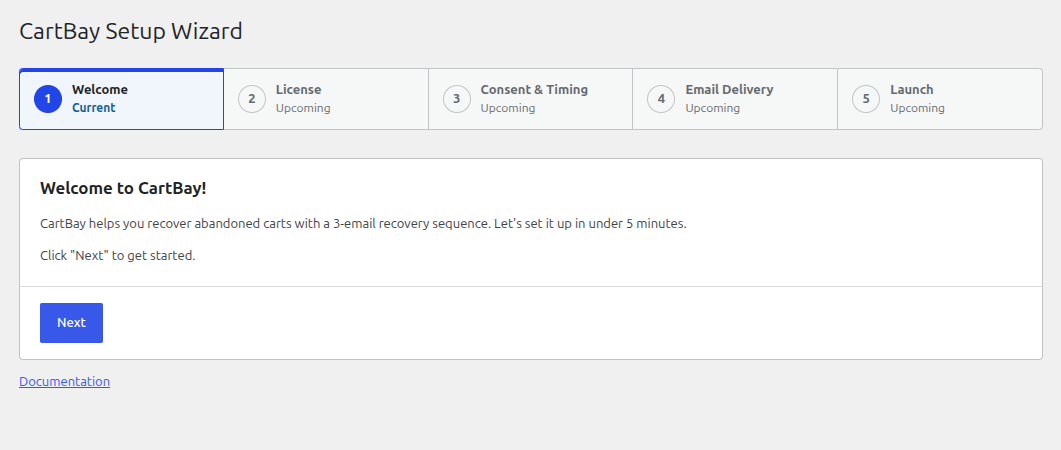 ### 2. License
Enter your CartBay license key to activate the plugin. If your license is already active, this step will confirm it. You also have the option to skip this step by selecting **"I'll do this later"** and activating your license from the settings later.
### 2. License
Enter your CartBay license key to activate the plugin. If your license is already active, this step will confirm it. You also have the option to skip this step by selecting **"I'll do this later"** and activating your license from the settings later.
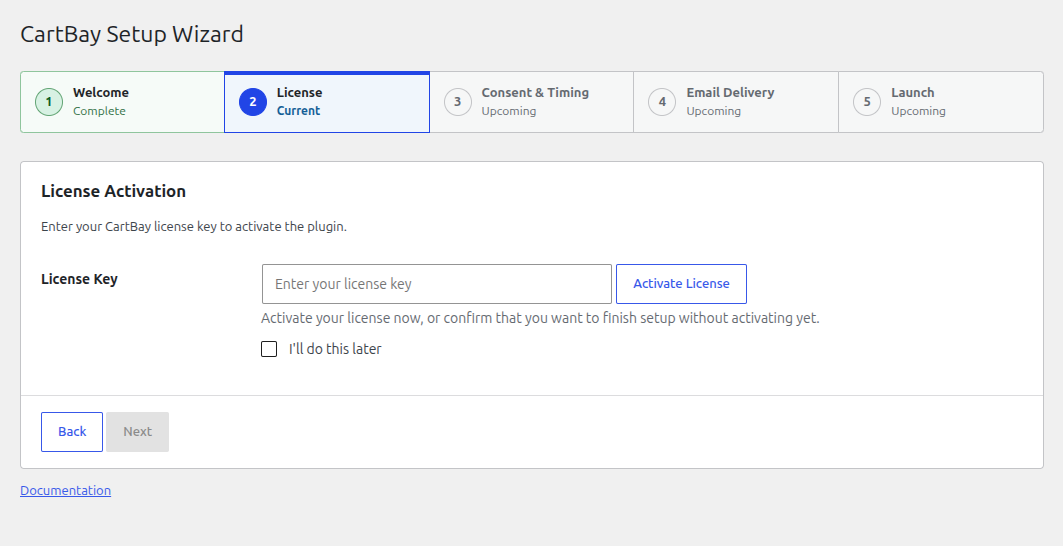 You can learn more about [License Activation](/cartbay/getting-started/license-activation/) if you skipped the license step.
### 3. Consent & Timing
Configure when carts are considered abandoned and how shoppers consent to recovery emails.
* **Consent Text**: The text that appears beside the checkout consent checkbox. This tells shoppers that CartBay may save their email and cart to send recovery reminders.
* **Abandonment Timeout**: The time (in minutes) CartBay waits after the shopper's last interaction with checkout before marking the cart as abandoned.
* **Recovery Email Schedule**: Configure the delay intervals for the 3-email recovery sequence (e.g., minutes, hours, or days) after a cart becomes abandoned.
You can learn more about [License Activation](/cartbay/getting-started/license-activation/) if you skipped the license step.
### 3. Consent & Timing
Configure when carts are considered abandoned and how shoppers consent to recovery emails.
* **Consent Text**: The text that appears beside the checkout consent checkbox. This tells shoppers that CartBay may save their email and cart to send recovery reminders.
* **Abandonment Timeout**: The time (in minutes) CartBay waits after the shopper's last interaction with checkout before marking the cart as abandoned.
* **Recovery Email Schedule**: Configure the delay intervals for the 3-email recovery sequence (e.g., minutes, hours, or days) after a cart becomes abandoned.
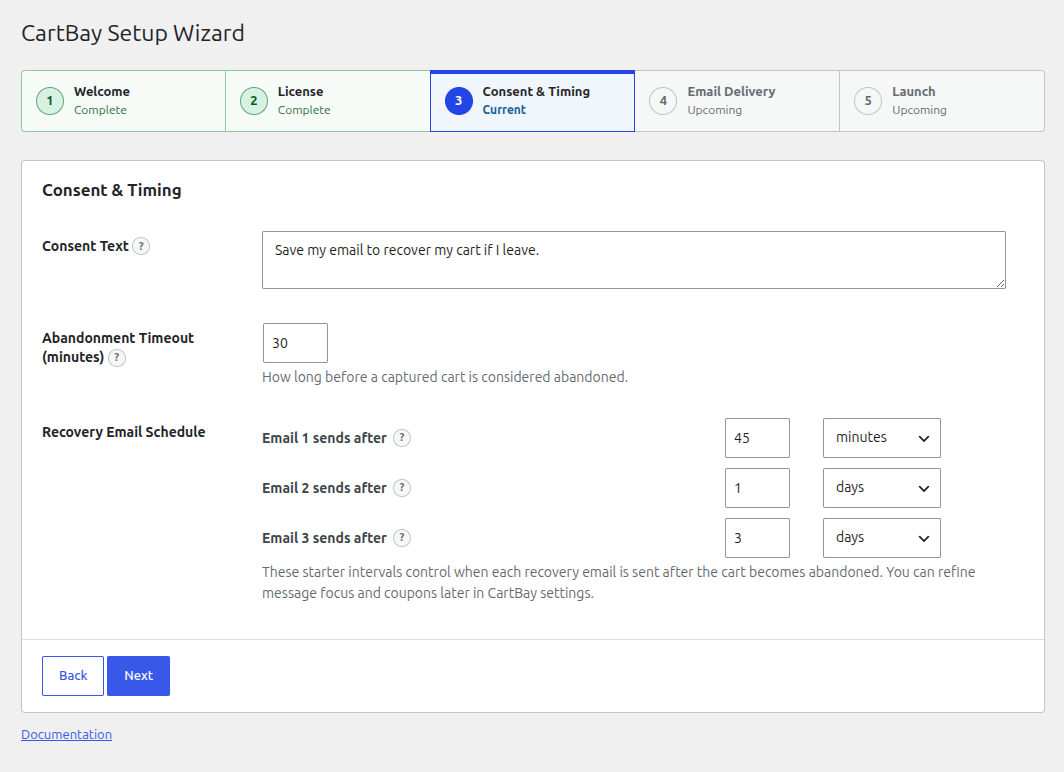 ### 4. Email Delivery
CartBay checks your environment for an active SMTP delivery service or an email logging plugin.
* If an SMTP service is detected, your emails should deliver reliably.
* If no SMTP service is detected, CartBay will warn you that recovery emails may land in spam and recommend installing an SMTP plugin.
* **Test Email**: You can enter an email address and send a test email to verify that your site can successfully deliver emails.
### 4. Email Delivery
CartBay checks your environment for an active SMTP delivery service or an email logging plugin.
* If an SMTP service is detected, your emails should deliver reliably.
* If no SMTP service is detected, CartBay will warn you that recovery emails may land in spam and recommend installing an SMTP plugin.
* **Test Email**: You can enter an email address and send a test email to verify that your site can successfully deliver emails.
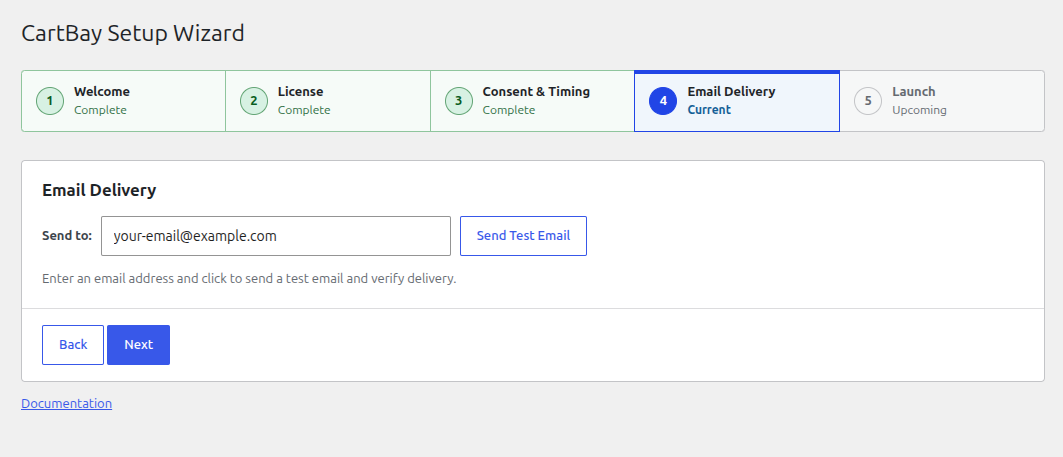 ### 5. Launch
Enable recovery emails to start sending them to abandoned carts immediately, or leave them disabled if you want to further customize the email content and coupons from the CartBay Settings page first.
### 5. Launch
Enable recovery emails to start sending them to abandoned carts immediately, or leave them disabled if you want to further customize the email content and coupons from the CartBay Settings page first.
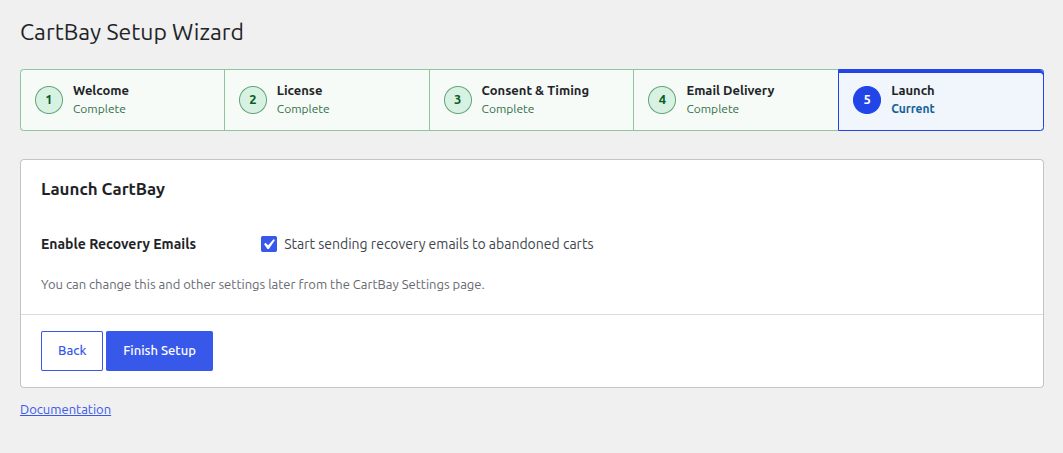 ## AI and Crawler Discovery
URL: https://wpanchorbay.github.io/cartbay/others/ai-crawler/
Description: Machine-readable CartBay documentation endpoints for crawlers, LLMs, MCP clients, and automation systems.
These public machine-readable files help crawlers, agents, and automation discover CartBay documentation and integration metadata:
- [robots.txt](../../robots.txt) for crawler policy and the sitemap reference.
- [llms.txt](../../llms.txt) for the concise LLM-friendly overview of the documentation set. This endpoint is also advertised with a site-wide `` tag.
- [llms-full.txt](../../llms-full.txt) for the expanded plain-text export of the docs corpus. This endpoint is also advertised with a site-wide `` tag.
- Per-page Markdown/MDX source exports under `/markdown/` (`
## AI and Crawler Discovery
URL: https://wpanchorbay.github.io/cartbay/others/ai-crawler/
Description: Machine-readable CartBay documentation endpoints for crawlers, LLMs, MCP clients, and automation systems.
These public machine-readable files help crawlers, agents, and automation discover CartBay documentation and integration metadata:
- [robots.txt](../../robots.txt) for crawler policy and the sitemap reference.
- [llms.txt](../../llms.txt) for the concise LLM-friendly overview of the documentation set. This endpoint is also advertised with a site-wide `` tag.
- [llms-full.txt](../../llms-full.txt) for the expanded plain-text export of the docs corpus. This endpoint is also advertised with a site-wide `` tag.
- Per-page Markdown/MDX source exports under `/markdown/` (`